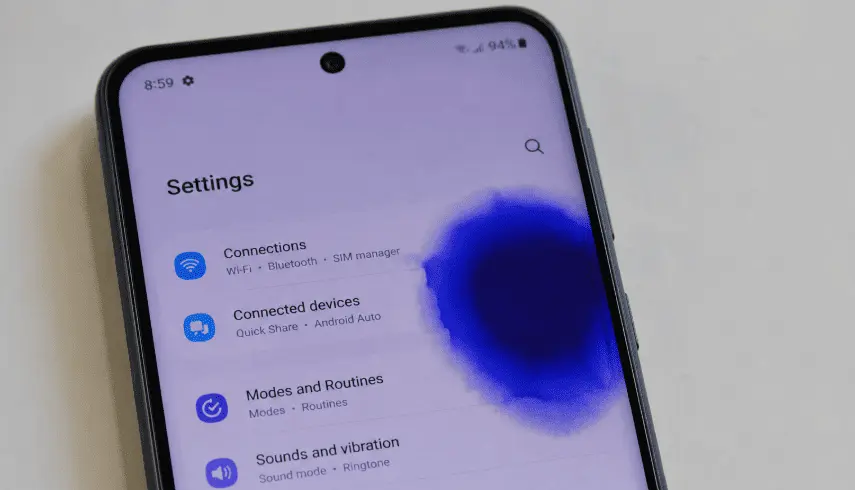
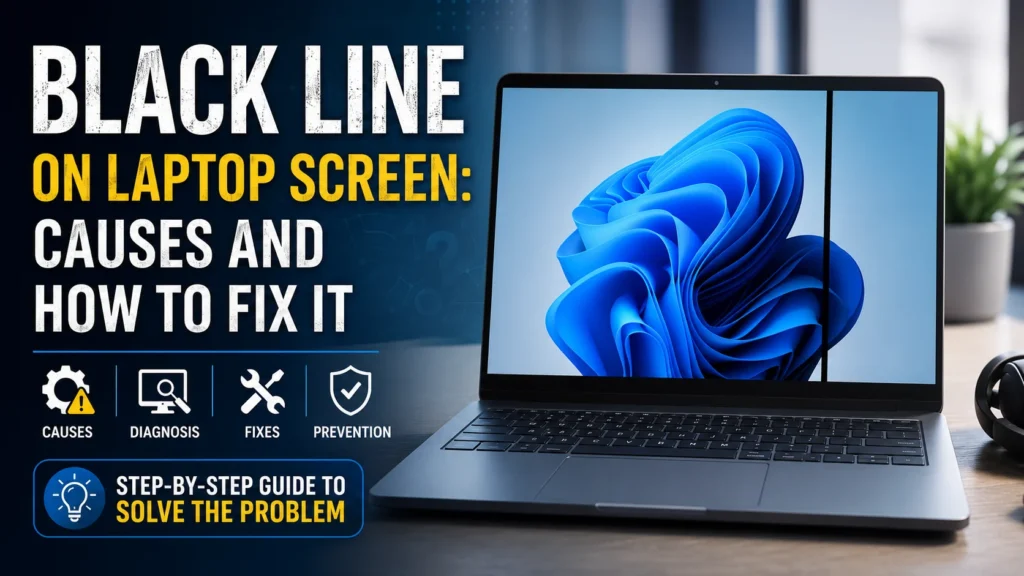
Have you suddenly noticed a black line on your laptop screen while working, watching videos, or playing games? Whether it’s a vertical black line on a laptop screen, a horizontal black line on laptop screen, or multiple lines that seem to appear out of nowhere, you’re not alone. This is one of the most common laptop and phone screen problems users face today.
The good news is that a black line doesn’t always mean your display is permanently damaged. In many cases, the issue is caused by a software glitch, an outdated graphics driver, incorrect display settings, or a Windows update. Sometimes, however, it points to a hardware issue such as a loose LCD ribbon cable, a damaged display panel, or even a failing GPU.
I’ve diagnosed this problem on laptops from HP, Dell, Lenovo, ASUS, Acer, and MSI. One thing I’ve learned is that replacing the screen should never be your first step. A few simple tests can often identify the real cause and save you time and money.
In this complete guide, you’ll learn:
- What causes black lines on a laptop screen
- How to identify whether the problem is software or hardware
- Step-by-step fixes you can try at home
- When a professional repair is necessary
- How to prevent the issue from happening again
Let’s start by understanding what these black lines actually mean.
Quick Answer
A black line on a laptop screen is usually caused by one of two things: a software problem or a hardware failure.
If the line appears only after Windows starts, it’s often related to a graphics driver, recent update, refresh rate, or display settings.
If the line appears even in the BIOS or during startup, it’s likely a hardware issue involving the LCD panel, ribbon cable, GPU, or motherboard.
Before replacing the screen, perform a few simple diagnostic tests. In many cases, updating drivers or adjusting display settings can solve the problem without any repair.
Table of Contents
What Does a Black Line on a Laptop Screen Mean?
A black line is simply an area of the display that is no longer rendering the visual buffer correctly. Before assuming physical hardware failure, launch a free online screen test in full-screen mode to cycle through solid primary color fields (RGB). Testing against pure red, green, blue, and white backgrounds will immediately tell you whether you are dealing with dead pixel lines, a loose display ribbon, or a software rendering artifact.
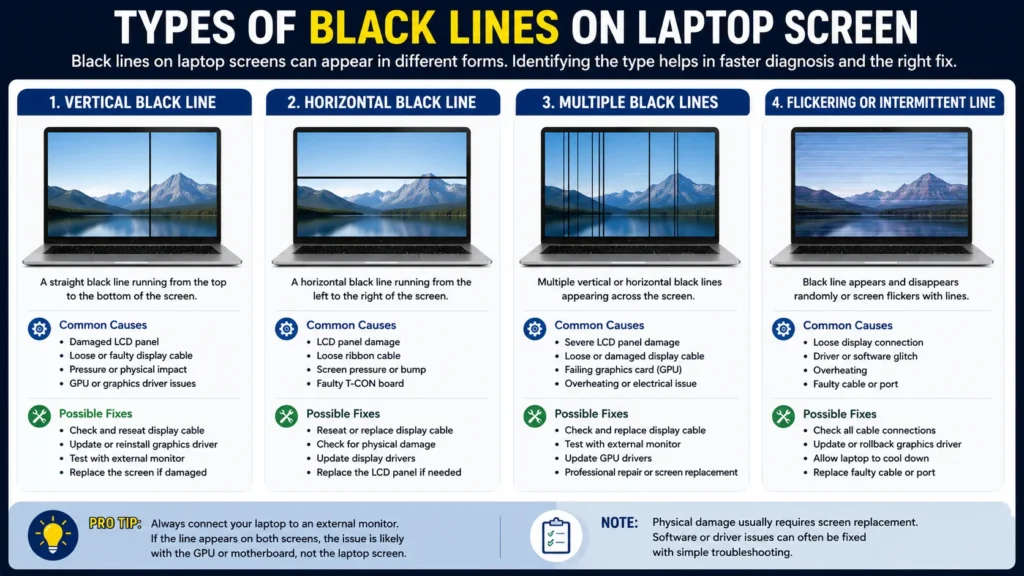
Depending on the underlying cause, display lines can manifest in several distinct ways:
- A thin vertical line
- A thick vertical line
- A horizontal black line
- Multiple black lines
- A flickering line
- A line that keeps getting longer
- A line that appears only after startup
The way the line behaves often tells you where the problem is.
For example:
- A single vertical line usually indicates an LCD panel or ribbon cable problem.
- Multiple horizontal lines may suggest graphics driver corruption or GPU issues.
- A line that appears after a Windows update often points to software.
- A line that appears immediately after powering on usually indicates hardware damage.
Understanding these symptoms makes troubleshooting much easier.
Common Symptoms You May Notice
People searching for a black line on a laptop screen often describe different symptoms. Here are the most common ones:
- A black line appears suddenly while using the Laptop.
- The laptop screen lines issue gets worse over time.
- The display flickers before the line appears.
- The line disappears after restarting, but comes back later.
- A black line across the screen appears after a Windows update.
- The display works normally on an external monitor.
- The screen works until you move the laptop lid.
- The line only appears while gaming or using graphics-intensive applications.
Each symptom provides an important clue about the root cause.
Before Trying Any Fix, Diagnose the Problem First
One mistake many users make is ordering a replacement screen immediately.
That’s not always necessary.
Instead, spend five minutes performing these basic checks. They can help you determine whether you’re dealing with a minor software issue or a hardware failure.
| What You Notice | Most Likely Cause |
| Line appears in BIOS | Hardware issue |
| Line appears only after Windows loads | Graphics driver or software |
| External monitor works perfectly | Laptop display or ribbon cable |
| Both laptop and external monitor show the line | GPU or graphics driver |
| Line changes when opening or closing the lid | Loose LCD cable |
| Line appeared after a Windows update | Driver or software conflict |
This simple diagnosis can save you from replacing parts unnecessarily.
What Causes Black Lines on a Laptop Screen?
Several different issues can cause black lines. Let’s examine each one in detail.
1. Outdated or Corrupted Graphics Driver
One of the most common software-related causes is an outdated or corrupted graphics driver.
The graphics driver controls how Windows communicates with your display hardware. If it becomes damaged after an update or installation, your Laptop may display:
- Vertical lines
- Horizontal lines
- Screen flickering
- Random display glitches
- Black screen sections
Signs
- The problem started after installing updates
- No physical damage
- The external monitor shows similar problems
- Display works normally in Safe Mode
How to Fix
- Update the graphics driver.
- Roll back to the previous version if the issue started after an update.
- Reinstall the driver using Device Manager.
2. Recent Windows Update
Many users report a black line on the laptop screen after an update.
While Windows security updates improve system stability, a newly installed display driver may not work correctly with every laptop model.
This can cause:
- Incorrect screen resolution
- Refresh rate problems
- Display rendering issues
- Horizontal or vertical lines
If the issue started immediately after an update, rolling back the display driver is often the quickest solution.
3. Loose LCD Ribbon Cable
Inside every Laptop, a thin display cable connects the motherboard to the LCD panel.
Over time, this ribbon cable can become loose due to:
- Frequent opening and closing of the lid
- Drops
- Pressure on the screen
- Wear and tear
Common Symptoms
- The line appears when moving the lid
- Flickering display
- Random black lines
- Display returns to normal temporarily
A loose connector is especially common in older laptops.
4. Damaged LCD Panel
A damaged display panel is one of the most common hardware causes.
Even if your screen isn’t visibly cracked, internal layers of the LCD can fail.
Signs include:
- Permanent black lines
- Dead pixels
- Colored lines
- A black line that gradually becomes larger
- Pressure marks
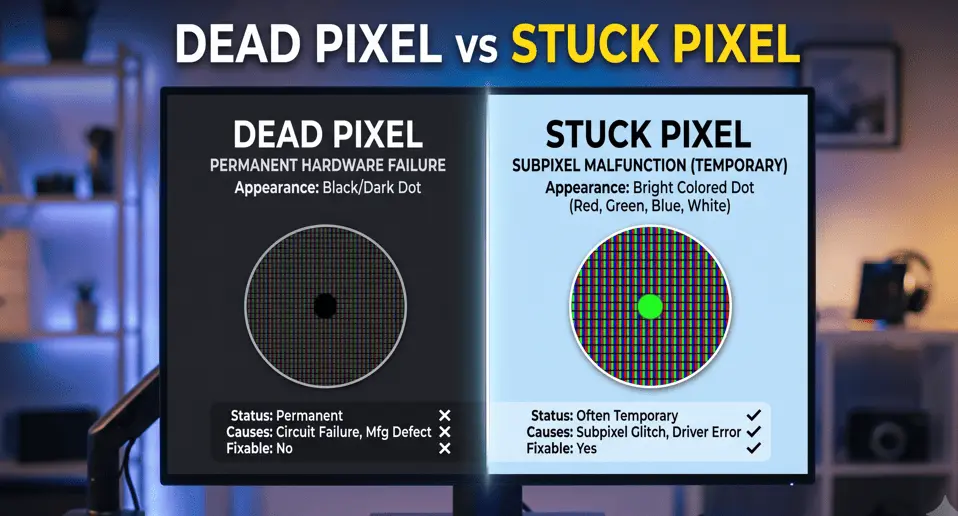
Unfortunately, physical LCD damage usually requires screen replacement. If you’re unsure whether you’re dealing with a dead pixel, a stuck pixel, or a display line, check out our detailed guide on how to fix dead pixel lines on a laptop to learn how to identify the issue and whether it can be repaired without replacing the screen
5. GPU or Graphics Chip Problems
Although less common, a failing GPU can also cause display lines.
This is more likely on:
- Gaming laptops
- Older laptops
- Systems that frequently overheat
Other symptoms include:
- Screen freezing
- Artifacts
- Colored squares
- Crashes during gaming
- Blue screens
If both the laptop display and an external monitor show identical lines, the GPU may be responsible.
6. Incorrect Display Settings
Sometimes the problem is surprisingly simple. Incorrect display settings don’t just cause screen lines, they can also affect color accuracy. If your display looks warm or yellow instead of showing true colors, read our guide on fixing a yellow tint display for additional troubleshooting steps.
Using an unsupported:
- Refresh rate
- Screen resolution
- Graphics profile
can result in display artifacts, flickering, or black lines. This often happens after connecting an external monitor or installing graphics software. Fortunately, this type of issue is usually easy to fix.
7. Physical Damage
Many users insist they never dropped their Laptop.
However, physical damage isn’t always caused by a fall.
Common causes include:
- Closing the lid with a pen inside
- Carrying the Laptop in an overfilled backpack
- Applying pressure to the screen
- Twisting the lid
- Liquid damage
Internal LCD layers are extremely delicate and can fail even when the outer glass appears intact.
8. Motherboard or Display Connector Issues
Although rare, a damaged motherboard display circuit can also cause persistent screen lines.
This usually happens after:
- Electrical surges
- Liquid spills
- Severe overheating
- Failed repairs
Motherboard-related problems often require professional diagnosis because they involve microscopic components and soldered display connectors.
Is It a Software Issue or a Hardware Issue?
A quick way to narrow down the cause is to compare the symptoms:
It’s probably a software issue if:
- The line appeared after a Windows update.
- Safe Mode removes the line.
- Updating the graphics driver changes the behavior.
- The issue comes and goes.
It’s likely a hardware issue if:
- The line appears before Windows loads.
- The line stays in the BIOS.
- Pressing or moving the display changes the line.
- The screen has visible physical damage.
- The line keeps getting worse over time.
Step-by-Step Black Line on Laptop Screen Fix
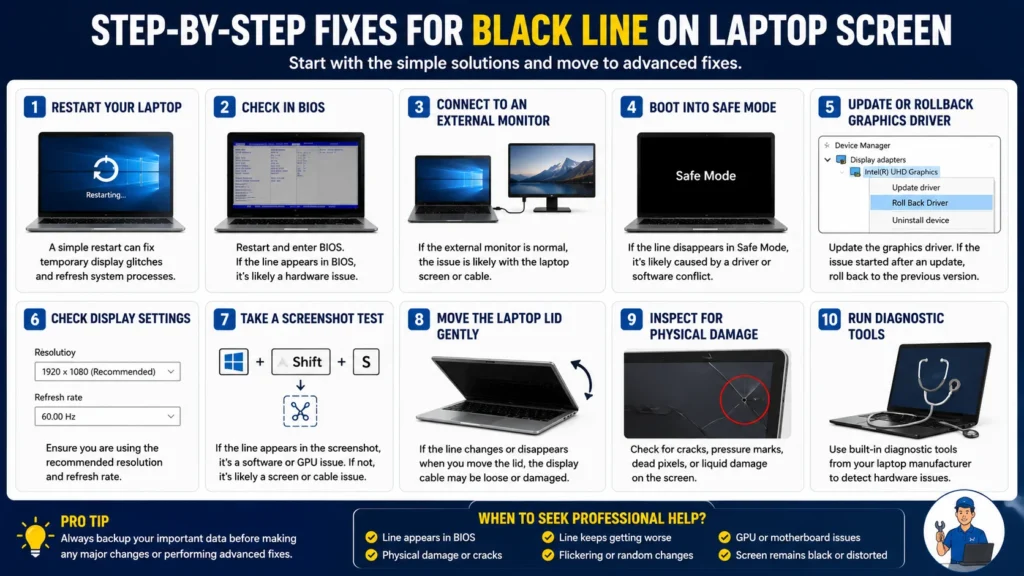
Now that you understand the possible causes, it’s time to troubleshoot the problem. Start with the easiest fixes first before assuming you need a new screen. In my experience, many laptops with display line problems are fixed by software troubleshooting rather than expensive hardware repairs.
Expert Tip: After trying each solution, restart your Laptop and check whether the black line is still visible. This helps you identify exactly which step solved the issue.
Fix 1: Restart Your Laptop
Difficulty: Easy
Time Required: 2 Minutes
It may sound too simple, but a restart can resolve temporary display glitches caused by memory errors or graphics driver crashes.
Why it works
When Windows runs for a long time, temporary display processes may become unstable. Restarting reloads the graphics driver and clears minor software glitches.
Steps
- Save your work.
- Click Start > Power > Restart.
- Wait for Windows to load completely.
- Check if the black line disappears.
If it doesn’t work
Move to the next troubleshooting step.
Fix 2: Check Whether the Line Appears in BIOS
This is one of the fastest ways to determine whether you’re dealing with a software issue or a hardware failure.
Why is this test important?
The BIOS loads before Windows starts.
If the line appears there, Windows and its drivers are not responsible.
How to Test
- Shut down your Laptop.
- Turn it back on.
- Immediately press the BIOS key repeatedly.
Common keys include:
- HP — Esc or F10
- Dell — F2
- Lenovo — F1 or F2
- ASUS — F2
- Acer — F2
- MSI — Delete
Once the BIOS opens, carefully inspect the display.
Results
Line visible in BIOS
Most likely:
- Damaged LCD
- Loose ribbon cable
- GPU failure
- Motherboard issue
No line in BIOS
Most likely:
- Windows issue
- Graphics driver
- Display settings
- Recent software update
This simple test can save hours of unnecessary troubleshooting.
Fix 3: Connect Your Laptop to an External Monitor
This is one of the most reliable diagnostic tests.
Why it works
Connecting your Laptop to an external monitor helps determine whether the issue is with the Laptop’s screen or the graphics hardware.
Steps
- Connect an HDMI or DisplayPort cable.
- Attach your Laptop to an external monitor or TV.
- Press Windows + P.
- Choose Duplicate or Extend.
Now compare both displays.
| Laptop Screen | External Monitor | Most Likely Cause |
| Line present | Normal | LCD panel or display cable |
| Line present | Line present | Graphics driver or GPU |
| Normal | Normal | Temporary software glitch |
What this means
If only your laptop display has a black line, your graphics card is probably healthy.
The issue is more likely a damaged display panel or laptop LCD cable.
Fix 4: Boot into Safe Mode
Safe Mode starts Windows using basic drivers.
If the line disappears here, a third-party graphics driver or software conflict is likely causing the issue.
Steps
- Press Windows + R.
- Type: msconfig
- Press Enter.
- Open the Boot tab.
- Check Safe Boot.
- Restart your Laptop.
After Windows starts, inspect the screen.
Results
Line disappears
Likely causes:
- Graphics driver corruption
- Display software conflict
- Recent update
Line still visible
Likely hardware problem.
Remember to return to msconfig and uncheck Safe Boot after testing.
Fix 5: Update Your Graphics Driver
A corrupted or outdated graphics driver is one of the most common causes of laptop screen lines.
Signs this fix may help
- A black line appeared after Windows Update.
- Screen flickering started recently.
- The external monitor also shows display issues.
Steps
- Press Windows + X.
- Select Device Manager.
- Expand Display Adapters.
- Right-click your graphics card.
- Select Update Driver.
- Choose Search automatically for drivers.
Restart your Laptop after installation.
Fix 6: Roll Back the Graphics Driver
Sometimes Windows installs a newer driver that isn’t fully compatible with your Laptop.
Rolling back restores the previous stable version.
Steps
- Open Device Manager.
- Expand Display Adapters.
- Right-click your graphics adapter.
- Select Properties.
- Open the Driver tab.
- Click Roll Back Driver (if available).
Restart your PC.
This is especially useful if the laptop screen has a black line after an update, which appeared immediately after installing Windows or graphics updates.
Fix 7: Reinstall the Graphics Driver
If updating doesn’t work, reinstalling often resolves corrupted driver files.
Steps
- Open Device Manager.
- Expand Display Adapters.
- Right-click your graphics card.
- Select Uninstall Device.
- Restart the Laptop.
Windows will automatically install a fresh graphics driver during startup.
If the problem persists, download the latest driver directly from Intel, AMD, or NVIDIA, depending on your GPU model.
Fix 8: Check Your Display Resolution
Using an incorrect screen resolution can occasionally produce unusual display behavior.
Steps
- Right-click the desktop.
- Open Display Settings.
- Scroll to Display Resolution.
- Select the recommended resolution.
Avoid using unsupported resolutions.
Fix 9: Change the Refresh Rate
An unsupported refresh rate may also cause screen flickering or display artifacts.
Steps
- Open Settings.
- Go to Display.
- Click Advanced Display.
- Choose the recommended refresh rate.
For most laptops, this is typically 60 Hz or the manufacturer’s specified value.
Fix 10: Perform a Screenshot Test
This is a simple but often overlooked diagnostic step.
Why it works
A screenshot captures the image generated by Windows, not what the physical display panel shows.
Steps
- Press Windows + Shift + S.
- Capture the entire screen.
- Save the image.
- Open it on another device or connect to an external monitor.
Results
| Screenshot | Meaning |
| Black line appears in the screenshot | Graphics or software issue |
| Screenshot looks normal | LCD panel or display hardware issue |
This test helps distinguish between software rendering problems and physical display faults.
Fix 11: Gently Move the Laptop Lid
Warning: Do not apply excessive pressure to the screen.
Slowly open and close the laptop lid while watching the black line.
If the line changes or disappears
The most likely causes are:
- Loose display cable
- Worn ribbon cable
- Loose display connector inside the hinge
This is a very common issue in older laptops because the display cable bends every time the lid is opened or closed.
Fix 12: Inspect for Physical Damage
Carefully examine your laptop screen under good lighting.
Look for:
- Hairline cracks
- Pressure marks
- Ink-like black spots
- Bright or orange spots
- Dead pixels
- Liquid damage
- Bent corners
Even a tiny crack that is barely visible can damage the LCD layers and create permanent black lines.
Fix 13: Run the Manufacturer’s Hardware Diagnostics
Many laptop brands include built-in diagnostic tools.
Examples include:
- HP: HP PC Hardware Diagnostics
- Dell: SupportAssist and ePSA Diagnostics
- Lenovo: Lenovo Diagnostics
- ASUS: MyASUS System Diagnosis
- Acer: Acer Care Center
- MSI: MSI Center Diagnostics
These tools can detect display, graphics, and hardware issues before you decide on a repair.
When None of the Software Fixes Work
If you’ve completed all the troubleshooting steps and the black line is still present, the problem is most likely hardware-related.
The most common hardware causes are:
- Failed LCD panel
- Loose or damaged ribbon cable
- Faulty display connector
- GPU failure
- Motherboard display circuit issue
At this stage, opening the Laptop yourself is only recommended if you have experience with laptop repairs. Otherwise, it’s safer to have the device inspected by a qualified technician, especially if it’s still covered by warranty.
Brand-Specific Solutions for Black Lines on Laptop Screens
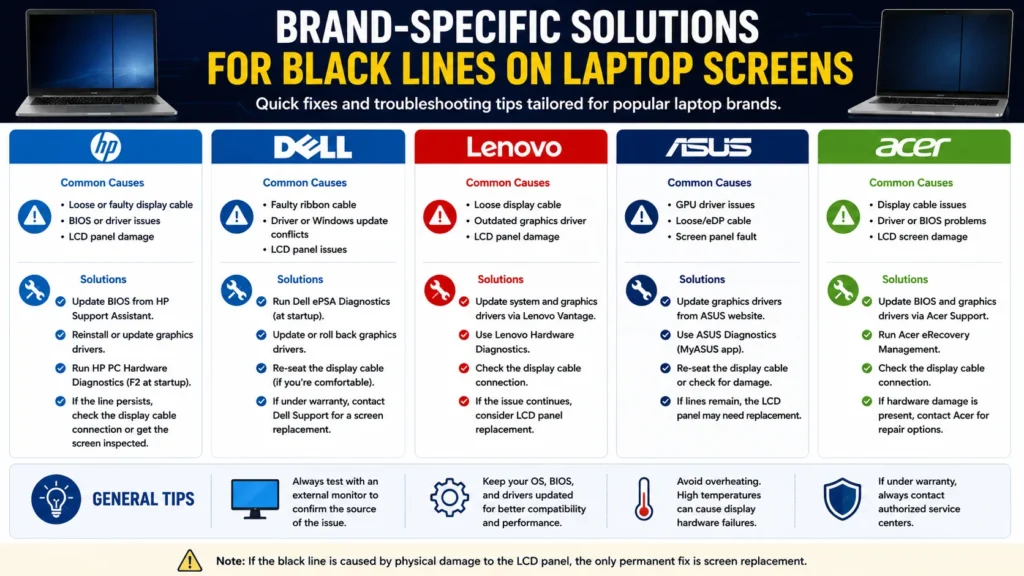
Although the troubleshooting steps we’ve covered work for most laptops, some brands have recurring issues due to their hardware design. Below are practical tips based on common repair cases.
Important: A black line on an HP, Dell, Lenovo, ASUS, Acer, or MSI laptop doesn’t necessarily mean that the brand has a defect. The underlying causes are usually the same across all manufacturers.
HP Laptop Black Line on Screen
Many HP laptops develop display issues after years of daily use because the display cable passes through the hinges. Frequent opening and closing of the lid can gradually wear the cable. If you’re troubleshooting an HP device, our dedicated HP laptop display repair guide explains the most common causes, model-specific fixes, and when a screen replacement is necessary.
Common Causes
- Loose LCD ribbon cable
- Damaged LCD panel
- Graphics driver problems
- Physical pressure on the display
Try These Fixes
- Update the graphics driver.
- Run HP Hardware Diagnostics.
- Test with an external monitor.
- Slowly move the display lid to check for cable issues.
- Inspect for physical damage around the hinges.
If the line changes while moving the lid, the display cable is usually the first component that should be checked.
Dell Laptop Black Line
Dell laptops are generally reliable, but users occasionally experience display line problems after BIOS or graphics driver updates.
Recommended Steps
- Update the BIOS (only if Dell recommends it for your model).
- Update or roll back the graphics driver.
- Run Dell SupportAssist diagnostics.
- Perform an external monitor test.
If both displays show the same line, investigate the GPU before replacing the LCD.
If the black line persists after completing these steps, follow our detailed Dell laptop black line troubleshooting guide for model-specific diagnostics, Dell hardware tests, repair options, and advanced solutions tailored to Inspiron, XPS, Latitude, Vostro, and Precision laptops.
Lenovo Laptop Screen Line Problem
Lenovo ThinkPad and IdeaPad models sometimes experience ribbon cable wear after years of use.
Signs
- The screen flickers when adjusting the lid.
- Vertical lines appear intermittently.
- The display works normally at certain lid angles.
In these cases, replacing the display cable is often less expensive than replacing the entire screen.
ASUS Laptop Display Issue
ASUS laptops used for gaming or graphics-intensive work may develop display issues if the system frequently overheats.
Check For
- High GPU temperatures
- Driver corruption
- Refresh rate settings
- GPU updates
Keeping the cooling vents clean and updating graphics drivers regularly can help prevent future problems.
Acer Laptop Screen Black Line
Acer laptops may experience black lines due to:
- Loose display connectors
- Physical LCD damage
- Driver issues
- Faulty display panels
Before replacing the screen, always test the Laptop with an external monitor.
MSI Laptop Screen Lines
Gaming laptops such as MSI models place greater demands on the graphics hardware.
If black lines appear only during gaming, check:
- GPU temperature
- GPU drivers
- Refresh rate
- Graphics settings
- External monitor output
If the issue occurs only under heavy load, overheating, or GPU instability could be contributing factors.
Repair or Replace? Here’s How to Decide
Many users immediately assume they need a new screen, but that’s not always true.
Use this guide to make the right decision.
| Problem | Recommended Solution |
| Driver corruption | Update or reinstall the driver |
| Windows update issue | Roll back the update or driver |
| Incorrect display settings | Adjust resolution or refresh rate |
| Loose ribbon cable | Replace or reconnect the cable |
| Damaged LCD panel | Replace the screen |
| GPU failure | Repair or replace the motherboard/GPU |
| Motherboard issue | Professional repair |
Average Laptop Screen Repair Costs
Repair costs vary depending on your laptop model, screen size, and country, but these estimates can help you plan.
| Repair | Estimated Cost (USD) |
| Graphics driver repair | Free |
| Display cable replacement | $20–$70 |
| LCD screen replacement | $60–$250 |
| Touchscreen replacement | $120–$400 |
| GPU repair | $150–$500 |
| Motherboard repair | $200–$600 |
If your Laptop is still under warranty, contact the manufacturer before paying for repairs. Opening the Laptop yourself could void your warranty.
Can You Fix a Black Line Yourself?
The answer depends on what’s causing the problem.
You Can Usually Fix It Yourself If:
- The issue started after a Windows update.
- The graphics driver is corrupted.
- The refresh rate is incorrect.
- The screen resolution changed unexpectedly.
- A simple restart temporarily fixes the problem.
You Should Seek Professional Repair If:
- The line appears in the BIOS.
- The screen is cracked.
- The line keeps growing.
- The display flickers constantly.
- The Laptop suffered liquid or impact damage.
- The motherboard or GPU appears to be failing.
How to Prevent Black Lines on Your Laptop Screen
While some hardware failures are unavoidable, many display problems can be prevented with good maintenance habits.
1. Handle the Laptop Carefully
Avoid lifting your Laptop by the display or applying pressure to the lid. Even slight twisting can damage the LCD panel over time.
2. Never Close the Lid with Objects Inside
Pens, charging cables, earphones, or USB drives left on the keyboard can crack the screen when the lid is closed.
3. Keep Graphics Drivers Updated
Install graphics driver updates from your laptop manufacturer or GPU vendor. Updated drivers often resolve display compatibility issues and improve stability.
4. Prevent Overheating
Excessive heat can shorten the lifespan of your GPU and other display components.
To reduce heat:
- Clean air vents regularly.
- Use your Laptop on a hard, flat surface.
- Avoid blocking cooling vents.
- Consider a cooling pad for gaming or heavy workloads.
5. Use the Recommended Display Settings
Always use the recommended:
- Screen resolution
- Refresh rate
- Display scaling
Unsupported settings can sometimes cause flickering or display artifacts.
6. Transport Your Laptop Safely
Use a padded laptop sleeve or backpack compartment to protect the screen from pressure during travel.
Frequently Asked Questions (FAQ)
Why is there a black line on my laptop screen?
A black line usually indicates either a software issue, such as a corrupted graphics driver, or a hardware problem like a damaged LCD panel, loose display cable, or failing GPU.
Can a black line on a laptop screen disappear on its own?
Sometimes. If the issue is caused by a temporary software glitch or driver problem, restarting or updating your system may resolve it. Permanent hardware damage typically does not heal on its own.
Can Windows Update cause black lines?
Yes. An incompatible graphics driver installed through Windows Update can sometimes cause display issues. Rolling back the driver often fixes the problem.
How do I know if my laptop screen is damaged?
Common signs include:
1: Permanent black or colored lines
2: Cracks
3: Ink-like spots
4: Dead pixels
5: Flickering
6: Display distortion
If the line remains visible even in the BIOS, hardware damage is more likely.
Does a black line mean my GPU is failing?
Not necessarily. A faulty GPU usually affects both the laptop display and any connected external monitor. If only the laptop screen has the line, the LCD panel or display cable is the more likely cause.
Is it safe to keep using my Laptop?
Yes, if the line is caused by a minor software issue. However, if the problem results from physical damage or a failing display component, continued use could worsen the issue over time.
Will replacing the screen fix the problem?
It will if the LCD panel is damaged. However, replacing the screen won’t help if the root cause is the graphics driver, GPU, motherboard, or display cable. That’s why proper diagnosis is essential.
Does my warranty cover a black line on the screen?
If the line is caused by a manufacturing defect, it may be covered under warranty. Physical damage, accidental drops, or liquid spills are usually excluded. Check your manufacturer’s warranty terms before arranging repairs.
Final Verdict
A black line on your laptop screen can be frustrating, but it doesn’t always mean your display needs to be replaced. In many cases, the issue is caused by a graphics driver, Windows update, incorrect display settings, or another software-related problem that you can fix in just a few minutes.
The key is to diagnose the issue before spending money on repairs. Start with simple software troubleshooting, then perform tests such as checking the BIOS and connecting an external monitor. These steps will help you determine whether you’re dealing with a software conflict or a hardware failure.
If the problem turns out to be hardware-related, the most common causes are a damaged LCD panel, a loose ribbon cable, or, less commonly, a failing GPU or motherboard. Seeking professional repair at that stage can prevent further damage and ensure the correct component is replaced.
By following the step-by-step process in this guide, you can troubleshoot the problem confidently, avoid unnecessary repair costs, and make an informed decision about whether your Laptop needs a simple software fix or a hardware repair.