Have you noticed a tiny black dot or a bright colored spot that never disappears from your screen? It can be frustrating. Many people assume every faulty pixel is a dead pixel, but that is not always true. Your display may have dead pixels vs stuck pixels, and knowing the difference is the first step toward finding the right solution.
The good news is that not every pixel problem means you need a new screen. In many cases, a stuck pixel can be fixed using safe troubleshooting methods. A dead pixel, however, is usually caused by hardware failure and is much harder to repair.
Whether you use an LCD monitor, OLED gaming display, laptop, smartphone, or smart TV, this guide will help you accurately diagnose the issue with confidence.
Quick Answer
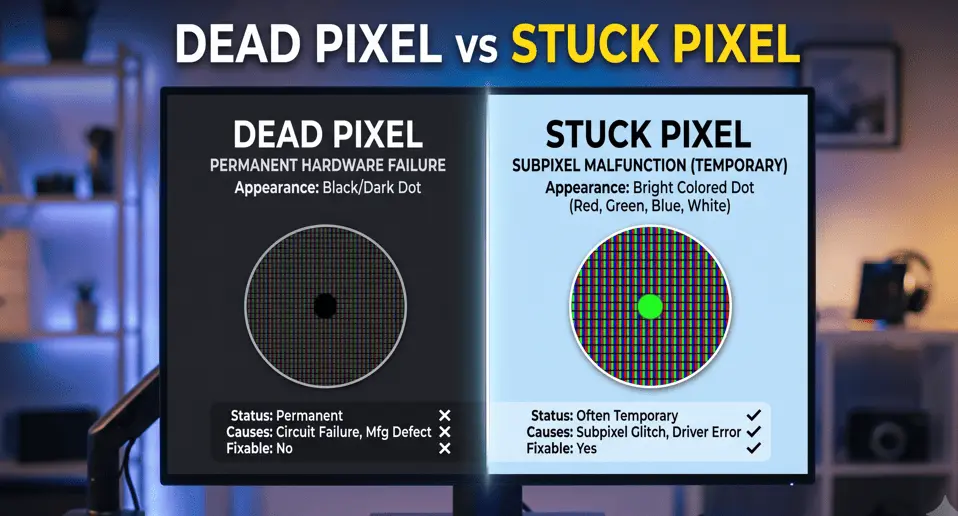
A dead pixel is a permanently non-functioning pixel that usually appears as a small black dot because it no longer receives power. A stuck pixel is a pixel trapped on a single color (red, green, blue, or white) due to a subpixel malfunction. The biggest difference is that stuck pixels are often fixable using a pixel refresh tool, while dead pixels are usually permanent and may require screen replacement under a manufacturer’s warranty policy.
Table of Contents
What Are Dead Pixels vs Stuck Pixels?
Modern displays contain millions of tiny pixels that work together to create sharp images. Each pixel is made up of three smaller parts called subpixels, which produce red, green, and blue (RGB) light. By changing their brightness, they create every color you see on your screen.
When one or more of these pixels stop working correctly, you notice a tiny dot. Although they may look similar at first, dead pixels and stuck pixels have different causes and require different solutions.
What Is a Dead Pixel?
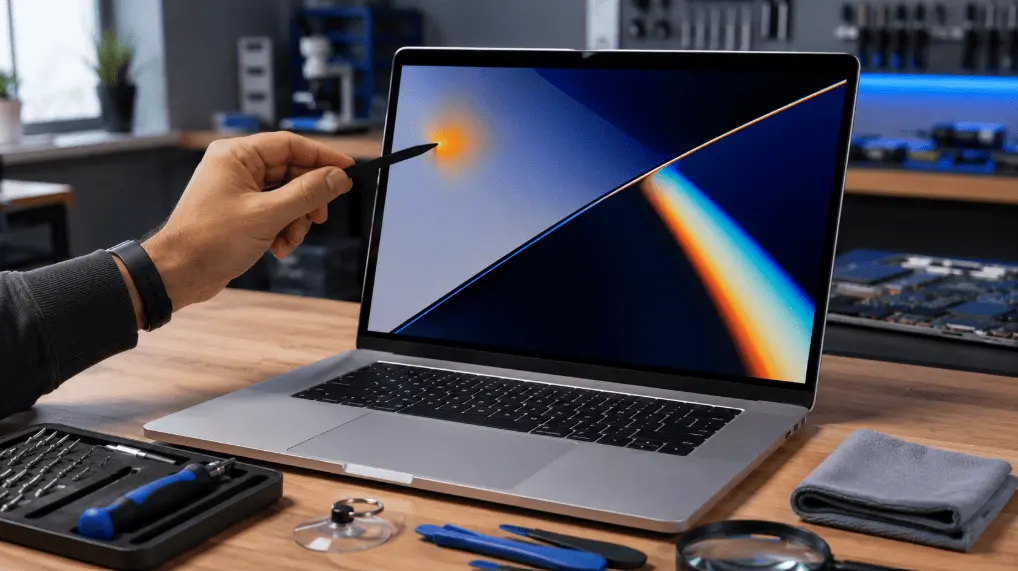
A dead pixel is a pixel that has completely stopped working. It no longer receives the electrical signal needed to produce light or color, leaving a permanent black, dark gray or orange spot laptop screen.
Common Symptoms:
- A tiny black or dark dot that never changes color.
- The spot remains visible even on pure white backgrounds.
- Restarting the device or using dead pixel repair software has no effect.
LCD vs. OLED Displays:
- LCDs: The backlight stays on, but the dead pixel blocks the light, creating a dark spot.
- OLED displays: Since each pixel produces its own light, a dead pixel stops emitting light entirely, resulting in a pure black dot.
Signs You Have a Dead Pixel
Before attempting any fixes, it’s important to identify whether you’re dealing with a dead pixel or another display issue. A dead pixel usually has very specific characteristics that make it easier to recognize.
Common signs of a dead pixel include:
- A tiny black or dark gray dot that never changes color.
- The spot remains visible on white, red, green, and blue backgrounds.
- Restarting your device does not make it disappear.
- Pixel repair tools have no effect because the pixel has permanently failed.
- The affected area stays in the same location regardless of the application or image displayed.
If your screen shows these symptoms, the issue is most likely a dead pixel caused by hardware failure.
What Is a Stuck Pixel?
A stuck pixel still receives power but cannot display colors correctly. Instead of turning off completely, one or more of its subpixels become locked in an “on” state.
Common Symptoms:
- The pixel appears bright red, green, blue, white, cyan, or magenta.
- The dot is highly visible on dark backgrounds but might blend in on matching colors.
- Because the pixel is still active, a pixel refresh tool or rapid color cycling can often fix it.
Signs You Have a Stuck Pixel
Unlike a dead pixel, a stuck pixel is still receiving power but cannot display colors correctly. Because of this, it behaves differently during testing.
Typical signs include:
- The pixel appears bright red, green, blue, white, cyan, or magenta.
- It becomes much easier to notice on dark backgrounds.
- The color may occasionally flicker or change slightly.
- Running a pixel refresh tool may temporarily or permanently restore normal operation.
- The pixel remains in one color instead of turning completely black.
Since the pixel is still functioning, there is a good chance it can be repaired without replacing the display.
Dead Pixels vs Stuck Pixels: What’s the Difference?
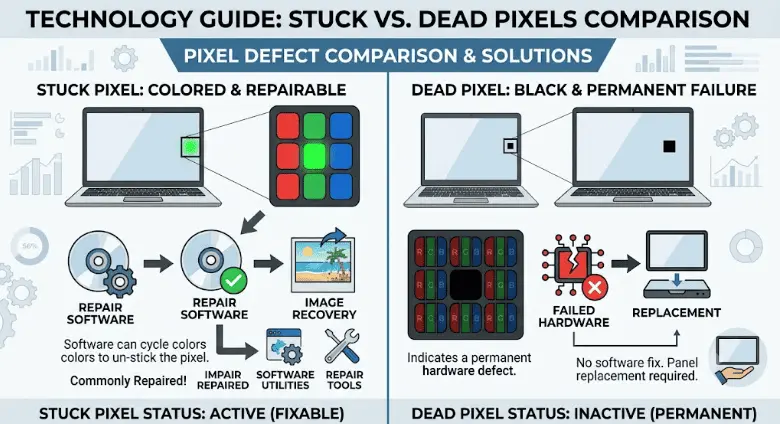
The easiest way to remember the difference is the lightbulb analogy:
- A dead pixel is like a burnt-out bulb. It has failed and no longer works.
- A stuck pixel is like a bulb stuck on one color. It has power but is not behaving correctly.
| Feature | Dead Pixel | Stuck Pixel |
| Appearance | Black or very dark gray dot | Bright dot (red, green, blue, white) |
| Cause | Permanent hardware failure or physical damage | Subpixel locked due to software or electrical glitch |
| Fixable? | Rarely. Usually requires screen replacement. | Often fixable via pixel refresh tools. |
| Severity | High (permanent physical defect) | Low to Medium (often temporary) |
How to Test Your Screen for Pixel Problems
Before trying any fixes, you must correctly identify the defect. The best way to check for issues is to use a free online screen tester that displays solid backgrounds in full-screen mode.
- Black Background Test: Highly effective for finding stuck pixels (they will shine brightly against the dark screen).
- White Background Test: The best way to spot dead pixels (they will appear as black holes on the white screen).
Test your display using our free Screen Test Tool. Switch between black, white, red, green, and blue backgrounds to identify dead pixels, stuck pixels, backlight bleed, and other screen defects in minutes.
Why Do Dead Pixels VS Stuck Pixels Happen?
Although dead and stuck pixels look similar, they occur for different reasons. Understanding the cause helps you determine whether the problem is temporary or permanent.
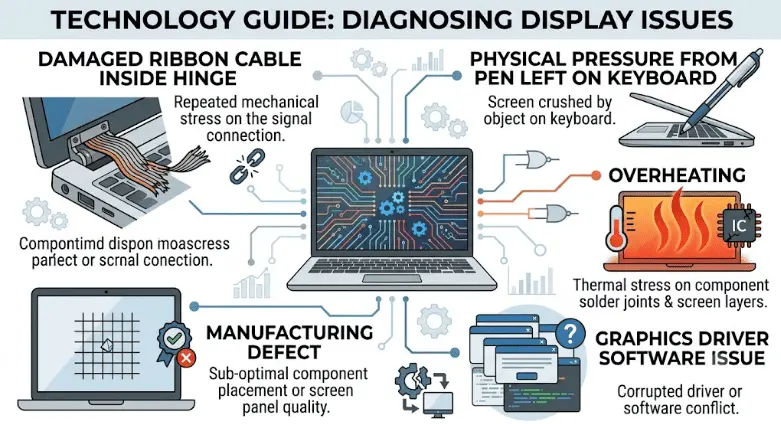
Several factors can contribute to pixel defects, including:
- Manufacturing imperfections
- Physical impact or accidental drops
- Excessive pressure on the screen
- Long-term panel aging
- Graphics driver problems
- Static images displayed for extended periods
- Electrical fluctuations
- Heat-related stress on display components
Some causes lead to permanent damage, while others only create temporary display glitches. Understanding why your screen developed a pixel issue can help prevent future damage.
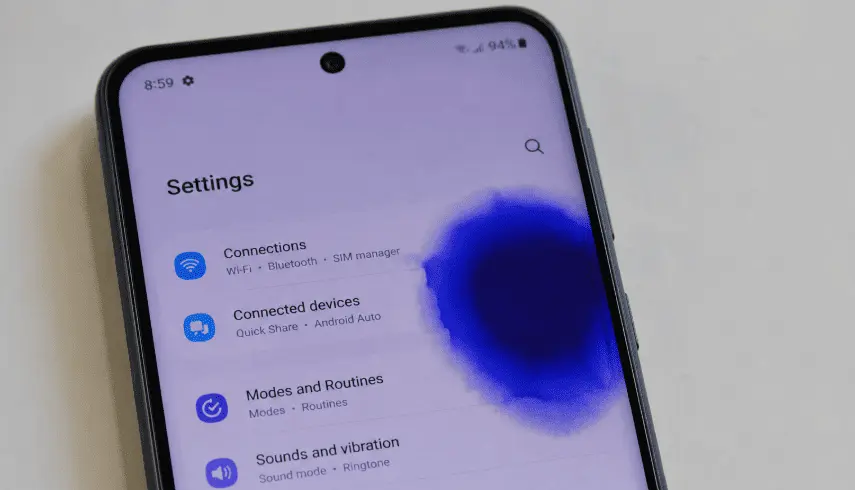
It is also important to distinguish pixel defects from other forms of screen discoloration. If you notice a larger colored area rather than a single pixel, the problem may involve the display panel itself. For example, a blue patch on a mobile screen can result from physical pressure, moisture exposure, panel damage, or other hardware-related issues and requires a different troubleshooting approach.
Causes of Dead Pixels
- Manufacturing Defects: A few defective pixels may pass factory inspection, which is why new monitors sometimes have dead pixels right out of the box.
- Physical Impact: Dropping a device or hitting the screen damages the internal circuitry.
- Pressure Damage: Pressing too hard while cleaning, or closing a laptop with an object on the keyboard, can crush the pixel structure. Severe pressure damage can even cause entire rows of pixels to fail, at which point you will need to look into how to fix dead pixel lines on a laptop rather than just treating a single dot.
- Panel Aging: As display panels wear out, TFT (thin-film transistor) components can fail permanently.
Causes of Stuck Pixels
- Software or Driver Glitches: Display driver bugs can temporarily prevent pixels from updating correctly.
- Long Static Images: Leaving a static image on the screen for extended periods can freeze a subpixel.
- Temporary Electrical Problems: Minor power fluctuations between the GPU and the display controller.
Dead Pixels vs Stuck Pixels on Different Display Types
Pixel defects can appear on almost any modern display, but their behavior varies depending on the panel technology.
LCD Displays
Dead pixels appear as black dots because the liquid crystal blocks light from the backlight. Stuck pixels usually remain one bright color.
OLED Displays
Each pixel generates its own light. When a pixel fails, it becomes completely black. OLED panels also include built-in pixel refresh features that can sometimes correct temporary pixel issues.
IPS Panels
IPS displays show excellent color accuracy, making stuck pixels easier to notice, especially on dark backgrounds.
VA Panels
VA displays offer higher contrast, so dead pixels may appear more obvious during dark scenes.
AMOLED Smartphone Displays
AMOLED screens behave similarly to OLED displays. Many smartphones include built-in pixel refresh or display maintenance features that may resolve temporary stuck pixels.
How to Fix a Stuck Pixel vs Stuck Pixels (Step-by-Step)
While you cannot repair a physically dead pixel with software, you can often fix a stuck pixel using these methods:
1. Restart Your Device:
Restarting clears temporary graphics memory and refreshes the communication between your GPU and display controller. If the issue is caused by a temporary software glitch rather than hardware failure, the pixel may begin responding normally again.
2. Update Graphics Drivers:
Corrupted display drivers can cause display abnormalities. Install the latest updates from your GPU or device manufacturer.
3. Run a Pixel Refresh Tool:
Use a web-based tool or app that rapidly cycles red, green, blue, black, and white colors across the screen. Leave it running over the affected area for 15 to 30 minutes to force the locked subpixel to reset.
4. Run Built-In Pixel Conditioning: Primarily for OLED displays.
Many modern OLED displays have a built-in “Pixel Cleaning” or “Pixel Refresh” maintenance feature in the monitor or TV settings.
5. The Massage Method:Warning: Use extreme caution.
Turn off the screen. Wrap a soft microfiber cloth over your finger and apply very gentle pressure exactly where the stuck pixel is. Turn the screen back on while applying pressure, then release. Pressing too hard can permanently damage the panel and create more dead pixels.
Warranty Policies and Screen Replacements
If your display has dead pixels, your best option is often a warranty claim. However, manufacturers enforce strict pixel defect policies (often referencing the ISO 9241-307 standard).
- Acceptable defects: Many companies will not replace a display for a single dead pixel. They require a minimum threshold (e.g., 3 to 5 dead pixels, or a cluster in the very center of the screen).
- When to claim: Check your device’s specific warranty terms. If the number of defective pixels exceeds the manufacturer’s limit, or if the screen arrived with the defect out of the box, request a replacement immediately.
When Should You Replace the Screen?
A single dead pixel may not justify replacing an otherwise functional display. However, replacement becomes the better option if:
- Multiple dead pixels appear across the screen.
- Dead pixels form a noticeable cluster.
- The defect is located in the center of the display.
- The issue affects productivity or gaming.
- The display is still covered under the manufacturer’s warranty.
Before paying for a repair, check the manufacturer’s dead pixel policy to determine whether you qualify for a free replacement.
Frequently Asked Questions
Can a dead pixel become a stuck pixel?
No. A dead pixel cannot become a stuck pixel because it has permanently failed and no longer receives the electrical signal needed to produce light or color. Once a pixel is dead, it cannot return to normal operation through software or pixel repair tools.
Can a stuck pixel become dead?
Yes. In some cases, a stuck pixel can eventually become a dead pixel if the underlying hardware controlling the pixel fails. While many stuck pixels are temporary and can be fixed using pixel refresh tools, permanent hardware damage may cause the pixel to stop functioning completely.
Are dead pixels dangerous to my device?
No. Dead pixels are not harmful to your laptop, monitor, smartphone, or TV. They only affect the visual quality of the display and do not damage other internal components or create any safety risks.
Can dead pixels spread across the screen?
Dead pixels do not spread like cracks in a screen. However, if the display panel is aging, has suffered physical damage, or has a manufacturing defect, additional pixels may fail over time. These are separate hardware failures rather than existing dead pixels spreading.
Does replacing the screen fix dead pixels?
Yes. Replacing the LCD or OLED display panel eliminates dead pixels because the defective panel is replaced with a new one. If your device is still under warranty and meets the manufacturer’s pixel defect policy, you may qualify for a free screen replacement.
Can dead pixels disappear on their own?
In most cases, no. Dead pixels are caused by permanent hardware failure and usually cannot recover on their own. If the dot disappears after restarting your device or running a pixel refresh tool, it was likely a stuck pixel rather than a dead pixel.
Can you fix a dead pixel without replacing the screen?
Unfortunately, no. Software-based pixel repair tools can sometimes fix stuck pixels, but they cannot repair a truly dead pixel because the pixel’s hardware has permanently failed. Screen replacement is usually the only permanent solution.
How can I tell if I have a dead pixel or a stuck pixel?
The easiest way is to test your screen using solid color backgrounds. A dead pixel appears as a black or dark dot that never changes color, while a stuck pixel remains bright red, green, blue, white, or another color. Using a screen test tool can help you identify the type of pixel defect accurately.
Is one dead pixel considered normal?
It depends on the manufacturer. Some display manufacturers consider one or two dead pixels acceptable under their quality standards and may not replace the screen unless the number of defective pixels exceeds their warranty threshold. Always check your device’s warranty policy for specific requirements.
Can pressing on a stuck pixel fix it?
Sometimes, very gentle pressure combined with a pixel refresh method may help a stuck pixel recover. However, applying excessive force can permanently damage the display and create additional dead pixels. If you try this method, use a soft microfiber cloth and apply only minimal pressure.
Final Thoughts
Discovering a flawed pixel on your display is always frustrating, but it does not automatically mean you need an expensive screen replacement. By taking a few minutes to test your display with solid color backgrounds, you can easily determine exactly what kind of defect you are dealing with.
Remember the golden rule: if the dot is black and completely unresponsive, it is likely a dead pixel caused by a permanent hardware failure. If it shines brightly in red, green, blue, or white, it is a stuck pixel that can often be revived.
Always start with safe, non-invasive software fixes, like restarting your device, updating graphics drivers, or running a pixel refresh tool, before trying any physical troubleshooting methods. If the defect proves to be permanent and interferes with your daily use, check your manufacturer’s warranty policy to see if you qualify for a panel replacement. With the right diagnostic steps, you can save time, avoid unnecessary repair costs, and get back to enjoying a flawless, distraction-free screen.