
I’ve lost count of how many laptop screens and phone displays I’ve stared at over the years, trying to figure out why a screen went black, started flickering, or just stopped responding to touch. Some of these were my own devices. Most were friends, family, or clients who panicked the moment their screen acted up and assumed the worst: a cracked panel, a dead motherboard, hundreds of dollars in repair bills.
Here’s the truth I’ve learned from actually fixing these problems, not just reading about them: most laptop and phone screen problems are not hardware failures. They’re software glitches, driver conflicts, loose cables, or outdated settings, and almost all of them can be fixed in under 15 minutes without ever visiting a repair shop.
Before jumping into complex fixes, your first step should always be running a free online screen test in full-screen mode. Cycling through solid colors and diagnostic test patterns allows you to quickly distinguish whether you’re dealing with dead pixels, backlight bleed, or a software rendering error.
This guide is the one I wish someone had handed me the first time my laptop display went haywire. It covers laptop screen issues, phone screen issues, and a shared troubleshooting framework that works for both, no jargon, you need a computer science degree to understand, just the steps that actually work.
Table of Contents
Is My Screen Damaged, or Is It Something Else?
Before you spend a rupee or a dollar on repairs, ask yourself one question: Is this a hardware vs software screen issue?
Here’s a quick way to tell the difference:
- Software problem: The screen flickers only in certain apps, glitches appear after an update, or the issue disappears after a restart.
- Hardware problem: You see cracked lines, a persistent vertical or horizontal black line on a laptop screen, discoloration in one fixed spot, or a display that stays broken no matter what you restart or reinstall.
A simple test I use every time: connect your laptop to an external monitor using an HDMI or VGA cable. If the external display works perfectly and only your built-in screen glitches, that’s a strong sign of a laptop display issue rather than a graphics card problem. If both screens show the same glitch, the video card or display adapters are more likely at fault.
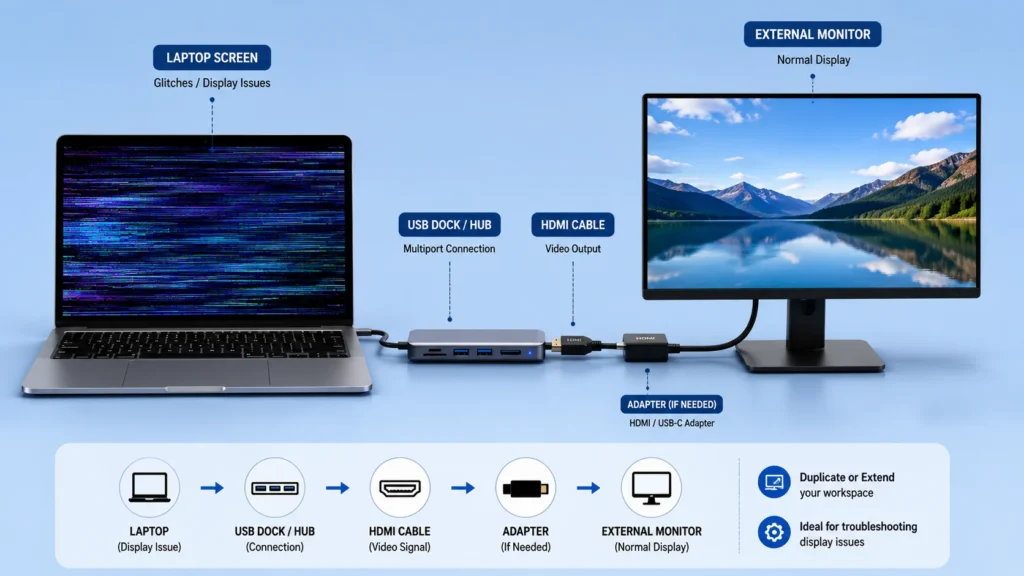
For phones, try mirroring your screen to a TV or laptop through Wi-Fi casting or a USB cable. If the mirrored image looks clean but your phone screen still flickers, the problem is very likely the digitizer or the LCD panel itself, not software.
So, “Is my screen damaged?” If you’ve tried the steps below and the glitch follows the device onto every other display, yes, it’s probably physical. If it only shows on the built-in screen, keep reading, because you can likely fix it yourself.
Common Laptop Screen Problems (And How I’ve Actually Fixed Them)
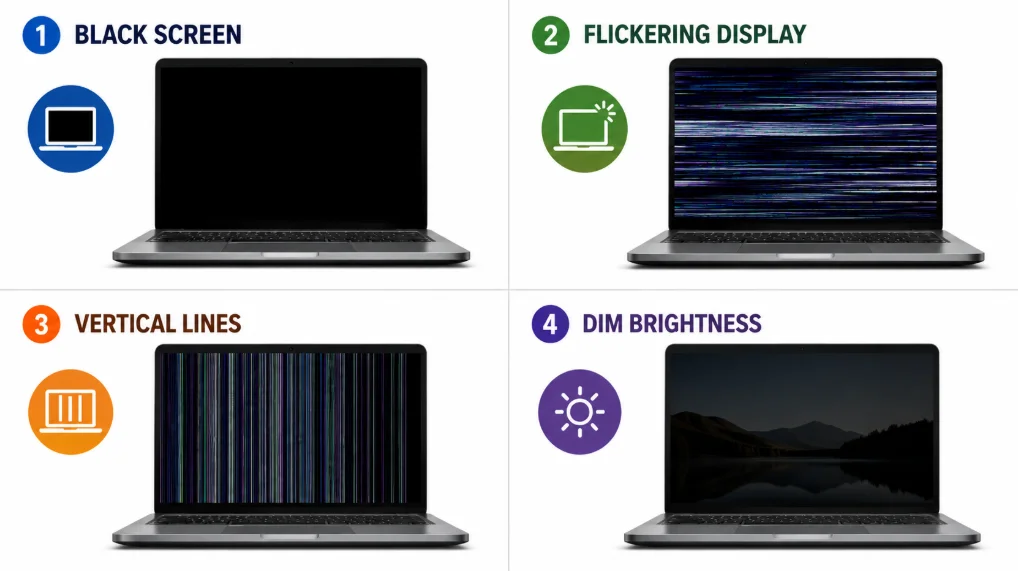
Every laptop screen problem I’ve dealt with tends to fall into one of these buckets. I’ll walk through each one the way I’d walk a friend through it over a call.
1. Screen Flicker on a Windows PC
Flicker is almost always a graphics driver issue. On a windows pc, right-click the desktop, open Display Settings, and check the refresh rate under Advanced Display Options. A mismatched refresh rate is a surprisingly common cause of Screen flickering.
If that’s not it, open Device Manager, expand “Display adapters,” right-click your video card, and choose “Update driver.” An outdated or corrupted graphics driver is responsible for a huge share of flicker complaints I’ve helped people resolve.
2. Horizontal or Vertical Lines on Screen
Colored or dark lines running across your display are one of the more alarming laptop screen problems to spot, but they don’t always mean the panel is dead. If you are dealing with this pattern, we have a complete walkthrough on how to fix dead pixel lines on a laptop to help you diagnose and resolve it step-by-step.
Common causes:
- LCD damage from pressure or a drop
- A loose or partially disconnected display cable
- Video card failure
- Motherboard malfunction
How to check: Connect an external monitor. If the lines disappear completely on the external display, the issue lies in the laptop display itself, the internal cable or panel, not the graphics card or motherboard. If the same lines show up on the external monitor too, the video card is the more likely culprit.
3. Laptop Screen Too Dim
A dim screen is often mistaken for a broken display when it’s really just a settings issue.
Check these first:
- Power options, battery saver modes often cap brightness automatically
- Adaptive brightness settings, which adjust dimness based on ambient light sensors
- Your graphics control panel (Intel, NVIDIA, or AMD), which can override system brightness
- Display settings in Windows itself
Also, confirm your operating system is running its latest version; outdated display drivers occasionally misreport or lock brightness levels lower than intended.
4. External Monitor or HDMI Not Detected
If your laptop won’t recognize an external monitor, follow this monitor not detecting HDMI troubleshooting guide for additional solutions, then check these common causes:
- Try a different HDMI or VGA cable; video cables wear out more often than people expect.
- Press Windows + P to cycle through display modes.
- Check that the port on both the laptop and the monitor is clean and firmly connected.
- If you’re using a dock or docking stations, unplug and reconnect the adapter; docking station firmware conflicts are a frequent, overlooked cause.
5. Laptop Display Won’t Turn On
This is the scenario that scares people most, but it’s rarely the panel itself. First, unplug the charger, remove the battery if removable, hold the power button for 15 seconds, then power back on. This mini “reset” clears residual power and fixes a surprising number of blank-screen cases.
If nothing shows up, connect an external monitor. If the external display works, your laptop display cable or inverter may have failed, a hardware problem, but usually an affordable one to repair, since it’s rarely the motherboard.
6. Screen Freezes or Becomes Unresponsive
An unresponsive screen usually means too many background processes. Close all running apps, then reboot. If freezing continues, boot into Safe Mode to check whether a third-party app is the culprit. If the screen behaves normally in Safe Mode, you’re dealing with a software conflict, not a hardware issue.
Common Phone Screen Problems (And Practical Fixes)
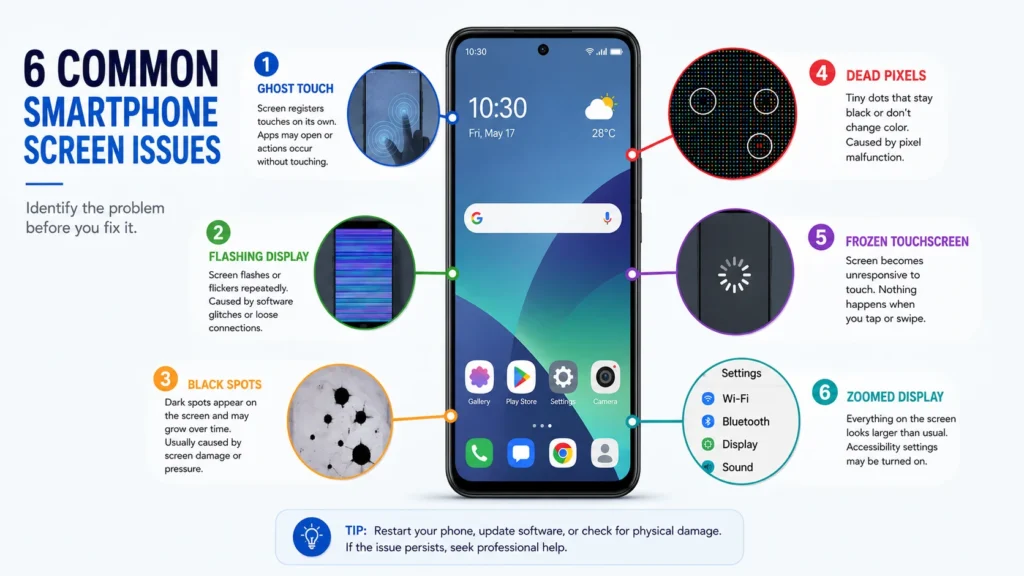
Phone screen problems share a lot of DNA with laptop issues, but mobile devices and other portable devices have their own quirks.
1. Touchscreen Not Responding
Start with the basics: restart the phone. If specific areas of the screen ignore your touch, it’s often the digitizer losing calibration, especially after a drop. Remove any screen protector or stylus; thick protectors are a common cause of ghost touches and missed input.
2. Ghost Touch Problems
Ghost touch is unsettling to experience; your phone screen registers taps, swipes, or app launches you never made.
Common causes:
- A faulty charger, especially cheap or damaged ones that leak current into the port
- A damaged digitizer
- Software bugs following a buggy update
- Moisture exposure, even trace amounts, around the charging port or speaker.
What to try:
- Restart the device
- Update the software to the latest version
- Remove any connected accessories, cases, or charging cables, and test again
- Factory reset as a genuine last resort, only after backing up your data
If ghost touch continues after all of this with no charger or cable connected, the digitizer itself is likely damaged and needs professional replacement.
3. Screen Has Black Spots or Dead Pixels
A dead pixel shows up as a tiny dot that never changes color, no matter what’s displayed behind it. Black spots are usually a sign of LCD damage underneath the glass.
Unfortunately, this is one of the few phone screen problems on this list that software troubleshooting can’t fix. If you see a persistent dark, orange spot or dead pixel cluster that doesn’t move or disappear across different apps and colors, the panel itself needs professional repair or replacement.
4. Phone Screen Keeps Flashing
A flashing or strobing display on your phone points to a few likely sources:
- App conflicts between recently installed apps
- A corrupt update that didn’t install cleanly
- Compatibility issues between an app and your current operating system version
- An underlying hardware problem
How to fix it: Boot into Safe Mode if your phone supports it, and uninstall any recently added or suspicious applications. If the flashing stops in Safe Mode, you’ve found your culprit. If it continues even in Safe Mode, the issue is more likely tied to the display hardware itself.
5. Zoom or Display Stuck
If your phone screen gets stuck zoomed in or the display size looks wrong, go to Settings > Display, and check accessibility zoom settings and display settings. Toggle the zoom accessibility shortcut off and back on; this resolves the issue more often than you’d expect.
6. Screen Glitches After an Update
If glitches began right after an update, check for a newer patch under “Check for updates. If none is available, try a partial cache clear before jumping to a factory reset (see the “When a Factory Reset Makes Sense” section below), which should always be your last resort, not your first move.
7. Frozen or Black Screen with No Response
Force-restart the device (usually volume + power button held together). If that doesn’t work, plug it into a charger for 15 minutes first; a phone with a completely drained battery can look “dead” with no visible error message at all.
Basic Troubleshooting Steps for Laptop And Phone Screen Problems
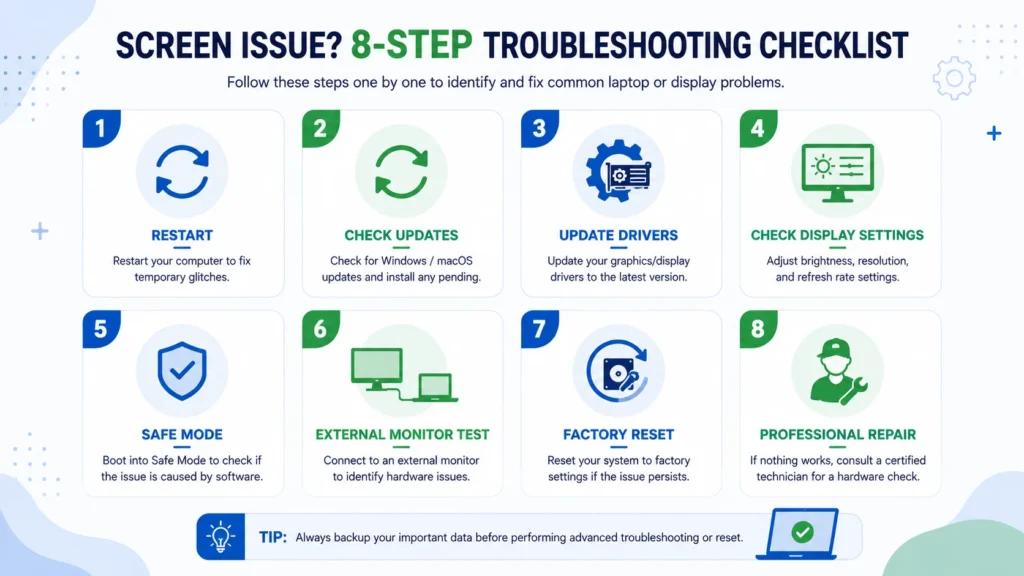
Whether it’s a laptop screen problem or a phone screen problem, I run through the same troubleshooting steps before assuming the worst:
- Restart or reboot the device; this alone fixes a large share of temporary glitches.
- Unplug all cables and peripherals, then reconnect them one at a time.
- Check for updates to your operating system and apps.
- Reinstall the graphics driver (laptop) or the problem app (phone).
- Boot into Safe Mode to isolate software conflicts.
- Run the built-in troubleshooter (Windows has a dedicated display troubleshooter under Settings > System > Troubleshoot).
- As a last step, consider a factory reset, but only after backing up your data.
This basic troubleshooting sequence resolves the majority of common screen problems I’ve seen, and it costs nothing but ten minutes of your time.
Hardware vs Software: A Deeper Look
Once basic steps fail, it’s worth digging a level deeper into whether you’re facing a genuine hardware problem or something still fixable through software.
Signs pointing to hardware:
- Cracks, discoloration, or dead pixel clusters that don’t move or change.
- The issue appears identically on every app, every OS, and every boot mode.
- Physical damage from a drop, spill, or pressure on the case.
Signs pointing to software:
- The glitch is inconsistent, happens in one app, not another.
- It started right after installing new software or an update.
- Malware is present, or the device shows unusual pop-ups, notification spam, or apps requesting unusual permission access.
- Compatibility issues between your operating system and a specific driver or app.
Understanding a hardware vs software screen issue can save you hours of frustration.
| Symptom | Software Issue | Hardware Issue |
|---|---|---|
| Screen works after reboot | Yes | No |
| Problem started after update | Yes | No |
| Visible crack on display | No | Yes |
| External monitor works | Yes | Yes |
| Issue appears in BIOS | No | Yes |
| Screen improves after driver reinstall | Yes | No |
If software fixes do not help, there may be potential hardware damage requiring professional inspection.
If you suspect malware, run a full scan before touching hardware settings. Malware-driven display glitches, redirect pop-ups, and fake system alerts are more common than people realize, and they masquerade as hardware issues convincingly.
Advanced Fixes for Persistent Display Issues
If basic steps didn’t resolve your display issue, here’s what I’ll try next, in order:
- Roll back or reinstall card drivers: In Device Manager, right-click your graphics adapter, and choose “Roll Back Driver” if the option is available. This undoes a recent update that may have introduced the glitch.
- Check BIOS settings: Occasionally, the BIOS holds an outdated display configuration, especially after a motherboard battery change or firmware update.
- Test compatibility: An incompatible cable, dock, or adapter can cause partial display failure. Confirm your USB-C dock supports full video output before assuming the motherboard is at fault.
- Adjust power options: On laptops, aggressive power options settings can throttle your graphics card and cause dimming or flicker under load. Switch to “Balanced” or “High Performance” temporarily to test.
- Check for overheating: An overheating laptop can trigger the graphics card to throttle or glitch the display as a protective measure. Clean the vents and check fan activity if the flicker worsens under heavy use.
When a Factory Reset Makes Sense
A factory reset is often the first thing people jump to when a screen problem drags on, and it’s usually the wrong first move. In my experience, it should be your last resort, tried only after restarting, updating drivers or apps, checking cables, and testing in Safe Mode have all failed to fix the issue.
That said, there are specific situations where a factory reset genuinely is the right call:
- Malware is suspected: If you’re seeing strange pop-ups, unauthorized permission requests, or your antivirus scan keeps flagging something it can’t fully remove, a reset clears out anything hiding deep in the system.
- Multiple apps are crashing: If several unrelated apps are freezing, throwing error messages, or refusing to open, that points to a corrupted system layer rather than one bad app, something a targeted fix won’t solve.
- Display issues began right after a major update: When a screen problem, flicker, or app instability lines up exactly with a recent operating system or firmware update, and rolling back the update isn’t possible, a reset restores a clean baseline.
- System settings are corrupted: If display settings, permissions, or core configurations keep reverting or behaving unpredictably, no matter how many times you fix them, the underlying settings file is likely damaged.
Before you reset anything, back up your data first, photos, documents, and app data will be wiped, so confirm your backup completed successfully before you tap confirm.
When to Seek Professional Help
I’m a big believer in DIY troubleshooting, but there’s a line where continuing to poke at the problem risks making it worse. If you’ve gone through every step above and:
- The screen shows physical cracks or leaking discoloration
- The hardware problem persists across every external display and safe mode test
- You suspect a potential hardware failure inside the motherboard or the display cable
… it’s time to visit a certified repair technician or post your exact symptoms on a manufacturer’s official support community. Being specific, device model, what you’ve already tried, and when the issue started, gets you a faster, more accurate answer.
Preventing Future Laptop And Phone Screen Problems
A little maintenance goes a long way toward avoiding a repeat of this whole process:
- Keep your device on the latest version of its operating system and drivers.
- Avoid installing apps from unknown sources, a major source of malware and connectivity issues.
- Give your laptop’s vents room to breathe to prevent overheating.
- Periodically review app updates and remove ones you no longer use, since bloated background apps quietly cause performance issues.
- Handle cables and ports gently; most cable failures happen from repeated bending near the connector, not from age.
Frequently Asked Questions
-
What are common signs of a failing laptop screen?
The clearest signs are flickering that doesn’t go away after a driver update, dim or fluctuating brightness that ignores your settings, lines (horizontal or vertical) running across the display, patches of discoloration that stay in one spot no matter what’s on screen, and a screen that only displays correctly when you press or flex the lid a certain way. If an external monitor shows a clean image while the built-in screen still glitches, that’s a strong confirmation that the panel or its cable, not your graphics card, is failing.
-
Is a laptop screen less harmful than a phone screen?
In terms of eye strain, laptop screens are generally considered gentler for extended use because they’re viewed from a greater distance and usually have larger text and UI elements, which reduces the squinting and close-focus strain associated with phones. Phone screens are held much closer to the eyes and are often used in bed or in low light, which increases blue-light exposure and eye fatigue. Neither is inherently “damaging” under normal use, but screen time experts generally recommend larger displays and proper distance over long phone-close-up sessions.
-
What causes LCD screen failure?
LCD failure usually comes from one of these: physical impact or pressure (drops, being sat on, tight bag pressure), a damaged display cable or loose connector inside the hinge, backlight failure (screen goes very dim or black but you can faintly see an image with a flashlight), liquid damage causing discoloration or dead zones, prolonged overheating that stresses internal components, or simply age-related wear on the panel and its inverter.
-
How to fix display issues in a laptop?
Start with the basics: restart the laptop, then check Display Settings for the correct resolution and refresh rate. Update or roll back your graphics driver through Device Manager. Test with an external monitor to confirm whether it’s a laptop-specific hardware issue or a graphics driver/software issue. Run the built-in Windows display troubleshooter. If the laptop overheats, clean the vents and check fan activity. If none of that works and the issue persists across every display and safe mode, the display cable or panel itself likely needs professional repair.
-
Why is my laptop screen flickering for no reason?
It’s almost always a graphics driver conflict or a mismatched refresh rate. Updating the driver and checking display settings fixes this in most cases.
-
How do I know if my phone screen problem is hardware or software?
Mirror the display to another screen. If the glitch disappears on the mirrored output, it’s a panel or digitizer issue. If it appears everywhere, it’s software.
-
Can a screen protector cause touchscreen issues?
Yes. Thick or bubbled screen protectors are a common, overlooked cause of unresponsive touch and ghost touches.
-
Should I factory reset my phone for a screen glitch?
Only as a last resort, after you’ve tried restarting, updating apps, checking for a software update, and clearing app caches. Back up your data first.
Final Thoughts
Most laptop and phone screen problems are fixable without replacing the device. Start with simple actions like a restart, checking cables, updating software, adjusting display settings, and testing with an external monitor.
In my experience, nearly half of all screen complaints are caused by software conflicts, outdated drivers, or incorrect settings rather than actual hardware failures.
By following this screen display issues guide, you can confidently troubleshoot both laptop and phone screen problems, identify the root cause, and decide whether a quick fix or professional repair is needed.
The key is to stay systematic, eliminate possibilities one by one, and avoid replacing expensive hardware before confirming the real cause.