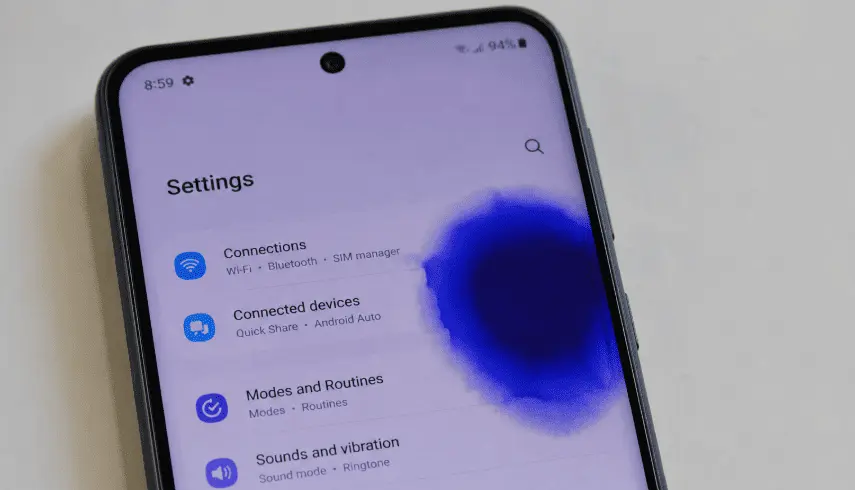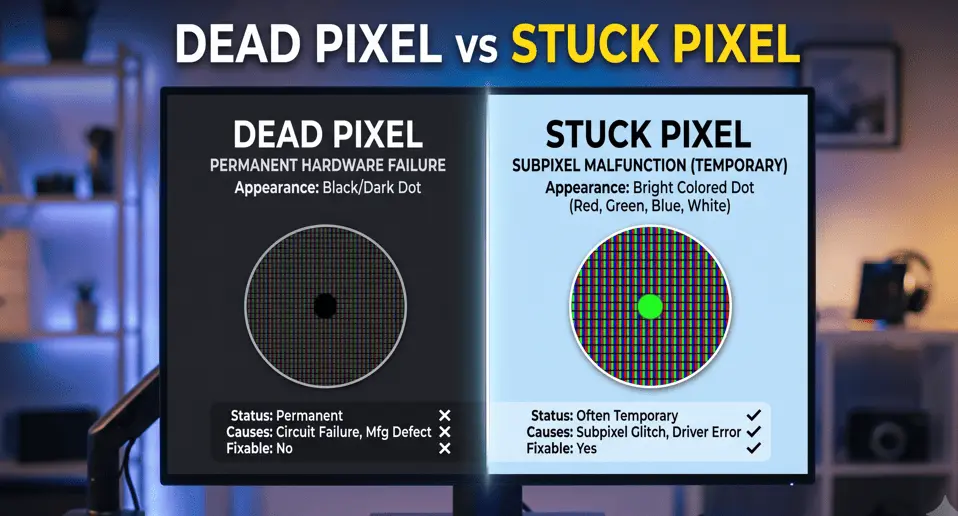
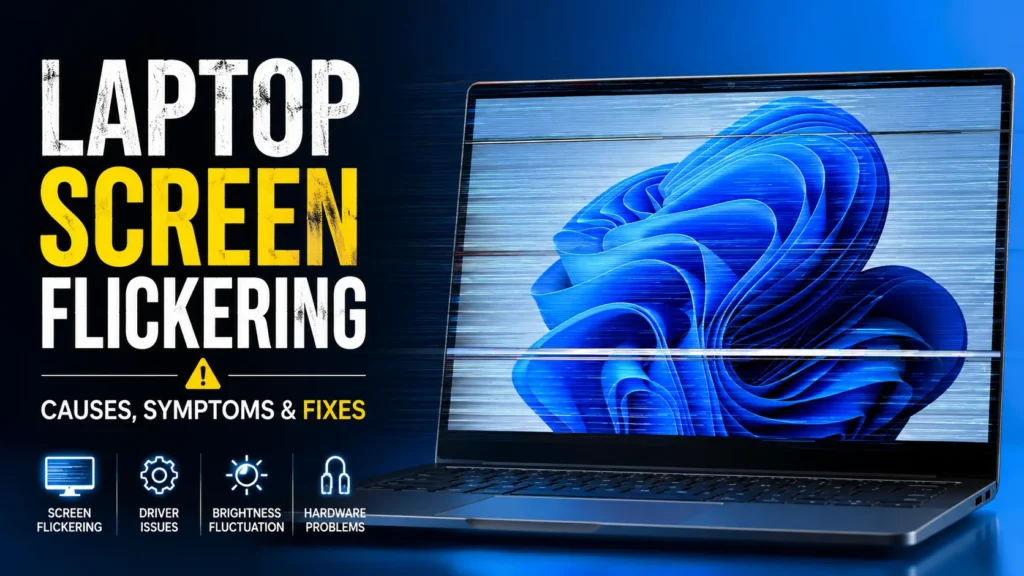
Your laptop was working perfectly until the screen suddenly started flickering.
At first, it was just a quick blink. Then the display began flashing, the brightness changed unexpectedly, or laptop screen shaking lines started appearing randomly. Naturally, the first question that comes to mind is: Is this a software glitch or a sign of failing hardware?
The truth is, laptop screen flickering can happen for many reasons. It could be an outdated graphics driver, incorrect refresh rate, a recent Windows update, or even a loose display cable. Since these issues often look the same, many users waste time trying fixes that never solve the real problem.
This guide takes a different approach. You’ll first learn how to identify the exact cause of the flickering, then follow proven solutions to fix it, whether the issue is related to Windows 10, Windows 11, or your laptop’s display hardware.
Quick Answer:
A laptop screen usually flickers because of a problem with software, display settings, graphics drivers, or hardware. Common causes include outdated or corrupted graphics drivers, an incorrect screen refresh rate, Windows update conflicts, incompatible applications, hardware acceleration, power management settings, a loose display cable, a failing LCD or OLED panel, or graphics processing unit (GPU) problems.
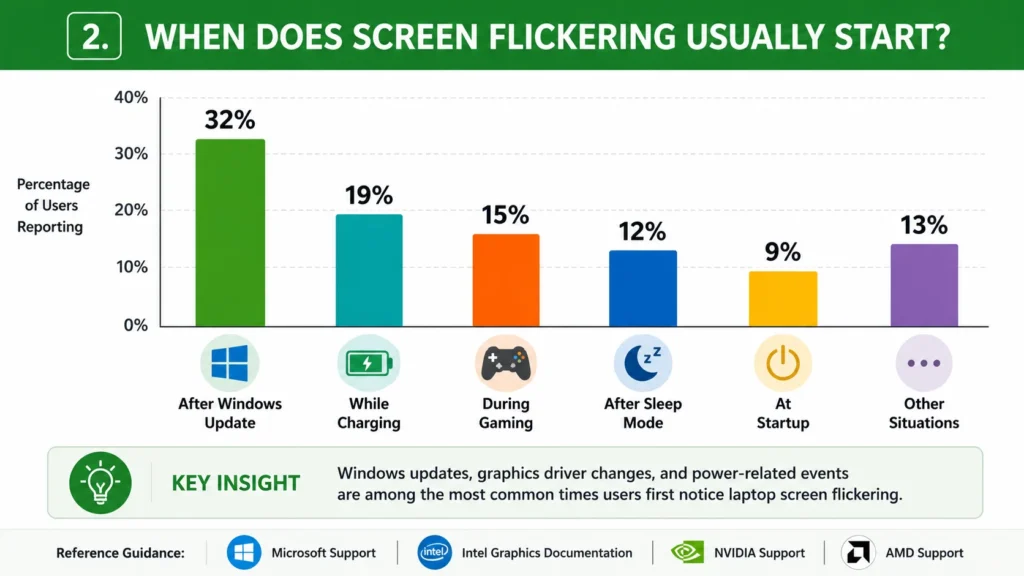
Before you try any fix, identify when the flickering happens. For example:
- does it start after a Windows update,
- only while charging,
- when opening certain apps, or when moving the laptop lid?
These patterns often reveal whether software, the graphics driver, or a hardware component like the display cable or LCD panel causes the issue. Starting with the correct diagnosis can save hours of unnecessary troubleshooting.
Table of Contents
How to Tell What’s Causing Your Laptop Screen Flickering
Before changing Windows settings or replacing hardware, identify what’s triggering the screen flickering issue. One of the biggest mistakes users make is treating every flickering screen the same way.
In reality, two laptops can show nearly identical symptoms while having completely different causes. For example, one laptop may only need a graphics driver update, while another may have a loose display cable or a failing display panel.
Professional technicians always diagnose the problem first because the timing and behavior of the flicker usually reveal its root cause. A few simple checks can help you narrow down the issue within minutes.
Software vs. Hardware: Identify the Real Cause
The next step is determining whether the problem originates from software or hardware.
Software-related problems affect how Windows communicates with your graphics hardware. These are usually easier to fix and rarely require replacing physical components.
Common software causes include:
- Outdated or corrupted graphics/display driver
- Incorrect refresh rate
- Faulty display settings
- Windows 10 or Windows 11 update conflicts
- Hardware acceleration
- Incompatible applications
- Corrupted system files
Hardware-related issues involve physical components inside the laptop. Before opening your device or changing complex settings, you can run our free online screen test tool to display solid color patterns and check for flickering, dead pixels, or backlight bleed.
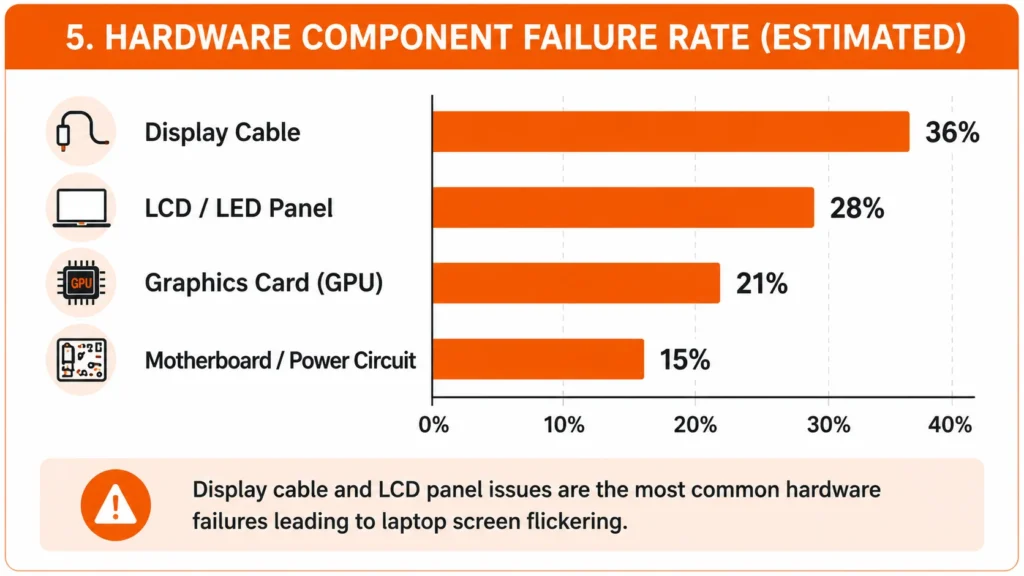
Common hardware causes include:
- Loose or damaged display (eDP/LVDS) cable
- Failing LCD or OLED panel
- Defective GPU or graphics card
- Damaged display connector
- Motherboard display circuitry
- Physical or liquid damage
Use this quick comparison to identify the most likely source.
| If You Notice… | Most Likely Cause |
| Flickering started after a Windows update | Software |
| Flickering disappears in Safe Mode | Software |
| Only one application causes the flicker | Software |
| Flickering changes when moving the lid | Hardware |
| Screen flickers in BIOS | Hardware |
| Visible cracks or pressure marks | Hardware |
| External monitor works normally | Internal display hardware |
| Both displays flicker identically | Graphics driver, GPU, or motherboard |
This simple distinction helps you troubleshoot the correct component instead of replacing parts unnecessarily.
Run the 30-Second Task Manager Test.
One of the fastest ways to troubleshoot screen flickering is Microsoft’s recommended Task Manager test. It takes less than a minute and can quickly indicate whether Windows, an application, or your hardware is responsible.
How to Perform the Test
- Press Ctrl + Shift + Esc to open the Task Manager.
- Leave it open for about 30 seconds.
- Watch both Task Manager and the rest of the desktop.
| Result | Likely Cause |
| Task Manager flickers with the desktop | Graphics driver, GPU, or display hardware |
| Task Manager remains stable while the desktop flickers | Incompatible application or Windows software conflict |
Why this works: Task Manager is rendered differently from many desktop applications, making it an effective way to separate application conflicts from graphics driver or hardware issues. If the problem appears to be software-related, continue with driver updates, display settings, or Windows rollback.
Test With an External Monitor
If you’re still unsure whether the laptop display or the graphics hardware is causing the problem, connect your laptop to an external monitor. This simple step provides one of the most reliable ways to diagnose the issue.
Use an HDMI, DisplayPort, or USB-C connection, depending on your laptop model.
Once connected, compare both screens carefully.
| Test Result | Most Likely Cause |
| Only the laptop screen flickers | LCD panel, display cable, or display connector |
| Both displays flicker | Graphics driver, GPU, or motherboard |
| Only the external monitor flickers | External monitor, video cable, or monitor settings |
If the flickering changes whenever you move the laptop lid, the display cable near the hinge is a likely suspect because it bends every time the lid opens and closes.
If the external monitor works perfectly while only the laptop display flickers, the graphics processor is usually functioning correctly, and the issue is most likely limited to the laptop’s built-in display assembly.
Different Types of Laptop Screen Flickering and What They Mean
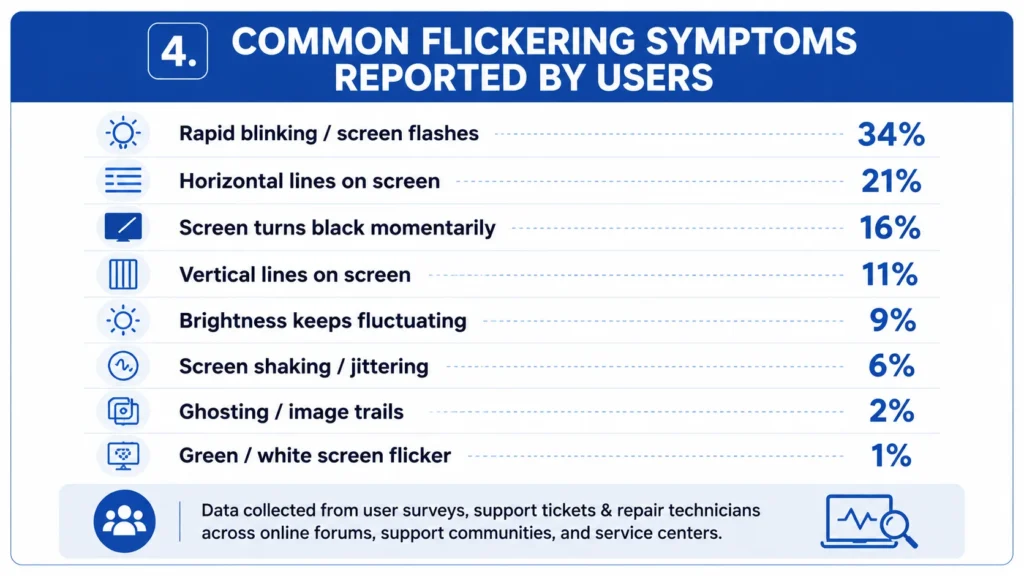
The way your laptop screen flickers can reveal the underlying problem before you begin troubleshooting. Instead of trying random fixes, identify the symptom below and start with the most likely cause.
| Screen Behavior | Most Likely Cause | Try This First |
| Rapid blinking or flashing | Graphics driver, refresh rate, Windows update | Restart the laptop and update the graphics driver. |
| Horizontal flickering lines | Loose display cable, LCD panel, GPU | Test with an external monitor and check if the lines change when moving the lid. |
| Vertical flickering lines | Display panel, GPU, or display cable | Connect an external monitor to determine whether the issue is with the screen or graphics hardware. |
| Screen flashes black | Graphics driver crash, GPU instability, refresh rate | Roll back or reinstall the graphics driver and verify the refresh rate. |
| Brightness keeps changing | Adaptive Brightness, battery saver, display settings | Disable Adaptive Brightness and switch to the Balanced power plan. |
| Screen shaking or vibrating | Incorrect refresh rate, graphics driver, loose display cable | Set the recommended refresh rate and update the graphics driver. |
| Ghosting or image trails | Slow panel response, GPU rendering, aging display | Test another refresh rate and check if the issue only occurs in games or videos. |
| Green or white screen flicker | GPU failure, damaged display panel, display cable | Test with an external monitor. If both displays flicker, the GPU may require professional diagnosis. |
Quick Diagnosis Tip
- Flickering changes when moving the laptop lid? The display cable or screen assembly is the most likely cause.
- The same flickering appears on both the laptop screen and an external monitor? The issue is more likely related to the graphics driver, GPU, or motherboard.
- Flickering only occurs in one application? Check for hardware acceleration or application compatibility issues before suspecting hardware.
What Causes a Laptop Screen to Flicker?
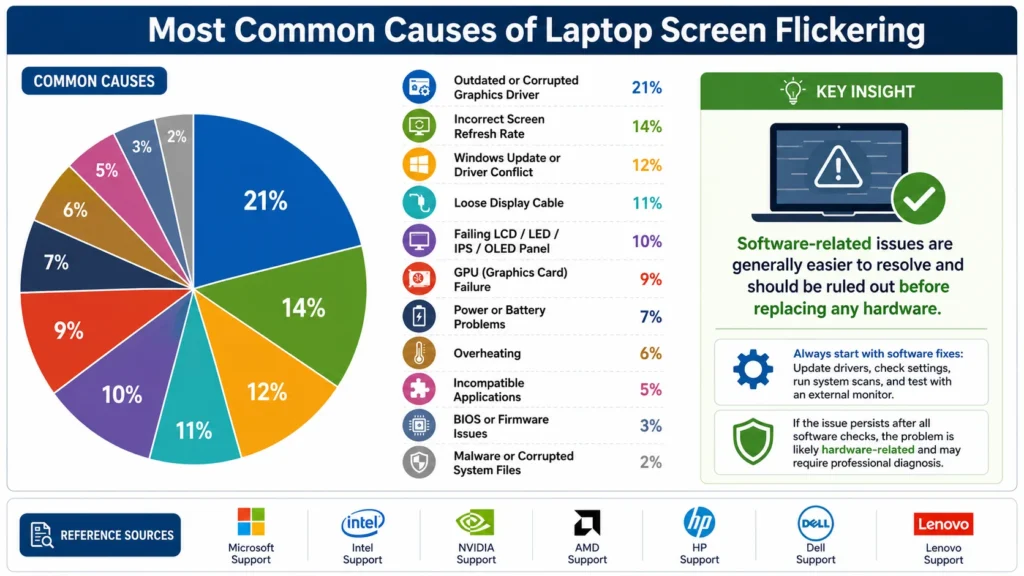
From my experience troubleshooting laptop display issues, I’ve learned that screen flickering is rarely the actual problem; it’s a symptom of something else going wrong. In some cases, the problem is as simple as an outdated display driver or incorrect refresh rate settings. In others, it may indicate a hardware issue, such as a loose display cable, a failing LCD panel, or a faulty GPU.
That’s why I don’t recommend jumping straight into random fixes. A few quick checks can usually point you toward the real cause. Below, I’ll walk you through the most common causes of laptop screen flickering, the signs to look for, and how to tell which one is affecting your laptop.
1. Outdated or Corrupted Display Drivers
According to Microsoft Support, incompatible or outdated display drivers are one of the primary reasons for display issues in Windows, including flickering, flashing, and unstable visuals. Since the driver controls communication between Windows and the GPU, corruption or incompatibility can cause flashing, blinking, or unstable visuals.
Common signs include:
- Flickering starts after a Windows or graphics driver update.
- The issue disappears in Safe Mode.
- Rolling back or reinstalling the driver resolves the problem.
Graphics manufacturers such as Intel, AMD, and NVIDIA also recommend installing the latest driver directly from their official support pages if problems begin after an operating system update.
Whenever possible, download graphics drivers from your laptop manufacturer’s support page instead of relying solely on Windows Update, as manufacturers often provide model-specific optimizations.
2. Incorrect Screen Refresh Rate
The refresh rate determines how many times your display updates every second. Most laptops use 60 Hz, while gaming laptops may support 120 Hz, 144 Hz, 165 Hz, or higher. If Windows is configured to use an unsupported or unstable refresh rate, the laptop screen may flicker, blink, or briefly turn black.
This problem is more common after connecting an external monitor, updating graphics drivers, or changing display settings manually.
Signs the Refresh Rate Is the Problem
- The screen flickers immediately after changing display settings.
- Flickering only occurs at a specific refresh rate.
- The problem disappears after adjusting the screen refresh rate.
- An external display works correctly while the laptop panel does not.
The screen flickers immediately after changing display settings or color profiles. If you also notice a warm yellow tint on your display, Windows Night Light or power-saving color profiles may be interacting with your refresh rate settings.
Using the refresh rate recommended by your laptop manufacturer is the safest choice. If your display supports variable refresh technologies, such as Adaptive Sync, make sure both Windows and the graphics driver are configured correctly.
3. Windows Update Conflicts
Windows updates improve security and performance, but they can occasionally introduce compatibility issues with existing graphics drivers or display adapters.
A driver conflict usually occurs when Windows installs a newer driver that isn’t fully compatible with your laptop’s hardware or when multiple graphics drivers interfere with each other.
Typical symptoms include:
- Laptop screen flickering immediately after a Windows Update.
- Random black flashes after restarting the computer.
- Display instability following a graphics driver installation.
- Flickering that disappears after a rollback to the previous driver version.
If the problem begins right after an update, checking your update history and restoring the previous driver is often the quickest way to confirm whether a recent software change triggered the issue.
4. Graphics Processing Unit (GPU) Problems
Your GPU (Graphics Processing Unit) is responsible for rendering everything displayed on the screen. If the graphics card begins to fail, it may produce flickering, screen tearing, random colored artifacts, or repeated black screens.
Unlike driver-related problems, a GPU issue usually affects both your laptop screen and any connected external monitor.
Possible warning signs include:
- Flickering on both displays.
- Visual artifacts while gaming or editing videos.
- Frequent graphics driver crashes.
- System freezes followed by display recovery.
- Unexpected restarts under heavy workloads.
Modern laptops often have integrated and dedicated graphics. If only one graphics processor is malfunctioning, switching graphics modes may temporarily change the symptoms, but the underlying hardware problem will remain.
5. Loose or Damaged Display Cable
The display cable connects the motherboard to your laptop’s internal display. The internal eDP/LVDS display cable passes through the laptop hinge and bends every time you open or close the lid. After years of use, it can become loose or damaged, interrupting the signal sent to the screen.
This is one of the most common hardware failures in older laptops.
Common Symptoms of Loose or Damaged Display Cable
- Flickering changes when you move the screen.
- The display turns black at certain viewing angles.
- If you notice persistent black lines appearing on a laptop screen, the cable may be partially disconnected or pinched.
- Horizontal lines appear briefly.
- The image returns after adjusting the lid position.
If these symptoms occur consistently, the problem is more likely related to the display connection than Windows or the graphics driver.
6. Failing Display Panel
If software troubleshooting doesn’t resolve the problem, the display panel itself may be failing. Modern laptops use different display technologies, including LCD, LED-backlit LCD, IPS, and OLED panels. While each offers different image quality, all can develop hardware faults over time.
Signs of a failing display include:
- Persistent flickering regardless of Windows settings.
- Bright or dark patches on the screen.
- Permanent horizontal or vertical lines.
- Dead pixels spreading across the display.
- Flickering that continues in BIOS or during startup.
If an external monitor displays a stable image while the laptop panel continues to flicker, the built-in display may need to be replaced. If the lines on your display stay in a fixed position even when the flickering stops, you may be dealing with a hardware matrix failure rather than a driver bug. If that’s the case, check out our walkthrough on how to troubleshoot static or dead pixel lines before committing to a full screen replacement.
7. Power Supply or Battery Problems
An unstable power source can also cause laptop screen flickering, particularly when switching between battery power and the charger.
Common causes include:
- A faulty charger.
- A worn-out battery.
- A loose charging connector.
- Incorrect Windows power state settings.
- Power management conflicts after software updates.
If your laptop screen starts flickering only while charging or only when running on battery, compare both situations before assuming the display itself is defective.
8. Overheating
Excessive heat can reduce GPU stability and lead to intermittent flickering, screen artifacts, or temporary black screens, especially during gaming, video editing, or other graphics-intensive tasks.
Keeping air vents clean and ensuring proper airflow can help prevent heat-related display issues.
9. Incompatible Applications
Some applications conflict with Windows display rendering and may trigger screen flickering without affecting the rest of the system.
Programs commonly associated with display conflicts include:
- Older graphics utilities.
- Overlay software.
- Screen recording tools.
- Video conferencing applications.
- Browsers using hardware acceleration.\
If the flickering only occurs while using one application, update the app or turn off hardware acceleration to see if the issue disappears.
10. BIOS, Firmware, or System File Issues
Although less common, outdated BIOS or firmware can cause communication problems between the motherboard, graphics hardware, and display.
BIOS-related issues may appear after:
- A failed BIOS update.
- Installing unsupported hardware.
- Firmware corruption.
- Manufacturer compatibility bugs.
Always download BIOS updates directly from your laptop manufacturer’s official support page, as installing the wrong firmware can create more serious problems than the original flickering issue.
Malware or Corrupted System Files
While malware is not one of the most common causes of screen flickering, certain malicious programs or damaged Windows system files can interfere with display processes and create unusual graphical behavior.
You should consider scanning your system if:
- The flickering started after installing unknown software.
- Windows behaves unusually in other areas as well.
- Security software reports suspicious activity.
- System files have become corrupted after an unexpected shutdown.
Running Windows Security, checking system integrity with SFC and DISM, and installing the latest software updates can help rule out software corruption before moving to hardware diagnostics.
Microsoft recommends checking display drivers, using the Task Manager diagnostic method, and repairing Windows system files as part of its official troubleshooting process for display flickering.
Before You Move to the Fixes
Before changing drivers or replacing hardware, complete these four quick checks:
- Restart your laptop.
- Test the display in Safe Mode.
- Connect an external monitor.
- Run the Task Manager flickering test.
These simple diagnostics often identify the root cause within minutes and help you avoid unnecessary repairs.
How to Fix a Flickering Laptop Screen (Step-by-Step)
In my experience, most laptop screen flickering issues can be fixed without replacing the screen. I always recommend starting with the simplest software fixes before moving on to hardware troubleshooting. Following the steps in order helps identify the root cause while avoiding unnecessary repairs.
After completing each fix, use your laptop for a few minutes before moving to the next step. If the flickering stops, there’s no need to continue troubleshooting.
1. Restart Your Laptop
A proper restart can resolve temporary display glitches caused by Windows, graphics drivers, or background processes. It’s always the first fix worth trying.
Many users close the laptop lid or put it into Sleep mode. However, a full restart reloads Windows, refreshes the graphics driver, and clears temporary system errors that may be causing the screen flickering.
How to do it:
- Save your work and close all applications.
- Click Start → Power → Restart.
- Wait until Windows fully reloads.
- Check if the flickering is gone.
The problem started after waking the laptop from sleep or after using it for several hours.
2. Boot Into Safe Mode
Safe Mode starts Windows with only essential drivers and services, making it easier to determine whether the flickering is caused by software or hardware. If the flickering disappears, the problem is usually related to display drivers, Windows settings, or third-party software rather than the display hardware.
Windows 10 & 11:
- Press Windows + R, type msconfig, and press Enter.
- Open the Boot tab.
- Enable Safe Boot (Minimal).
- Restart your laptop and test the display.
If the screen works normally, continue with the driver-related fixes below. The issue appeared after installing new software, drivers, or a Windows update.
3. Update Your Graphics Driver
Outdated or corrupted graphics drivers are among the most common causes of screen flickering. Installing the latest compatible driver often restores display stability and resolves compatibility issues. Microsoft, Intel, AMD, and NVIDIA recommend keeping graphics drivers up to date because they include bug fixes, performance improvements, and compatibility updates.
Steps
- Open Device Manager.
- Expand Display adapters.
- Right-click your graphics device.
- Select Update driver.
- Choose Search automatically for drivers.
For the best compatibility, download drivers from your laptop manufacturer’s support page before using generic drivers from Intel, AMD, NVIDIA, or Windows Update. As noted in Intel’s display troubleshooting documentation, OEM graphics drivers from your laptop manufacturer offer the best compatibility, though generic drivers from Intel, AMD, or NVIDIA can be used if manufacturer drivers are unavailable.
4. Roll Back the Graphics Driver
If the problem started immediately after updating your graphics driver, reverting to the previous version can restore compatibility. Sometimes a newer driver introduces compatibility issues with certain laptop models.
Steps
- Open Device Manager.
- Expand Display adapters.
- Open your graphics device Properties.
- Select the Driver tab.
- Click Roll Back Driver (if available).
- Restart your laptop.
Recommended when: Screen flickering appeared immediately after a graphics driver update.
5. Reinstall the Graphics Driver
If updating or rolling back doesn’t help, perform a clean driver installation. This removes corrupted files and reinstalls fresh driver components.
Steps
- Open Device Manager.
- Right-click your graphics adapter.
- Select Uninstall device.
- Restart your laptop.
- Install the latest compatible driver from your laptop manufacturer or GPU vendor.
Avoid: Downloading drivers from unofficial third-party websites, as they may be outdated or incompatible.
6. Set the Correct Refresh Rate
An incorrect or unsupported refresh rate can cause display flickering, black flashes, or unstable visuals.
Steps to change the refresh rate:
- Open Settings → System → Display.
- Select Advanced display.
- Choose the recommended refresh rate.
- Apply the changes.
Most business laptops perform best at 60 Hz, while gaming laptops may support 120 Hz, 144 Hz, 165 Hz, or higher.
Recommended when: Flickering started after changing display settings or connecting an external monitor.
7. Install Windows Updates
Microsoft regularly releases updates that improve graphics compatibility, display stability, and system performance. Windows updates often include fixes for graphics compatibility, display bugs, and driver stability issues.
Steps to check for updates:
- Open Settings → Windows Update.
- Select Check for updates.
- Install available updates.
- Restart your laptop.
If the flickering started because of a recent Windows update, consider rolling back the graphics driver instead of installing additional updates immediately.
8. Repair Corrupted System Files (SFC & DISM)
Damaged Windows system files can interfere with display services and graphics components. Running SFC and DISM repairs missing or corrupted system files automatically.
Run these commands in Command Prompt (Administrator):
sfc /scannow
After the scan finishes, run:
DISM /Online /Cleanup-Image /RestoreHealth
Restart your laptop after both scans complete.
Recommended when: Screen flickering is accompanied by crashes, Windows errors, or other system instability.
Before You Start Troubleshooting
Not every fix is suitable for every situation. The table below helps you understand what each solution addresses, how difficult it is, and when you should try it. Following this order can save time and help you avoid unnecessary repairs.
| Fix | What It Fixes | Difficulty | Try First? |
| Restart Laptop | Temporary Windows or graphics glitches | Easy | Yes |
| Boot into Safe Mode | Software conflicts | Easy | Yes |
| Update Graphics Driver | Outdated or corrupted drivers | Easy | Yes |
| Roll Back Driver | Faulty driver update | Easy | If flickering started after an update |
| Reinstall Graphics Driver | Corrupted driver installation | Moderate | If updating doesn’t work |
| Change Refresh Rate | Incorrect display settings | Easy | If display settings were changed |
| Install Windows Updates | Windows compatibility issues | Easy | If updates are available |
| Run SFC & DISM | Corrupted Windows system files | Moderate |
Expert Insight: In our experience, most laptop screen flickering issues are resolved within the first four steps, especially when graphics drivers, Windows updates, or incorrect display settings cause the problem. If the issue persists after completing all software fixes, it’s more likely related to the display cable, LCD panel, GPU, or another hardware component.
Fix Laptop Screen Flickering Based on the Situation
Sometimes the timing of the flickering is the biggest clue. Match your symptoms below to identify the most likely cause and start with the right fix.
Here is Quick Troubleshooting Summary
| Situation | Most Likely Cause | Try This First |
| While charging | Charger or power settings | Test another charger |
| On battery | Power-saving settings | Disable Adaptive Brightness |
| After Windows Update | Driver conflict | Roll back or update the driver |
| During gaming | GPU overheating | Check temperatures |
| Moving the lid | Loose display cable | Inspect the hinge and cable |
| After screen replacement | Loose connector | Check display connection |
| Only in Chrome or another app | Hardware acceleration | Disable Hardware Acceleration |
Brand-Specific Laptop Screen Flickering Fixes
Most laptop screen flickering issues can be resolved using the general troubleshooting steps covered earlier. However, many manufacturers also provide
| Laptop Brand | Most Common Cause | Recommended Tool | Try This First |
| HP | Graphics driver, BIOS, display cable | HP Support Assistant | Update graphics drivers, run HP Hardware Diagnostics, and install the latest BIOS. |
| Dell | Display driver, LCD hardware, BIOS | Dell SupportAssist + LCD BIST | Run the LCD Built-in Self-Test (BIST), update drivers, and install BIOS updates. |
| Lenovo | Graphics driver, power settings, firmware | Lenovo Vantage | Update drivers, install BIOS updates, and disable Adaptive Brightness if enabled. |
| ASUS | Refresh rate, GPU driver, Armoury Crate settings | MyASUS | Set the recommended refresh rate, update drivers, and check GPU temperatures during gaming. |
| Acer | Windows update conflicts, graphics driver | Acer Care Center | Reinstall the graphics driver and install the latest Windows and BIOS updates. |
| MSI | GPU driver, overheating, overclocking | MSI Center | Update GPU drivers, monitor temperatures, and disable GPU overclocking if enabled. |
| Samsung | Graphics driver, firmware | Samsung Update | Install the latest driver, firmware, and Windows updates, then reset display settings if needed. |
| Microsoft Surface | Firmware, graphics driver, Dynamic Refresh Rate | Surface Diagnostic Toolkit | Install Surface firmware updates, run diagnostics, and disable Dynamic Refresh Rate if necessary. |
Expert Tip: Before updating your laptop’s BIOS, ensure the battery is sufficiently charged and keep the charger connected throughout the update. Interrupting a BIOS update can cause firmware corruption and prevent the laptop from booting.
When Brand-Specific Fixes Don’t Help
If your laptop still flickers after updating the drivers, BIOS, and firmware, or the problem appears before Windows loads, inside the BIOS, or on both the built-in and external display, the issue is more likely related to the display cable, LCD/OLED panel, GPU, or motherboard. In that case, professional diagnosis or hardware repair is usually the next step.
Should You Repair or Replace Your Laptop Screen?
Not every flickering screen needs a replacement. Many software-related issues can be fixed for free, while hardware problems such as a damaged display cable, faulty LCD/OLED panel, or failing GPU or motherboard may require repair. The best option depends on the root cause, repair cost, your laptop’s age, and its warranty status.
Typical Repair Costs
| Problem | Typical Solution | Estimated Cost (USD) |
| Driver or Windows issue | Software troubleshooting | Free |
| Loose or damaged display cable | Replace the display cable | $30–$100 |
| LCD, LED, or IPS panel | Screen replacement | $80–$250+ |
| OLED display | Screen replacement | $200–$500+ |
| GPU or motherboard | Professional repair or replacement | Varies by model |
Note: Repair costs vary depending on your laptop model, display type, region, and labor charges. Premium ultrabooks and gaming laptops typically cost more to repair.
Repair or Replace?
Use these general guidelines before spending money on repairs.
| Choose Repair If… | Consider Replacement If… |
| The issue is software-related. | Repair costs exceed 50–60% of the laptop’s current value. |
| Only the display cable or screen needs replacement. | The GPU or motherboard has failed on an older laptop. |
| The laptop is still under warranty. | Multiple hardware components are failing. |
| The device is relatively new and performs well. | The laptop is outdated and no longer meets your needs. |
When a Warranty Can Save You Money
Before paying for a repair, check whether your laptop is still covered by the manufacturer’s warranty or an extended protection plan.
A warranty may cover repairs if:
- A manufacturing defect causes the flickering.
- The display or GPU fails during the warranty period.
- The issue is covered under an extended protection plan.
A warranty usually does not cover:
- Accidental drops or liquid damage.
- Cracked screens caused by physical impact.
- Unauthorized repairs or modifications.
Tip: Check your laptop’s serial number on the manufacturer’s support website to confirm its warranty status before scheduling a repair.
Final Recommendation
If software troubleshooting doesn’t resolve the issue and hardware tests point to a faulty display cable, screen, GPU, or motherboard, compare the repair cost with your laptop’s current value before making a decision. In many cases, repairing a newer laptop is worthwhile, while replacing an older device with expensive hardware failures is often the more cost-effective long-term option.
How to Prevent Laptop Screen Flickering in the Future
Although some hardware failures are unavoidable, most laptop screen flickering issues can be prevented with regular maintenance and good usage habits. Keeping your software updated, protecting the display from physical damage, and maintaining proper cooling can significantly reduce the risk of future display problems.
Keep Your Software and Drivers Updated
Outdated graphics drivers and Windows compatibility issues are among the most common causes of screen flickering. To minimize the risk:
- Install graphics drivers from your laptop manufacturer’s support page.
- Keep Windows and BIOS updated with official releases.
- Create a restore point before installing major driver updates.
Avoid Physical Stress on the Display
The display cable (eDP/LVDS) passes through the laptop hinge and can wear out over time if the screen is handled roughly.
To help extend its lifespan:
- Open and close the lid gently.
- Avoid lifting the laptop by the screen.
- Don’t place heavy objects on the closed lid.
- Use a padded laptop sleeve or bag during travel.
Prevent Overheating and Power Issues
Excessive heat and unstable power can affect the GPU, motherboard, and display components.
Follow these best practices:
- Keep the cooling vents clean and unobstructed.
- Use the laptop on a hard, flat surface for proper airflow.
- Clean dust from the cooling system regularly.
- Use the original charger or a manufacturer-approved replacement, and protect your laptop with a surge protector if power fluctuations are common.
Use Genuine Chargers and Accessories
Low-quality chargers can cause unstable power delivery, which may lead to display problems.
For reliable performance:
- Use the original charger or a manufacturer-approved replacement.
- Replace damaged charging cables immediately.
- Avoid cheap third-party power adapters that don’t meet your laptop’s specifications.
Prevention Checklist
✓ Keep Windows, BIOS, and graphics drivers up to date.
✓ Handle the screen carefully to avoid damaging the display cable.
✓ Keep your laptop cool by cleaning vents and avoiding blocked airflow.
✓ Use genuine chargers and avoid unstable power sources.
Frequently Asked Questions (FAQs)
Does screen flickering mean my laptop is dying?
Not necessarily. In many cases, a flickering laptop screen is caused by software issues such as outdated graphics drivers, an incorrect refresh rate, Windows update conflicts, or display settings. However, if the flickering continues after troubleshooting or appears in the BIOS, it may indicate a hardware problem like a failing display cable, LCD panel, or GPU. Diagnosing the cause early helps prevent unnecessary repairs.
What is the main cause of screen flickering?
The most common cause of laptop screen flickering is an outdated or corrupted graphics driver. Other frequent causes include incorrect refresh rate settings, Windows updates, hardware acceleration, power management features, loose display cables, and failing display hardware. The timing of the flickering, such as after an update, while charging, or when moving the laptop lid, often provides the biggest clue to the root cause.
How do I fix my flickering screen?
Start with the simplest fixes first. Restart your laptop, update or reinstall the graphics driver, set the recommended refresh rate, and install the latest Windows updates. If the problem continues, boot into Safe Mode, run the Task Manager flicker test, and connect an external monitor to determine whether the issue is caused by software or hardware. If only the built-in display flickers, the display cable or screen may need repair.
How do I stop my PC screen from flickering?
To stop your PC screen from flickering, update your graphics driver, choose the correct refresh rate, install Windows updates, and turn off hardware acceleration in any app that triggers the issue. If you’re using a desktop PC, also check that the monitor cable is securely connected and test with another cable or monitor. If the flickering affects both the display and an external monitor, the graphics card or driver is the most likely cause.
Why is my laptop screen flickering while the external monitor works normally?
If the external monitor displays correctly, the GPU is usually functioning properly. The issue is more likely related to the display cable, LCD/OLED panel, or the laptop’s internal display connection.
Can a virus cause laptop screen flickering?
It’s possible but uncommon. Malware can interfere with Windows or graphics drivers, but outdated drivers, incorrect display settings, and hardware faults are far more common causes. Running a full security scan is still a good precaution.
Does overheating cause laptop screen flickering?
Yes. An overheating GPU can cause screen flickering, display artifacts, black flashes, or unexpected crashes, especially during gaming or other graphics-intensive tasks.
Why does my laptop screen flicker only on battery power?
This is often caused by power-saving settings, Adaptive Brightness, or a weak battery. Switching to the Balanced power plan and checking battery health usually resolves the issue.
Why does the screen flicker when I move the laptop lid?
This is a strong indication of a loose or damaged display cable near the hinge. If the flickering changes with the screen angle, the cable should be inspected or replaced.
Can faulty RAM cause screen flickering?
It’s possible but rare. Faulty RAM typically causes freezes, crashes, or Blue Screen (BSOD) errors rather than isolated display flickering. The graphics driver, display cable, or GPU is usually the real cause.
Can Windows 10 or Windows 11 updates cause screen flickering?
Yes. A Windows update may install an incompatible graphics driver or change display settings. Updating, reinstalling, or rolling back the graphics driver often resolves the problem.
Is it safe to keep using a laptop with a flickering screen?
Occasional software-related flickering is usually not serious. However, persistent flickering caused by hardware can worsen over time and may eventually lead to complete display failure. Diagnosing the problem early can help prevent more expensive repairs.
How much does it cost to fix a flickering laptop screen?
The repair cost depends on the faulty component. Software fixes are usually free, while replacing a display cable typically costs $30–$100, and replacing a laptop screen generally ranges from $80–$250+. OLED displays and motherboard repairs can cost significantly more.
Final Thoughts
Laptop screen flickering doesn’t always mean your display is failing. In many cases, the problem is caused by outdated graphics drivers, incorrect refresh rate settings, Windows updates, or software conflicts that can be resolved in just a few minutes.
The most effective approach is to diagnose the problem before attempting repairs. Start with simple software troubleshooting, then use tests like Safe Mode, Task Manager, and an external monitor to determine whether the issue is software- or hardware-related.
If the flickering persists after completing all the recommended fixes, the fault is likely with the display cable, LCD/OLED panel, GPU, or motherboard. For a broader look at physical vs. display controller failures across personal devices, check out our guide on common laptop and phone screen problems. At that stage, professional diagnosis is usually more cost-effective than replacing parts through trial and error.
By understanding what causes laptop screen flickering, recognizing the warning signs, and applying the correct solution, you can resolve most display problems quickly, avoid unnecessary repair costs, and extend the life of your laptop.