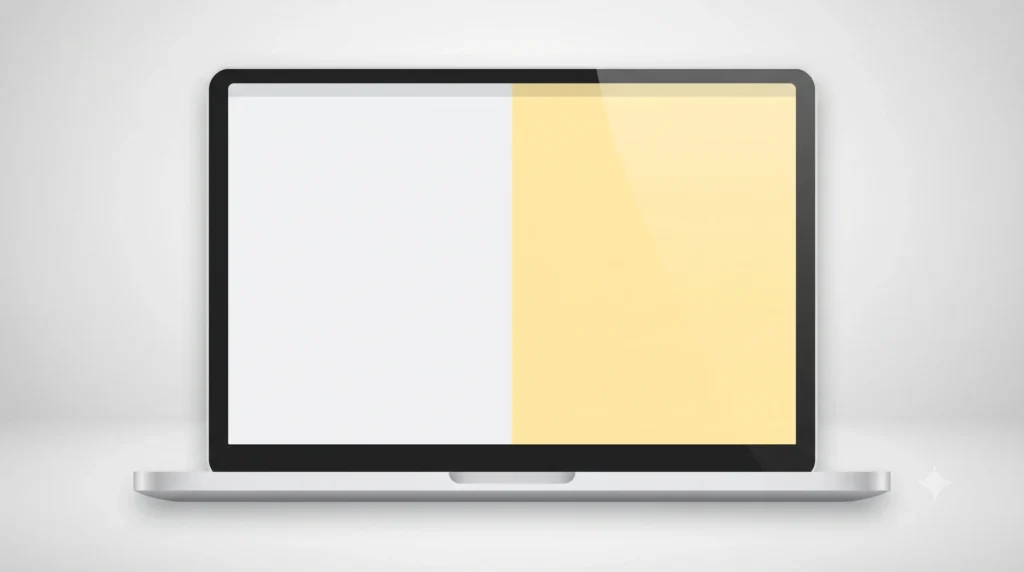
Your screen suddenly looks like it’s wearing sunglasses. Whites look cream instead of white. Blues look muted. Everything feels warmer than it should.
That’s a yellow tint display. And here’s the reassuring part. About 9 out of 10 cases come from a setting, not a dying panel. Once you know where to look, you can usually fix it in under two minutes.
Quick answer: A yellow-tinted screen usually comes from a blue-light filter. It can also result from a wrong color profile, an outdated graphics driver, or a monitor set to Warm. Windows Night Light, macOS Night Shift, and True Tone can all make your screen look more yellow. In most cases, you can fix the problem yourself. Turn off the filter or restore the default color profile. You can also update the graphics driver or reset the monitor’s color settings.
This guide covers all common devices that can develop a yellow tint. That includes laptops, desktop monitors, and TVs used as monitors. That matters because the fix is different depending on which one you have. Most guides online only cover laptops. If you are searching for “monitor screen yellowish” or “computer and monitor yellow tint display solution.” This guide gives you the answers you need.
Before adjusting software profiles or physical OSD settings, run a free online screen test in full-screen mode. Switch between pure white, gray, and primary colors. Check whether the yellow tint covers the entire screen. Also look for areas where the tint appears stronger.
Table of Contents
Key Takeaways
- A yellow tint usually comes from a software or hardware connection issue. In most cases, the screen itself is not dying.
- Windows Night Light, Mac Night Shift/True Tone, and monitor OSD color presets are the three most common culprits.
- Standalone monitors have their own fix path through the physical OSD menu. Laptop fixes won’t touch this.
- HDR mode can make a healthy screen look yellow or warmer than usual. That does not always mean something is broken.
- If the tint remains after every software reset, check the boot or BIOS screen. A tint that appears there can point to hardware, panel aging, the backlight, or the cable.
- The fastest way to find the cause is a 60-second isolation test, which we cover below. It helps you identify the problem before you change any settings.
What Is a Yellow Tint Display, Exactly?
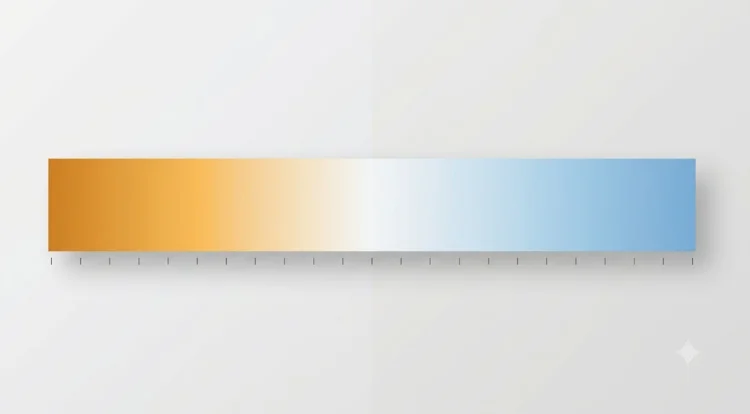
A yellow tint display means your screen’s color temperature has shifted toward the “warm” end of the spectrum.
We measure color temperature in Kelvin (K). Lower numbers (2700K–4000K) look warm and yellow-orange, like candlelight or sunset. Higher numbers (6500K and above) look neutral to cool, like daylight. Most displays use a neutral color temperature of around 6500K, known as D65. When something pushes that number down, white stops looking white; it starts looking cream, beige, or yellow.
A yellow tint can affect three broad types of devices. Knowing which device you have, helps you choose the right fix.
- Laptop screens: built-in panel, tied to the OS and GPU
- Desktop/external monitors: separate hardware with its own menu and firmware
- TVs used as monitors: similar to monitors, but with extra “warm mode” picture presets
“Yellow tint display” isn’t an official manufacturer term. It’s just how people describe a display that’s drifted from neutral color. You might also see it called a yellowish screen, yellow cast, warm tint, or amber tint, all the same thing.
Quick Diagnostic: Answer These 3 Questions First
Before changing any display settings, take 30 seconds to answer these three questions. Your answers can quickly narrow down whether the yellow tint is caused by software, settings, cables, or the display hardware.
1. Does the tint disappear when you connect a different monitor or connect another device to the same monitor?
- Yes: The problem is likely specific to the original device, such as a display setting, graphics driver, or color profile.
- No: If the tint remains, the cable, monitor, or another shared hardware component could be responsible.
2. Does the yellow tint appear on the BIOS or startup screen before the operating system loads?
- Yes: This strongly points to a hardware-related issue, such as the display panel, backlight, or cable. Features such as Night Light, True Tone, and ICC color profiles are not active at this stage.
- No: The cause is more likely related to your operating system, display settings, drivers, or color profile.
3. Did the tint appear after a specific change?
Think about whether it started after a Windows update, graphics driver update, new cable, HDR setting change, or display calibration.
- Yes: That recent change is a strong suspect. If possible, reverse the change first and check whether the display returns to normal.
- No: Continue with the common causes and fixes below.
These three checks can help you identify the likely source before you start changing settings at random.
Hold onto your answers. Each one maps directly to a section below. However, a completely unresponsive display needs more investigation. Physical cracks and multi-colored artifacts also point to a broader hardware problem.
In that case, jump over to our general guide on laptop and phone screen problems for step-by-step diagnostic workflows.
What Causes a Yellow Tint Display on a Screen?
A yellow tint on your screen can make everything look warmer than it should. The good news is that the cause is often easy to identify. Here are the most common reasons your display may appear yellow:
1. Blue Light Filters (Night Light, Night Shift, True Tone)
This is the single most common cause, by a wide margin.
These features intentionally warm up your display in the evening to cut blue light. That can ease eye strain and support better sleep, since warm light suppresses melatonin less than cool light does. Windows calls this Night Light. macOS calls it Night Shift. Newer Macs and iPads also include True Tone. This feature adjusts the screen’s color temperature based on the surrounding light.
Note: All three can silently re-enable themselves after an OS update. This shift often looks like a hardware problem, even when the actual cause is a software or color setting.
2. Color Profile / ICC Profile Mismatch
Every display uses an ICC (International Color Consortium) color profile. It tells your operating system how to render color accurately for that specific screen.
If the wrong profile loads, one meant for a different monitor, or a corrupted one, colors across the whole screen can skew warm. It usually happens after installing monitor-specific software, running a calibration tool incorrectly, or switching monitors without updating the profile.
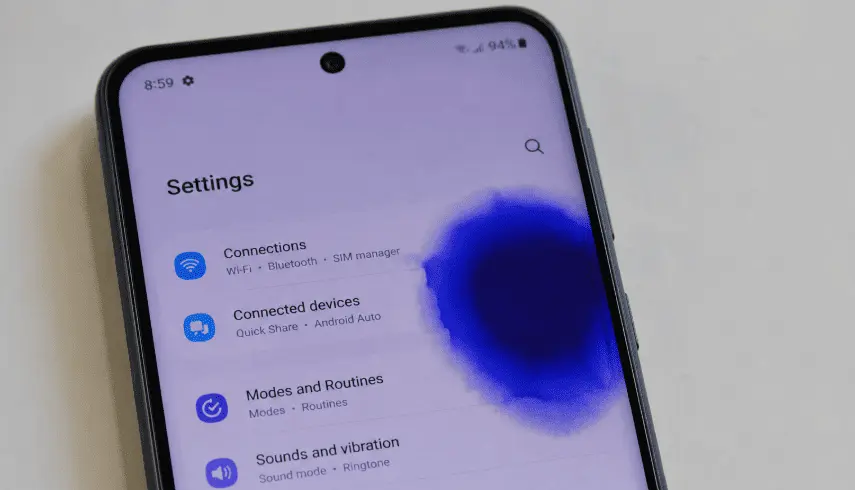
However, not all screen color abnormalities are caused by color profiles or software settings. If the discoloration appears as a localized area rather than affecting the entire display, it may point to a hardware-related problem. For example, a blue patch on a mobile screen can have different causes. These include panel damage, pressure, moisture, or internal component problems.
3. Outdated or Corrupted Graphics Drivers
Your GPU driver is the translator between your computer and your screen. It tells the display exactly what color values to show.
A driver that’s outdated, corrupted, or freshly updated with a bug can misrender color data, and a yellow tint display is one of the most common symptoms. Bad drivers are also the leading cause of laptop screen flickering and flashing, especially right after Windows Update silently installs or resets a display driver in the background.
4. HDR Mode and Wide Color Gamut Displays
It is one of the most overlooked causes. HDR (High Dynamic Range) and wide-gamut color modes are built to show a broader, richer range of colors than standard SDR. But they need your content, GPU, and monitor to all handle “tone mapping” correctly together.
If one part of this process does not work correctly, HDR can make regular content look less accurate. For example, Windows may apply desktop HDR to apps and browsers that were not designed for it. The result isn’t more accurate color. It’s a washed-out or yellow-warm look.
For example, the tint may appear immediately after you enable HDR. It may also appear only on a gaming monitor with HDR enabled. In that case, HDR is a strong suspect. And nothing is actually broken.
5. Monitor OSD Color Temperature Preset
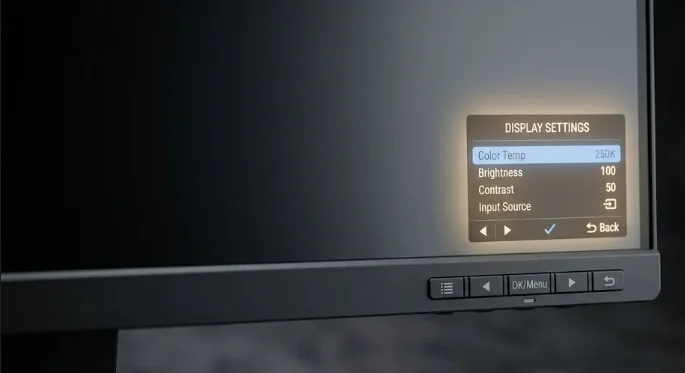
Every external monitor has its own on-screen display (OSD) menu. You access it through physical buttons or a joystick on the monitor itself, and it’s completely separate from your computer’s operating system.
Inside that menu, look for a Color Temperature or Color Mode setting. It usually has presets like Warm, Normal, Cool, User, sRGB, or Reddish/Bluish/Greenish sliders. Check your monitor’s color temperature setting. If it uses Warm, whether by default or because someone changed it, the display can look yellow regardless of your computer’s software settings.
6. Loose or Damaged Display Cable, or an EDID Handshake Issue
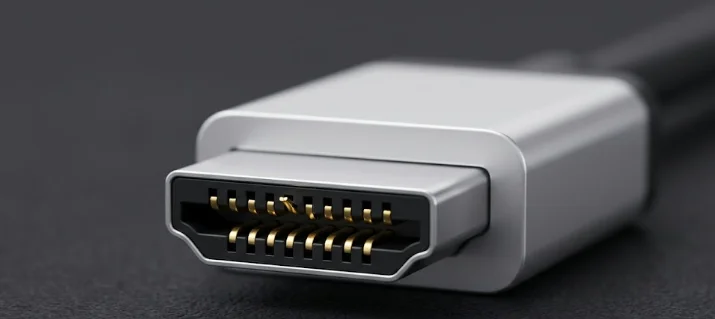
Video cables, HDMI, DisplayPort, USB-C, or older DVI/VGA, carry the color signal from your GPU to your screen. A loose connection, a damaged cable, or bent pins can distort that signal, sometimes producing a yellow or off-color cast rather than a total loss of picture.
There’s also a lesser-known cause: EDID (Extended Display Identification Data). It is a small chunk of data your monitor sends to your computer, identifying its resolution, refresh rate, and color capabilities. If that handshake fails or reads incorrectly, common with cheap adapters, KVM switches, or docking stations, your GPU may render color incorrectly for that display.
7. Third-Party Apps and Overlays
Apps can also add their own color filters. Examples include f.lux, Iris, and Twilight. Some laptop and gaming apps also include eye-comfort modes.
These include ASUS Splendid, Dell CinemaColor, and Lenovo Vantage Eye Care. Their filters can add a tint on top of your operating system’s settings.
These often run silently in the background or system tray. It’s easy to forget you installed one months ago.
8. Aging LCD Panel and Backlight Degradation
LCD backlights, especially older CCFL and early LED types, can shift color as they age. That’s what people usually mean by a screen going LCD yellowish over time.
It is a genuine hardware cause, but it’s also the least common one. Most “yellow screen” complaints turn out to be software. A real aging-panel tint develops gradually over months or years, not overnight.
A sharp black line usually points to a connection problem or physical damage. A uniform yellow tint usually has a simpler cause. Night Light or True Tone may have changed the screen’s color.
9. Heat Damage or Liquid Crystal Displacement
Prolonged heat, a laptop left in a hot car, or a monitor near a heat source, can physically displace the liquid crystal layer inside the panel.
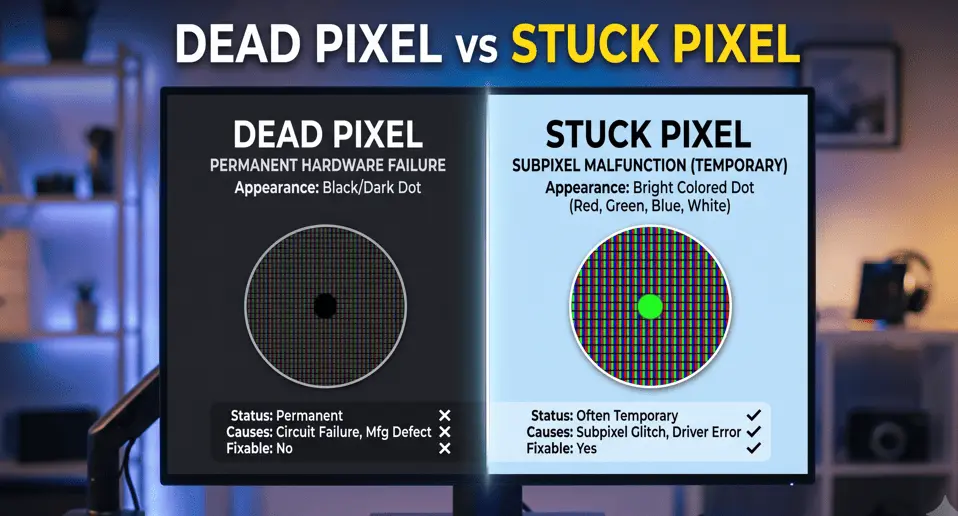
It typically shows up as localized yellow to orange spots or patches, not a uniform full-screen tint, and no software fix will touch it. It’s physical damage. In some severe cases, physical pressure and heat can even cause permanent pixel failures.
If you suspect structural panel damage, you can read our step-by-step guide on how to fix dead pixel lines on a laptop to run a quick diagnostic. Repair or replacement is usually the only path forward.
Quick recap: most causes above are settings you can fix yourself in minutes, Night Light, ICC profiles, drivers, HDR, and monitor OSD presets. Only aging panels and heat damage are genuine hardware problems. Keep that distinction in mind as you work through the fixes below.
How to Fix a Yellow Tint Display on Windows?
Work through these steps in order. They’re arranged from most likely cause to least likely.
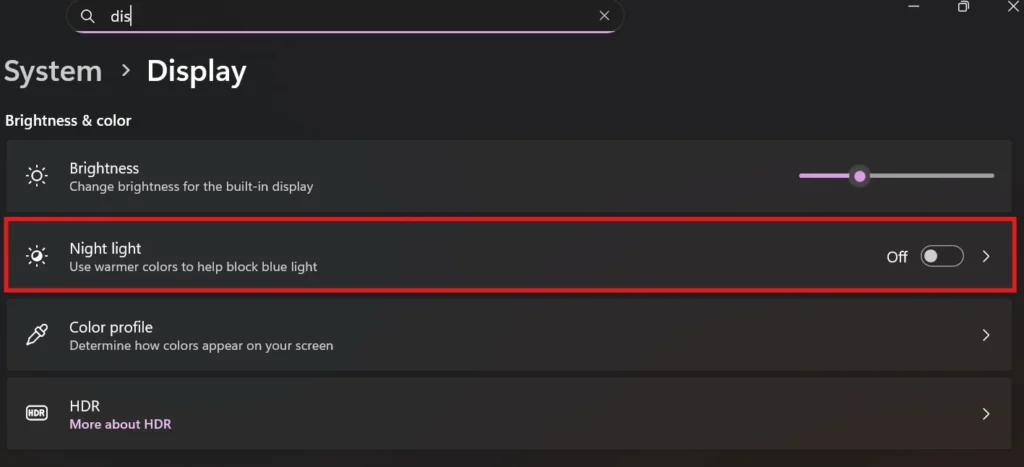
- Turn off Night Light. Go to Settings → System → Display → Night Light and toggle it off. Check the schedule too, Windows updates occasionally reactivate this automatically, without asking.
- Reset your color profile. Type “Color Management” into the Start menu and open it. In Windows, select your display under Color Management. Enable “Use my settings for this device.” Then check the Advanced section. Make sure the correct default profile is selected, usually an sRGB-based profile.
- Update or roll back your graphics driver. Open Device Manager → Display Adapters → right-click your GPU → Update Driver. If the tint started right after a driver update, choose Roll Back Driver instead.
- Check for third-party color apps. Look in your system tray and installed programs for f.lux, Iris, or manufacturer eye-care software. Disable or uninstall them temporarily to test.
- Reset your GPU control panel color settings. Open NVIDIA Control Panel, AMD Software, or Intel Graphics Command Center. Find the color/desktop color settings and restore them to default; these can override Windows-level settings.
- Test the cable and port. Swap to a different HDMI, DisplayPort, or USB-C cable, and try a different port on your GPU. If you’re using an adapter or dock, test a direct connection instead.
- Turn off HDR temporarily. Go to Settings → System → Display → HDR and toggle it off. If the tint disappears, your display’s HDR calibration is the cause, not a fault. See the HDR section below.
Tip: If step 1 doesn’t fix it, don’t skip straight to step 7. Work by following all the steps in the same order, each one rules out a different cause.
How to Fix a Yellow Tint Display on a Mac?
Mac screens most often turn yellow because of two built-in features working exactly as designed: True Tone and Night Shift.
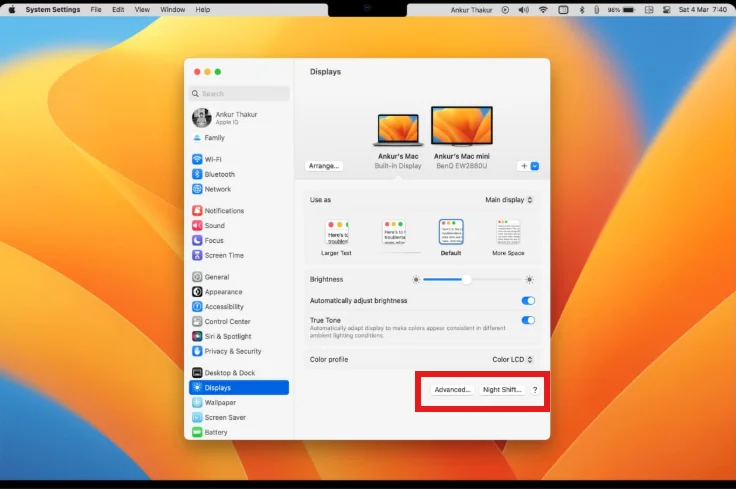
- Open System Settings → Displays.
- Turn True Tone and Night Shift off.
- If the display still looks warm, use the Color Temperature slider and move it toward a neutral setting.
- Open the Color tab and make sure your Mac is using the correct default color profile.
- For a deeper reset, open ColorSync Utility (search via Spotlight) and recalibrate the display to restore the white point and gamma settings.
- Finally, check System Settings → General → Software Update, as Apple occasionally fixes display rendering issues through macOS updates.
If the yellow tint stays in the same area, hardware may be the cause. This is especially true when you see a yellow, orange, or brown patch instead of a full-screen tint.
The problem could involve the LCD panel, backlight, or display adhesive. In that case, software fixes will not solve it.
In that case, read our guide on how to fix an orange spot on a MacBook screen. It explains how to identify the exact cause and determine whether the display needs repair.
How to Fix a Yellow Tint Display on a Standalone/External Monitor?
It is the step most other guides skip entirely, and it’s essential if you’re on a desktop or a laptop connected to an external display.
Every monitor has its own OSD (on-screen display) menu, controlled by physical buttons or a joystick, usually on the bottom-right or back edge. This menu lives on the monitor itself. Your monitor’s OSD settings work independently of Windows, macOS, Night Light, and graphics drivers. Even a perfectly configured computer can look yellow if the monitor’s color settings are wrong.
General steps (works on almost any monitor):
- Press the menu button on the monitor to open the OSD.
- Navigate to Picture, Color, or Color Settings.
- Look for Color Temperature or Color Mode.
- Select Normal, sRGB, Standard, or 6500K. Avoid “Warm,” “Reddish,” or low Kelvin values like 5000K.
- If your monitor offers a User or Custom mode with separate RGB controls, set Red, Green, and Blue to equal values. Common defaults include 100/100/100 or 50/50/50, depending on the monitor.
- Save and exit the menu.
- Still off? Most monitors have a Factory Reset option inside the OSD, often under a General or Reset submenu, that restores all picture settings to default.
Quick reference by brand (menu names vary slightly by model):
| Brand | Typical Path to Color Settings | Common Preset to Avoid |
|---|---|---|
| Dell | Menu → Color → Preset Modes | Warm / ComfortView (unless intended) |
| LG | Menu → Picture → Color Temp | Warm |
| Samsung | Menu → Picture → Color Tone | Warm1 / Warm2 |
| ASUS | Menu → Image → Color Temp. | Warm |
| Acer | Menu → Picture → Color Temp | Warm |
| HP | Menu → Color → Color Temperature | Warm |
If your model’s menu wording doesn’t match, check the manufacturer’s support page for your exact model number. OSD layouts vary even within the same brand, across generations.
Why Your Screen Turned Yellow After a Windows Update?
Tint appeared right after Windows updated? Here’s what’s actually happening, and how to fix it.
- Windows Update can sometimes turn Night Light back on. Check Settings → System → Display → Night Light, even if you remember turning it off.
- Updates can push a new graphics driver automatically, and it can ship with color-rendering bugs. Roll it back as described above.
- Updates occasionally reset the default color profile to a generic Windows profile instead of your monitor’s calibrated one. Reopen Color Management and reassign the correct one.
- HDR can toggle on during major feature updates if Windows detects HDR capability on your display. Check it and disable it if you didn’t turn it on intentionally.
Work through these four in order. That resolves the vast majority of post-update yellow tint display cases.
HDR and Gaming Monitors: Why They Can Look Yellow Without Being Broken
Own a gaming monitor or laptop with an HDR-capable panel? This section is probably your answer.
HDR mode expands the range of brightness and color a display can show. But it needs content, a GPU, and a monitor to handle “tone mapping” correctly, all at once. When one part of that chain doesn’t cooperate, commonly, Windows’ desktop HDR toggle is applied to non-HDR content like your browser or file explorer. When that happens, the result is often a washed-out, yellow-tinted, or overly warm look across ordinary apps. Games or HDR video might look fine at the same time.
How to tell if HDR is the cause:
- The tint shows on the desktop and in regular apps, but colors look normal, or even better, in HDR-supported games or streaming video.
- Toggling Settings → Display → HDR off immediately fixes the tint.
- The issue started right when you enabled HDR or plugged into a new HDR-capable monitor.
What to do about it: keep HDR off for everyday desktop use, and only enable it per-game or per-app when supported. Or use your monitor’s dedicated HDR picture mode, separate from its SDR color temp setting, to calibrate it properly. It isn’t a defect. It’s a calibration mismatch, and it’s fixable without any repair.
Software vs. Hardware: How to Tell the Difference
Seeing a yellowish tint on the monitor hardware, specifically, not a laptop screen? Work through this table first. It separates a monitor-side cause from a computer-side one, before you touch any settings.
| Signal | Points To |
|---|---|
| Tint disappears after turning off Night Light, True Tone, or HDR | Software setting |
| Tint disappears after resetting the monitor’s OSD color preset | Monitor configuration |
| Tint appears during BIOS or startup screen, before Windows/macOS loads | Hardware issue |
| Tint follows the monitor to a different computer | Monitor hardware |
| Tint follows the laptop to a different external monitor | Laptop’s own panel or GPU output |
| Tint is confined to one small area, not the whole screen | Heat damage or panel defect |
| Tint appeared right after a cable/adapter swap | Cable or EDID handshake issue |
| Tint developed gradually over months or years | Aging panel/backlight |
The 60-Second Isolation Test
Run this before you assume the worst.
- Connect your laptop to a different external monitor (a friend’s, a TV, anything). Tint gone? The problem is your laptop’s own screen or graphics output.
- Connect a different device to your monitor (another laptop, a game console, anything with HDMI). Tint follows the monitor? The monitor itself is the source.
- Check the BIOS/startup screen, restart, and look before the OS loads. Tint there too? It’s hardware. No software fix will touch it.
- Swap the cable. If you have a spare HDMI or DisplayPort cable, use it. Cable-related tints are more common than people expect, especially with cheap or older cables.
Three minutes with this test can save you from replacing a perfectly good monitor or from endlessly resetting software when the real problem is an $8 cable.
Pros and Cons of Blue Light Filters
Blue light filters are the most common intentional cause of a yellow tint display. So it’s worth weighing them honestly, instead of just switching them off outright.
| Pros | Cons |
| 1. May reduce eye strain during long screen sessions, particularly in low ambient light | 1. Shifts color accuracy, which matters for photo editing, video editing, or design work |
| 2. Can support a more natural sleep-wake cycle in the evening, since warm light suppresses melatonin less than blue light | 2. Also, matters more than people expect for reading financial charts, a warm-shifted screen makes red and green candlesticks harder to tell apart at a glance. If accurate color matters for your setup, it’s worth factoring in before your next purchase; our guide to choosing the best laptop for trading crypto covers panel quality and color accuracy alongside the specs that actually matter for that kind of work. |
| 3. Free, built into every modern OS, no extra hardware needed | 3. Blue-light filters can be easy to forget. This can lead to unnecessary troubleshooting or even an unnecessary hardware replacement. |
| 4. Scheduled filters can silently re-enable after updates, causing recurring “false alarms” |
A practical middle ground is to schedule the filter for the evening. Turn it off during color-sensitive work. This approach avoids leaving the filter on all day.
Common Mistakes People Make
- Buying a new monitor before checking Night Light, True Tone, or the OSD color preset. It is the most expensive way to fix a setting that takes five seconds to change.
- Resetting the color profile without checking for a third-party app first. If f.lux or a manufacturer’s eye-care app is running, your reset won’t stick.
- Adjusting Windows settings while ignoring the monitor’s own OSD menu. These are two separate systems. Fixing one doesn’t touch the other.
- Enabling HDR and assuming the resulting tint means the monitor is defective. It’s usually a calibration or tone-mapping issue, not damage.
- Testing in only one app. Some apps carry their own color profile or built-in night mode; many e-readers, browsers, and creative apps do this. It can make the tint look device-wide when it’s actually app-specific.
When Should You Actually Worry?
You’re likely dealing with a genuine hardware problem, not a setting, if:
- The tint persists after turning off every filter, resetting every profile, and factory-resetting the monitor’s OSD
- It appears during BIOS/startup, before any operating system loads
- It shows up on multiple devices connected to the same monitor
- It’s confined to specific patches or spots rather than the whole screen, a sign of heat damage
- It developed slowly over a long period of use, rather than appearing suddenly
Warning: if two or more of these apply, stop troubleshooting settings. The next step is a professional diagnostic or a warranty claim; continuing to reset the software at that point won’t help.
Prevention: How to Stop It From Coming Back
- After any major OS update, do a quick check of Night Light/Night Shift and your color profile. It is the single most common recurrence trigger.
- Using a docking station, KVM switch, or cheap adapter? Budget for a quality cable. EDID handshake issues are disproportionately common with low-cost accessories.
- Once you find the correct OSD color temperature setting, take a photo of the menu. You can use it as a quick reference if the setting changes accidentally or after a firmware update.
- Keep GPU drivers updated through the manufacturer’s site (NVIDIA, AMD, Intel) rather than relying only on Windows Update, which can lag or push generic drivers.
- Use HDR regularly? Calibrate it through your monitor’s dedicated HDR picture mode, instead of leaving default Windows HDR settings active for all content.
Quick Reference Checklist
- Night Light / Night Shift / True Tone turned off
- HDR toggled off to test
- Color profile confirmed correct in Color Management / ColorSync
- Graphics driver updated (or rolled back if issue started post-update)
- Third-party apps (f.lux, Iris, manufacturer eye-care tools) checked
- Monitor OSD color temperature checked and reset to Normal/sRGB
- Cable swapped or reseated
- BIOS/startup screen checked for the tint
- Tested on a different monitor/device (isolation test)
FAQ
1. What does a yellow tint Display on a screen mean?
Your display’s color temperature may have shifted toward warm. A blue-light filter can cause this change. An incorrect color profile, HDR mismatch, or monitor OSD preset can also cause it. It’s rarely physical damage.
2. How do I stop my screen from turning yellow at night?
Turn off Night Light on Windows, or Night Shift on Mac, in your display settings. These features intentionally warm the screen in the evening to cut blue light exposure; it’s expected behavior, not a fault.
3. Can a bad HDMI cable cause a yellow tint display?
Yes. A damaged, loose, or low-quality cable, or a failed EDID handshake through a cheap adapter or dock, can distort the color signal between your computer and screen.
4. Is a yellow tint display bad for my eyes?
No. A mild yellow tint display from a blue light filter is generally considered safe. It’s often used specifically to reduce eye strain in low light or before bed.
Why does my screen turn yellow only in certain apps? Some apps use their own internal color profile or built-in night mode, which tints the display only while that app is open, even if your OS-level settings are neutral.
5. Can outdated graphics drivers cause a yellow screen?
Yes. Drivers control how your system sends color data to the display, so an outdated, corrupted, or buggy driver can cause a visible color shift, including yellow.
6. Does a yellow tint display mean my monitor is dying?
Not usually. Most cases trace back to software or the monitor’s own OSD settings. A tint genuinely caused by an aging panel develops gradually and survives every reset; that combination is the real warning sign.
7. How do I know if the problem is my laptop or my external monitor?
Connect the monitor to a different device. Tint stays with the monitor? The monitor is the source. Tint follows your laptop to a different monitor? The laptop’s screen or graphics output is the cause.
8. Can heat cause a yellow tint display on a screen?
Yes. Prolonged heat exposure can displace the liquid crystal layer inside the panel, but this usually shows up as localized yellow spots or patches, not a uniform full-screen tint.
9. Why does my monitor look yellow, but my laptop screen looks fine?
It points to the monitor itself, most often its OSD color temperature preset set to “Warm,” or occasionally a cable/EDID issue specific to that connection.
10. Why did my screen turn yellow after enabling HDR?
HDR changes how your display handles color and brightness. As a result, non-HDR content such as your desktop or browser can sometimes look washed out or warmer than expected. It’s a calibration mismatch, not damage. Disabling HDR for everyday use resolves it.
11. Should I calibrate my display if the yellow tint won’t go away?
Yes, after ruling out Night Light, True Tone, HDR, drivers, and the monitor’s OSD settings. Your OS’s built-in calibration tool can catch subtle color shifts that basic toggles miss.
12. Why did the yellow tint display appear right after a Windows update?
Updates can silently re-enable Night Light, push a new graphics driver, reset your default color profile, or turn on HDR. Checking all four, in that order, resolves most post-update cases.
Summary
A yellow-tinted display is, in the vast majority of cases, a setting rather than a hardware failure. Which setting depends on what you’re using.
Laptops usually trace back to Night Light, True Tone, or a driver issue. Standalone monitors usually trace back to their own OSD color temperature preset. HDR can create a yellow appearance that isn’t a fault at all, just a calibration mismatch.
Work through the checklist above in order. Run the 60-second isolation test if you’re unsure where the problem lives. Save real concern for a tint that survives every reset, shows up in the BIOS, or appears as isolated patches instead of a full-screen shift.
Dealing with a different computer issue altogether, not just a color problem? Our general guide on how to troubleshoot computer problems walks through the same step-by-step diagnostic approach. It applies this method to a wider range of hardware and software issues.