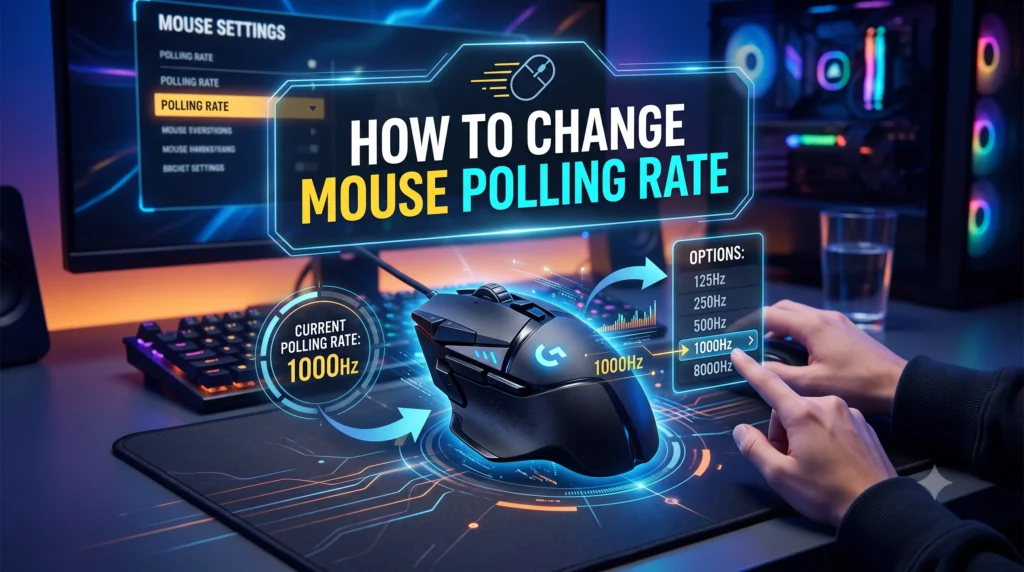
If your cursor ever feels a half-step behind your hand, or you’ve heard competitive players talk about “1000Hz” like it’s some kind of secret weapon, you’ve stumbled onto polling rate. It’s one of those settings that sits quietly in your mouse software, rarely touched, yet it has a real effect on how connected your mouse feels to what’s happening on screen.
This guide walks through exactly how to Change Polling Rate on a Logitech Mouse, and the precise steps to do it in Logitech G HUB and the older Logitech Gaming Software (LGS). We’ll also cover which rate actually makes sense for your use case, because higher isn’t automatically better for everyone. If you use a different brand alongside your Logitech mouse, our general how to change mouse polling rate guide covers the process across manufacturers.
Table of Contents
What Is Mouse Polling Rate?
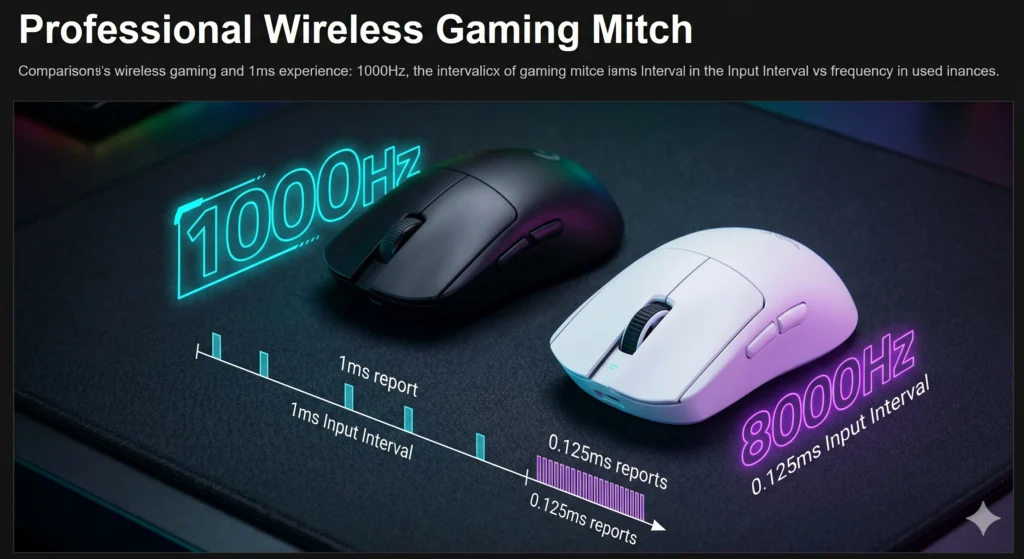
Quick answer: Polling rate is how often your mouse reports its position to your computer, measured in Hertz (Hz). A 1000Hz polling rate means the mouse sends an update every 1 millisecond. A 125Hz rate means it updates every 8 milliseconds.
Every time you move a Logitech mouse, its sensor is tracking motion continuously, but that data doesn’t reach your PC instantly and constantly, it gets sent in reports, at a rate the mouse and its software agree on. Polling rate is simply the frequency of those reports.
| Polling Rate | Time Between Reports | Reports Per Second |
| 125Hz | 8ms | 125 |
| 250Hz | 4ms | 250 |
| 500Hz | 2ms | 500 |
| 1000Hz | 1ms | 1,000 |
| 2000Hz–8000Hz* | 0.5ms–0.125ms | 2,000–8,000 |
Available on newer high-end LIGHTSPEED wireless mice such as the G Pro X Superlight 2 and G Pro X2 Superstrike.
What Polling Rates Does Logitech Support?
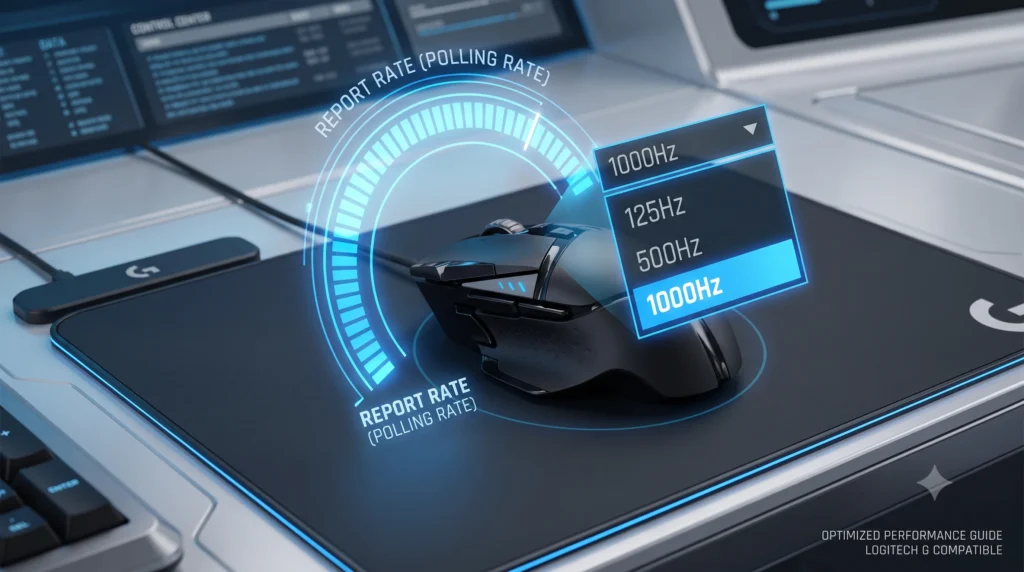
Most Logitech gaming mice offer four standard options in software:
- 125Hz: one report every 8ms. Lowest CPU overhead, occasionally used to fix stutter issues on older or weaker systems.
- 250Hz: one report every 4ms. A middle-ground rarely chosen deliberately, but useful for troubleshooting.
- 500Hz: one report every 2ms. A solid, stable option many players use for wireless mice to balance responsiveness and battery life.
- 1000Hz: one report every 1ms. The standard for competitive gaming and the default on most modern Logitech gaming mice.
Logitech’s newest LIGHTSPEED wireless flagships go further. The G Pro X Superlight 2 and G Pro X2 Superstrike, for example, support up to 8000Hz wirelessly through their high-speed LIGHTSPEED receiver, with intermediate 2000Hz and 4000Hz options also available in G HUB. Note that when these same mice are used wired via USB cable, they’re limited to 1000Hz, since that’s the practical ceiling of standard USB HID polling. If you’re deciding whether the jump is worth it, our detailed comparison of 8000Hz vs. 1000Hz polling rate breaks down the real-world difference.
Which Logitech Mice Support Polling Rate Changes?
Polling rate adjustment is a feature of Logitech’s gaming (G-series) mice, controlled through G HUB or LGS. Productivity mice generally don’t expose this setting because it isn’t relevant to office use.
Gaming mice with adjustable polling rate:
- Logitech G502 Hero
- Logitech G502 X / G502 X Plus
- Logitech G Pro (wired)
- Logitech G Pro X Superlight
- Logitech G Pro X Superlight 2 (up to 8000Hz wireless)
- Logitech G Pro X2 Superstrike (up to 8000Hz wireless)
- Logitech G305 (up to 1000Hz)
- Logitech G703 / G703 Hero
- Logitech G903 / G903 Hero
- Logitech G304
- Logitech G203 / G203 Lightsync
Productivity mice (MX Master series, M-series, etc.):
These typically run at a fixed rate suitable for office and creative work and don’t expose a polling rate control in Logitech Options / Options+. If a specific model does support it, the control would live under Advanced Settings for that device in Options+, but this is the exception rather than the rule.
If you’re unsure whether your specific mouse supports the setting, the fastest way to check is to open G HUB, select your device, and see whether a Report Rate or Polling Rate option appears under its Sensitivity (DPI) tab.
If you’re still weighing whether it’s worth adjusting at all, our breakdown of whether mouse polling rate matters for gaming digs into the real-world impact in more detail.
Requirements Before Changing Polling Rate
Before you touch any settings, a few quick checks will save you from confusing troubleshooting later:
- Install the correct software. Gaming mice use Logitech G HUB (or the legacy LGS for older models). Productivity mice use Logitech Options+.
- Update your mouse firmware. Polling rate options sometimes only appear after a firmware update, this is a common reason people can’t find the setting at all.
- Use a direct USB connection. For wired mice, plug directly into a motherboard USB port rather than an unpowered hub. For wireless mice, use the included LIGHTSPEED USB receiver, not Bluetooth, Bluetooth mice are capped around 125Hz regardless of what the mouse itself supports.
- Charge wireless mice adequately. High polling rates draw more power; a low battery can cause inconsistent reporting.
- Close conflicting software. Having both G HUB and old LGS installed at once can cause settings to not save properly. Uninstall one if you don’t need it.
How to Change Polling Rate Using Logitech G HUB: Step-by-Step Guide
G HUB is the current software for all modern Logitech G gaming mice, including the G502, G Pro X Superlight, G703, G903, and G305.
Here is the Step-by-Step Guide about How to Change Polling Rate on a Logitech Mouse
- Download and install G HUB from Logitech’s official site if you don’t already have it, then restart your PC.
- Open G HUB and make sure your mouse appears in the device list. Click its icon to open the device dashboard.
- On the left-hand sidebar, select the Sensitivity (DPI) tab.
- Look for the Report Rate (Hz) dropdown, sometimes labeled Polling Rate.
- Click the dropdown and select your desired rate, 125, 250, 500, or 1000Hz on most models; 2000, 4000, or 8000Hz on supported flagship mice.
- The change applies automatically, there’s no separate “save” button for the live setting, though you should also save it to a profile (covered below).
- Test the new rate in-game, or use our free mouse polling rate tester to confirm it’s reporting correctly.
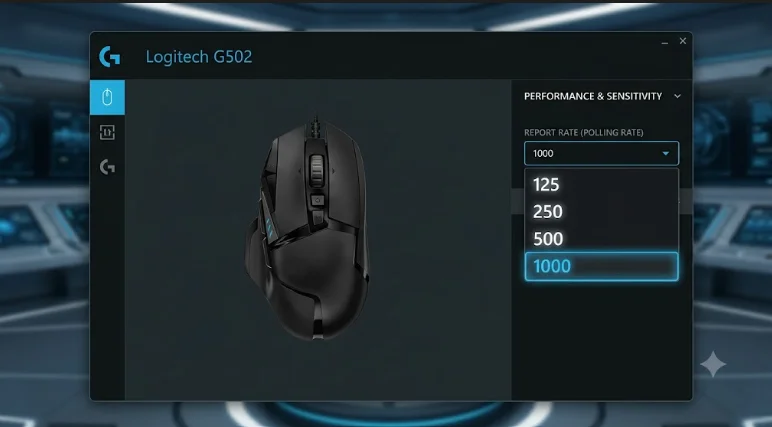
Tip: If the Report Rate option isn’t visible at all, disconnect and reconnect the mouse, restart G HUB, or check for a pending firmware update. This resolves the vast majority of “missing setting” cases.
How to Change Polling Rate Using Logitech Gaming Software (LGS)
LGS is the older, discontinued software still used by some legacy Logitech mice that never received G HUB support. If your mouse only works with LGS:
- Open Logitech Gaming Software from your system tray or Start menu.
- Click on your mouse in the device list.
- Go to the Pointer Settings tab.
- Find the Report Rate dropdown menu.
- Select your preferred polling rate (typically 125Hz, 500Hz, or 1000Hz).
- Changes typically apply immediately; if your mouse supports onboard memory, save the profile to the device as well.
If your mouse is supported by both G HUB and LGS, Logitech recommends using G HUB, running both simultaneously can cause settings conflicts.
How to Save Polling Rate to Onboard Memory
Many Logitech gaming mice (G502, G Pro X Superlight, G903, G703) include onboard memory, which stores your settings directly on the mouse. This means your polling rate, DPI, and button assignments persist even on a computer without G HUB installed, useful for LAN events or a second PC.
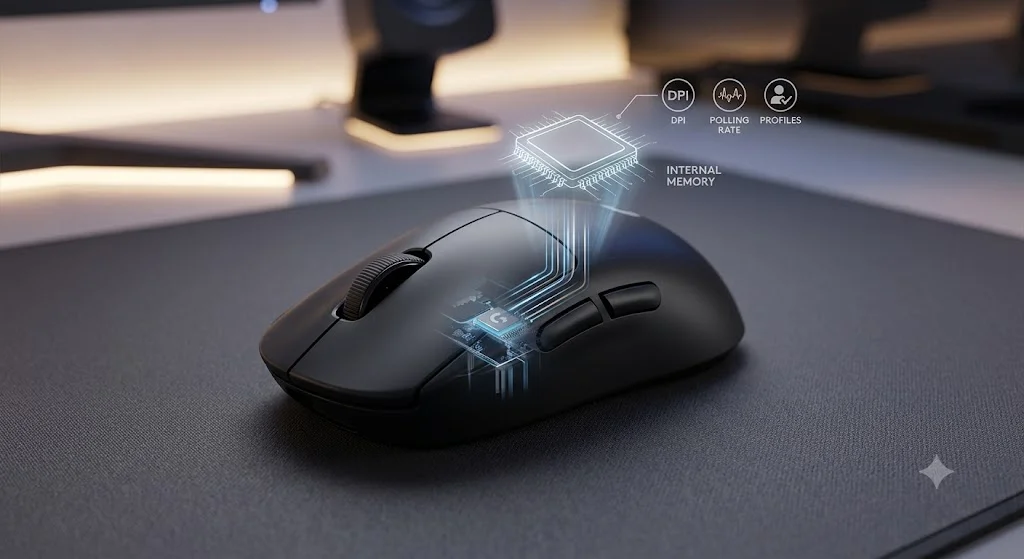
To save to onboard memory in G HUB:
- Open your device page in G HUB.
- Locate the profile you’re editing (usually shown at the top as an “Applications” or profile list).
- Look for an onboard memory icon or toggle, often shown as a small chip/memory symbol next to the profile name.
- Assign your current settings (including polling rate) to that onboard profile and confirm.
- Unplug and reconnect the mouse to verify the settings persisted without G HUB running.
Not every model has onboard memory, budget wired mice like the G203 typically rely on G HUB running in the background instead.
Best Polling Rate for Different Uses
| Use Case | Recommended Polling Rate | Why |
| FPS games (Valorant, CS2, Apex) | 1000Hz (or higher if supported) | Fast flicks and precise timing benefit most from frequent updates |
| MOBA games (League of Legends, Dota 2) | 500Hz–1000Hz | Movement is less twitch-based; 500Hz is often indistinguishable in practice |
| RTS games | 500Hz | Precision clicking matters more than raw update frequency |
| Casual/single-player gaming | 500Hz | Smooth enough, easier on battery for wireless mice |
| Office work | 125Hz–500Hz | No competitive benefit to higher rates; saves power |
| Graphic design / video editing | 500Hz–1000Hz | Smoother cursor tracking helps with precise selections, but isn’t critical |
There’s no single “correct” answer, this is a starting point, not a rule. If 1000Hz ever introduces stutter on your system (more on that below), dropping to 500Hz is a completely reasonable trade-off.
Does Higher Polling Rate Improve Performance?
In short: it can improve responsiveness, but its effect on actual gameplay outcomes is modest and system-dependent.
The advantages of a higher polling rate:
- Reduced time between physical movement and the computer registering it
- Smoother cursor tracking, especially on high refresh-rate monitors
- More consistent input during fast flicks or micro-adjustments
The limitations:
- The improvement from 500Hz to 1000Hz is measured in single-digit milliseconds, smaller than most people’s reaction time variance
- Extremely high rates (4000Hz–8000Hz) only provide meaningful benefit if your CPU, monitor refresh rate, and the specific game can actually make use of that much data
- On weaker or older systems, very high polling rates can increase CPU interrupt load enough to cause micro-stutter, which ironically hurts the smoothness you’re chasing
For most players, the jump from 125Hz to 1000Hz is worth making. The jump from 1000Hz to 8000Hz is a diminishing-returns upgrade best suited to high-end competitive setups.
Can Higher Polling Rate Reduce Input Lag?
Yes, in a very specific sense. Input lag has several contributing stages, sensor tracking, mouse-to-PC reporting, game engine processing, and monitor refresh. Polling rate only affects the second stage: how quickly your movement data reaches the PC.
Raising polling rate from 125Hz to 1000Hz cuts that specific delay from up to 8ms down to 1ms. That’s a real, measurable reduction. But it doesn’t touch the other stages of the pipeline, so total system latency will still depend heavily on your monitor’s refresh rate and the game’s own processing time.
Does Polling Rate Affect CPU Usage?
Yes, though the effect is usually small on modern hardware. Every report your mouse sends generates a USB interrupt that your CPU has to process. At 125Hz, that’s 125 interrupts per second; at 1000Hz, it’s 1,000; at 8000Hz, it’s 8,000.
On a modern multi-core CPU, this overhead is typically negligible. On older or lower-end systems, particularly laptops sharing USB controllers across multiple devices, very high polling rates can occasionally contribute to stutter or micro-freezes, which is one of the more common reasons players are advised to drop from 1000Hz to 500Hz if they notice inconsistent frame pacing.
Common Problems and Fixes
Here are will discuss about the common problems related to polling rate and how to solve them:
Polling rate option not changing or not saving Restart G HUB completely (including from the system tray), reconnect the mouse, and re-select the rate. If it still won’t stick, check for a firmware update, outdated firmware is the most frequent cause.
G HUB not detecting the mouse Try a different USB port directly on the motherboard, avoid USB hubs, and confirm the mouse isn’t in a sleep/power-saving state. Reinstalling G HUB resolves persistent detection issues.
The mouse feels laggy after changing the polling rate. If you jumped to a very high rate (2000Hz+) and notice a stutter, drop back to 1000Hz or 500Hz. This is a known trade-off on lower-spec systems.
Firmware won’t update Ensure a stable internet connection, close other USB-heavy applications, and try connecting the mouse via cable (if wireless) during the update process.
USB power-saving interference Windows can occasionally put USB ports into a low-power state that mimics a polling rate drop. In Device Manager, expand Universal Serial Bus controllers, right-click your USB Root Hub, open Properties → Power Management, and uncheck “Allow the computer to turn off this device to save power.”
Driver conflicts between G HUB and LGS If both are installed, uninstall whichever one you don’t actively need. Running both simultaneously is a common cause of settings not applying correctly.
Tips for Getting the Best Mouse Performance
- Use a direct USB port rather than a hub, especially for wired mice
- Keep G HUB and mouse firmware updated
- Turn off “Enhance pointer precision” in Windows mouse settings, since it can distort raw sensor input
- Match your DPI to your polling rate sensibly. Understanding the difference between DPI and polling rate can help you choose a smoother setup. Very high DPI paired with very low polling rate can feel choppy.
- Save your preferred settings to onboard memory if your mouse supports it, so they persist across systems
- Test changes with a cursor or polling rate test tool rather than relying on how it “feels” from memory alone
Frequently Asked Questions
1. What polling rate should I use?
1000Hz is the standard recommendation for most gamers using a wired connection or a modern wireless mouse. Drop to 500Hz only if you notice stutter or want to conserve battery on a wireless mouse.
2. Is 1000Hz always better?
Not universally. It’s better for responsiveness, but if your system struggles with the added CPU interrupts, a lower rate can actually feel smoother in practice.
3. Can polling rate damage my mouse?
No. Polling rate is a firmware-level setting within the mouse’s supported range, using any available option, including the highest, won’t cause hardware damage.
4. Does polling rate affect battery life?
Yes, especially on wireless mice. Higher polling rates require more frequent radio transmissions, which draws more power. Dropping from 1000Hz to 500Hz can noticeably extend battery life on wireless models. For the full picture, see how polling rate can drain your wireless mouse battery.
5. How do I check my mouse polling rate?
You can verify your current setting in G HUB under the Sensitivity (DPI) tab, or use our free mouse polling rate tester to measure actual reports per second in real time.
6. Can Windows change polling rate?
No. Windows has no native polling rate control for standard USB mice, it simply accepts whatever rate the mouse firmware and manufacturer software configure.
7. Does polling rate improve aim?
It can make tracking feel smoother and more responsive, but aim improvement mostly comes down to sensitivity settings, practice, and mechanical consistency, polling rate is a supporting factor, not a primary one.
8. Is the polling rate the same as DPI?
No. DPI controls cursor sensitivity (how far the cursor moves per inch of physical movement). Polling rate controls how often the mouse reports its position. They work independently of each other.
9. Why can’t I find the Report Rate option in G HUB?
Usually a firmware update is required, or the mouse needs to be disconnected and reconnected after installing/updating G HUB. Some entry-level mice simply don’t offer adjustable polling rates at all.
10. Does a higher polling rate use more USB bandwidth?
Yes, technically, but the amount of data per report is tiny. Even at 8000Hz, a mouse uses a small fraction of available USB bandwidth, this isn’t a practical concern for typical setups.
11. Do wireless Logitech mice support 1000Hz?
Yes. LIGHTSPEED wireless technology supports full 1000Hz performance on models like the G Pro X Superlight, G703, and G903, matching wired responsiveness. Bluetooth connections, by contrast, are capped much lower, generally around 125Hz.
12. Should I use the highest polling rate my mouse supports?
Only if your system handles it without stutter and you’re playing something where every millisecond matters, like a competitive FPS. For most everyday use, 500Hz–1000Hz is the practical sweet spot.
13. Does polling rate matter for a 60Hz monitor?
Less so than on a high refresh-rate monitor. A 60Hz screen only redraws 60 times a second regardless of how much mouse data is available, so the practical benefit of very high polling rates is reduced.
14. Can I set different polling rates for different games?
Yes, G HUB lets you create per-application profiles, so you can automatically switch polling rate (along with DPI and other settings) based on which program is in focus.
15. Will changing the polling rate void my warranty?
No. This is a standard, manufacturer-supported software setting, not a hardware modification.
Final Verdict
Polling rate is a small setting with a real, if modest, effect on how connected your mouse feels to your movements. For most Logitech gaming mice, the G502, G Pro series, G703, and G903, changing it is a two-minute job in G HUB: open the Sensitivity (DPI) tab, find Report Rate, and pick your number.
For competitive gaming, 1000Hz is the sensible default, with newer flagship mice like the G Pro X Superlight 2 offering headroom up to 8000Hz for players chasing every last fraction of a millisecond. For everyday use, office work, or extending battery life on a wireless mouse, 500Hz is a perfectly capable middle ground. Whatever you choose, save it to onboard memory if your mouse supports it, keep your firmware current, and test the result in the situations you actually use your mouse for, that’s a better guide than any single “best” number.