Your wireless mouse’s advertised battery life might be far from reality. Many manufacturers claim 70+ hours of runtime, but those numbers are typically tested at 125Hz polling rate under ideal conditions.
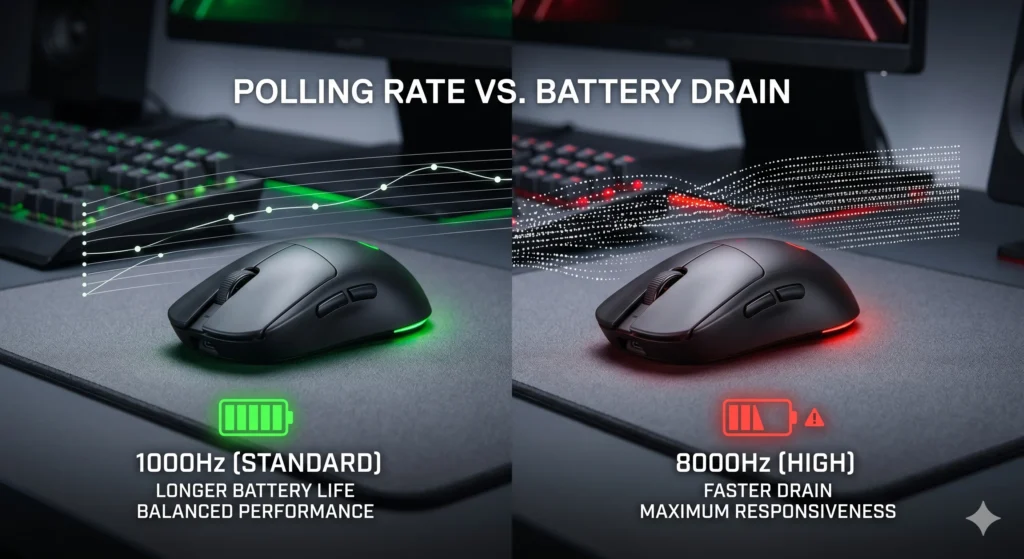
Increase the polling rate to 1000Hz, 4000Hz, or 8000Hz, and battery life can drop significantly. So, does polling rate drain your wireless mouse battery? The short answer is yes, but the real impact depends on how you use your mouse.
In this guide, you’ll discover how polling rate affects battery life, how much runtime you can actually expect at different settings, and which polling rate offers the best balance between performance and battery longevity.
Table of Contents
What Is Mouse Polling Rate?
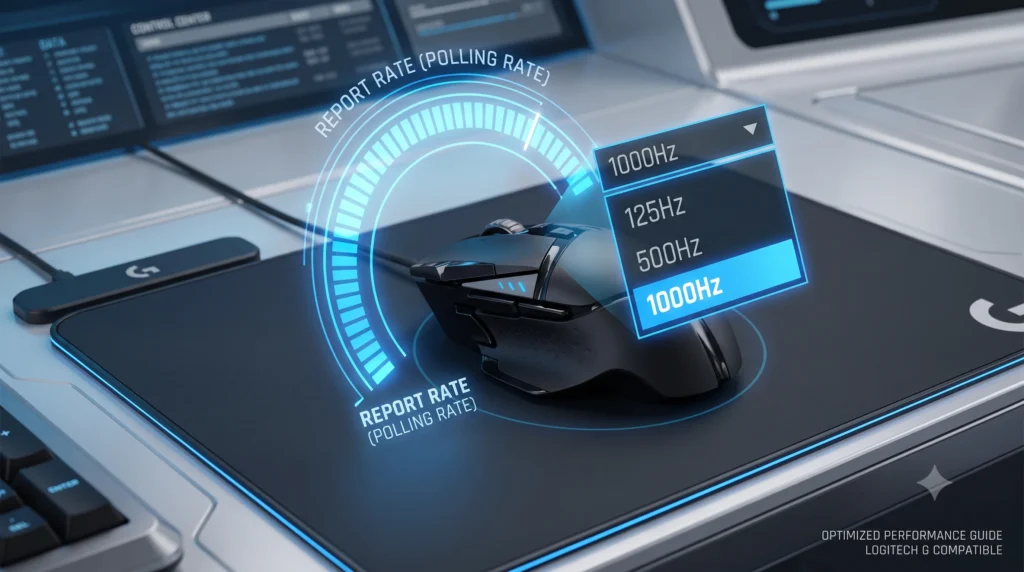
Polling rate is the frequency at which your mouse reports its position to your computer. It’s measured in Hertz (Hz), meaning “times per second.” A mouse set to 1000Hz sends 1000 position updates per second to your PC. A mouse at 8000Hz sends 8000 updates every second.
Think of the polling rate like a heartbeat for your mouse. The faster it beats, the more frequently your computer knows exactly where your cursor is.
Common polling rates you’ll find across the market today include:
• 125Hz – once every 8ms (budget and office mice)
• 250Hz – once every 4ms
• 500Hz – once every 2ms
• 1000Hz – once every 1ms (standard for most gaming mice)
• 4000Hz – once every 0.25ms
• 8000Hz – once every 0.125ms (current top-end for competitive gaming)
Mouse polling rate explained simply: it’s how often your mouse sends data, and polling rate determines the maximum smoothness and responsiveness of your cursor movement. If you want to check your hardware right now, you can use our free mouse polling rate tester to see your real-time frequency.
Does Higher Polling Rate Use More Battery?
Yes, polling rate does affect battery life in a wireless mouse, but the effect is more nuanced than a simple “higher rate = less battery” equation.
Here’s why the relationship is complicated:
• Modern wireless mice use ultra-low-power radio chipsets specifically engineered for high-frequency transmission.
• The sensor and processor already consume significant idle power just from being active.
• Many high polling rate mice use dedicated co-processors to offload the processing load, which actually reduces CPU overhead rather than increasing it.
• Battery drain is heavily influenced by sensor tracking intensity (fast mouse movement vs. sitting still), RGB lighting, and battery capacity.
That said, the drain is real. Moving from 125Hz to 1000Hz to 8000Hz polling rate progressively increases power consumption. The question is how much.
Testing the Real Impact: Battery Drain at Different Polling Rates
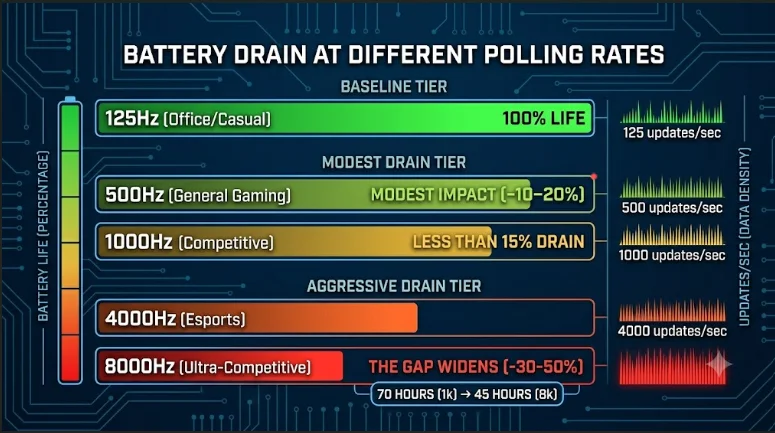
To understand the practical impact, let’s look at what the data shows across common polling rate configurations.
Manufacturers like Razer and Logitech have published some figures, and independent testers have benchmarked flagship mice to measure how much polling rate actually changes battery life. The numbers vary by model, battery size, and whether features like RGB lighting are involved.
However, a consistent pattern emerges from across the testing community:
• Switching from 125Hz to 500Hz has a modest impact, typically reducing battery life by 10–20%.
• Switching from 500Hz to 1000Hz is similarly modest, often less than 15% reduction.
• Moving from 1000Hz polling rate to 4000Hz or 8000Hz is where the gap widens, with some mice losing 30–50% of their rated battery life in the most aggressive configurations.
Still, a mouse rated for 70 hours at 1000Hz might deliver 45–50 hours at 8000Hz. For most users, that’s still multiple days of heavy use. The battery drain from high polling rates is real, but rarely session-ending.
Battery Drain Comparison by Polling Rate
| Polling Rate | Updates/Sec | Approx. Battery Life* | Typical Use Case |
| 125Hz | 125 | 100% (baseline) | Office / casual |
| 500Hz | 500 | ~80–90% | General gaming |
| 1000Hz | 1000 | ~70–80% | Competitive gaming |
| 4000Hz | 4000 | ~55–65% | Esports / pro play |
| 8000Hz | 8000 | ~45–55% | Ultra-competitive / pro |
Estimates relative to 125Hz baseline; actual values depend on mouse model, battery capacity, RGB status, and usage intensity.
Factors That Affect Battery Consumption More Than Polling Rate
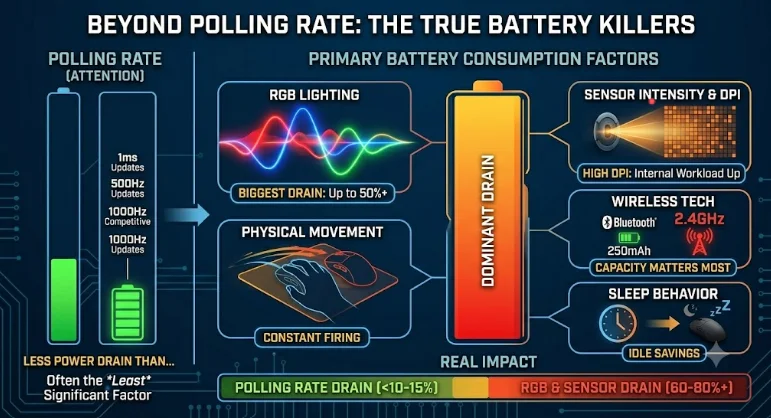
Polling rate gets a lot of attention in battery life debates, but it’s rarely the dominant factor. These elements typically consume more power:
1. RGB Lighting
RGB lighting is one of the single biggest battery draws in any wireless gaming mouse. Some mice with aggressive lighting effects use as much power from LEDs alone as they do from their sensor and radio combined. If battery life matters to you, disabling RGB will almost always save more power than dropping your polling rate.
2. Sensor Intensity and DPI Settings
Your DPI setting and how hard your sensor is working play a significant role. High DPI tracking requires the sensor to process more data per unit of movement. While DPI doesn’t directly send more data to the PC than the polling rate does, the sensor’s internal workload increases at high DPI. Mouse DPI and battery life have a real relationship, even if it’s less direct than polling rate. If you are still trying to figure out how these two distinct hardware specs affect your overall mouse setup, check out our deep dive on DPI vs polling rate where we break down the operational differences.
3. Physical Movement and Sensor Activity
A mouse sitting still barely draws power. A mouse rapidly sweeping across a large mousepad at high DPI forces the sensor to fire constantly. The amount you move the mouse and the speed of that movement significantly affect how much power the sensor consumes per hour.
4. Battery Capacity
This is obvious but worth stating: a mouse with a 500mAh battery will last significantly longer than one with a 250mAh battery, all else being equal. If you’re in the market for a new mouse and battery life is a priority, battery capacity matters far more than shaving 1–2 days off your life by tweaking polling rate.
5. Wireless Technology and Radio Efficiency
Bluetooth mice generally consume far less power than 2.4GHz wireless models, though they typically support lower polling rates. 2.4GHz transmission at high polling rates is more power-hungry but delivers dramatically lower latency.
6. Idle and Sleep Behavior
How quickly your mouse enters sleep mode when idle can save or waste significant power. A mouse that sleeps aggressively when you stop moving will preserve far more battery than one that stays fully active while idle, regardless of what polling rate it’s set to.
Best Polling Rate for Different Users
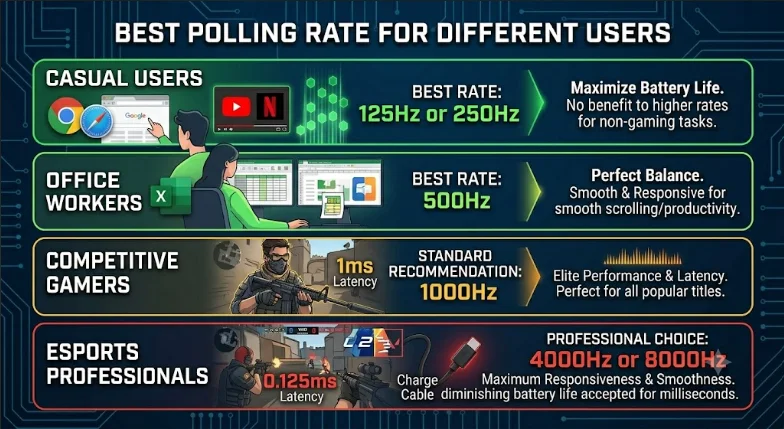
Casual Users
If you use your wireless mouse primarily for browsing, streaming, or light productivity tasks, 125Hz or 250Hz is perfectly adequate. You will not notice any difference in day-to-day cursor behavior, and you’ll maximize battery life. There’s genuinely no benefit to a higher polling rate for non-gaming tasks.
Office Workers
For office use, 500Hz strikes a good balance. It’s responsive enough that movements feel smooth, and it draws far less power than 1000Hz or above. Using 1000Hz in an office context delivers no perceivable benefit while cutting into your runtime.
Competitive Gamers
Using 1000Hz is the standard recommendation for competitive gaming. It provides 1ms latency, which is imperceptible to all but the most elite players, and it’s well-supported by virtually every game engine and monitor refresh rate combination. The latency difference between polling rates below 1000Hz is measurable in benchmarks but rarely meaningful in actual gameplay.
Esports Professionals
For professional or semi-professional play where every millisecond is genuinely consequential, 4000Hz or 8000Hz polling may offer advantages, particularly in fast-paced titles like CS2, Valorant, or Overwatch 2. At this level, the battery tradeoff is often acceptable because players can charge their mouse between sessions or use wired mode during tournaments. The 8k polling rate experience is genuinely smoother on a high-refresh-rate monitor when you’re at the skill level to perceive it.
Pros and Cons of Higher Polling Rates
| Pros | Cons |
| Lower input latency | Higher battery drain |
| Smoother cursor tracking | Higher CPU usage |
| Matches high-refresh-rate monitors better | Benefit is imperceptible for most users |
| Competitive advantage at pro level | Requires compatible games and drivers |
Common Myths About Polling Rate and Battery Life
Myth 1: Higher Polling Rate Always Doubles Battery Drain
Not true. The relationship isn’t linear. Doubling the polling rate from 1000Hz to 2k polling does not double power consumption. The sensor, radio, and processor have fixed overhead costs that don’t scale proportionally. In practice, going from 1000Hz to 8000Hz polling rate might reduce battery life by 30–40%, not 800%.
Myth 2: You Need 8000Hz for Gaming
Most gamers, even skilled competitive players, will not perceive a difference between 1000Hz and 8000Hz polling in real gameplay. The latency difference between polling rates is fractions of a millisecond, below the threshold of human perception for the vast majority of people. A 1000Hz mouse is more than sufficient for all but the absolute top tier of professional play. If you are wondering if upgrading is worth it, consider how much mouse polling rate matters for your specific gaming setup.
Myth 3: Polling Rate and DPI Are the Same Thing
They are completely different. DPI (dots per inch) controls sensitivity, how far the cursor moves on screen per inch of physical movement. Polling rate controls how often that position is reported. You can have high DPI with a low polling rate or low DPI with a high polling rate. Polling rate vs DPI is a common confusion, but they affect entirely different aspects of mouse behavior.
Myth 4: Wireless Battery Always Outlasts the Gaming Session
At ultra-high polling rates like 8000Hz, with RGB lighting enabled and aggressive sensor use, some wireless mice will drain in as little as 15–20 hours. For a hardcore gaming session, knowing your polling rate settings and charging habits matters.
Myth 5: Higher Polling Rates Reduce Lag Noticeably
Higher polling rates reduce and improve responsiveness at the hardware level, but game engine frame rates, monitor refresh rate, and network latency in online games all introduce far larger delays. Higher polling rates reduce total system latency by a small increment. For casual and mid-level players, those gains are masked by other bottlenecks entirely.
Frequently Asked Questions
Does polling rate really matter for battery life?
Yes, but it’s rarely the biggest factor. Polling rate does consume more power at higher settings, but RGB lighting, sensor activity, and battery capacity typically have a larger impact. At 1000Hz vs 125Hz, you might lose 20–30% battery life. At 8000Hz vs 1000Hz, an additional 30–40% reduction is possible, depending on the mouse model.
What is the best polling rate for wireless gaming?
For most gamers, 1000Hz is the best polling rate. It delivers 1ms latency, excellent responsiveness for gaming, and a reasonable battery life balance. The best mouse for competitive play at 1000Hz will outperform a lesser mouse at 8000Hz. Unless you’re playing at a professional or semi-professional level, 1000Hz is your sweet spot.
Is an 8000Hz polling rate worth it?
Polling rate is worth considering at 8000Hz if you play fast-paced competitive titles at a high skill level, use a 240Hz or 360Hz monitor, and you can genuinely perceive the smoothness improvement. For most users, an 8k polling rate is not worth the battery cost and increased CPU usage. Start at 1000Hz and only upgrade if you feel a tangible need.
How do I check the mouse polling rate?
You can check mouse polling rate through your mouse’s companion software (Razer Synapse, Logitech G Hub, SteelSeries Engine, etc.) or through free tools like Our Mouse polling Rate Checker and ENOTUS Mouse Tester. These utilities read how often your mouse is actually reporting per second in real time.
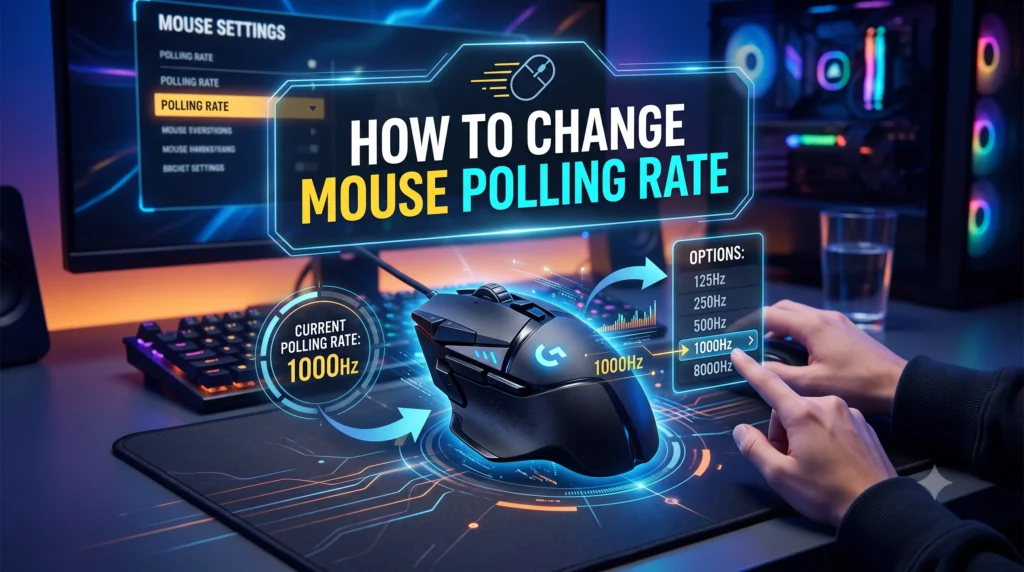
How do I change the mouse polling rate?
You change mouse polling rate through your mouse’s software utility, a physical button on the mouse itself (some models), or sometimes through polling rate settings in the USB/wireless dongle driver. Not all mice allow you to switch polling rates, so check your model’s specifications.
Does 8000Hz polling increase CPU usage?
Yes, 8000Hz polling does increase CPU usage compared to 1000Hz, since your system processes 8x more input events per second. However, modern processors handle this with minimal overhead, and many high-end 8000Hz mice include co-processors specifically to reduce CPU load. CPU usage from mouse polling is rarely a problem on any modern gaming PC.
What polling rate should I use for a 144Hz monitor?
A 1000Hz polling rate pairs perfectly with a 144Hz monitor. Your mouse updates cursor position 1000 times per second, which far exceeds your monitor refresh rate, ensuring every rendered frame has the freshest possible input data. Going higher than 1000Hz with a 144Hz or even 240Hz monitor refresh rate offers diminishing returns.
Do higher polling rates reduce input lag?
Yes, higher polling rates reduce input lag in a measurable way, but the gains become progressively smaller. Going from 125Hz to 1000Hz cuts latency from 8ms to 1ms, a meaningful 7ms improvement. Going from 1000Hz to 8000Hz cuts latency from 1ms to 0.125ms, a theoretical 0.875ms improvement that most people cannot perceive.
Final Verdict
Does polling rate drain your wireless mouse battery? Yes, but it’s rarely the crisis it sounds like.
At a standard 1000Hz polling rate, the battery impact compared to 500Hz is modest. Jumping to 4000Hz or 8000Hz does meaningfully reduce runtime, often by 30–50% compared to 125Hz, but you’re still typically looking at 40–60+ hours of use on a fully charged mouse. That’s multiple days of serious gaming.
The real battery killers are RGB lighting and heavy physical movement with a high-sensitivity sensor. If you want to squeeze maximum battery life, turn off the lights first, then consider your polling rate settings.
Key Takeaways
• Polling rate determines how often your mouse reports its position per second. 1000Hz = 1000 updates per second.
• Higher polling rate increases battery drain, but not proportionally. 8000Hz won’t drain 8x faster than 1000Hz.
• RGB lighting and sensor activity typically drain the battery faster than the polling rate.
• 1000Hz is the best polling rate for the overwhelming majority of gamers; it balances performance and battery life excellently.
• 4000Hz and 8000Hz are for professionals who can actually perceive the improvement and accept shorter battery runtime.
• If you want to maximize battery life, disable RGB first. Then drop the polling rate if needed.
• Check and change the mouse polling rate through your mouse’s companion software.
Whether you’re a casual user who wants your wireless mouse to last a week on a charge or a competitive gamer chasing every possible millisecond of input latency, understanding how polling rate interacts with your battery gives you the knowledge to make the right choice for your setup.