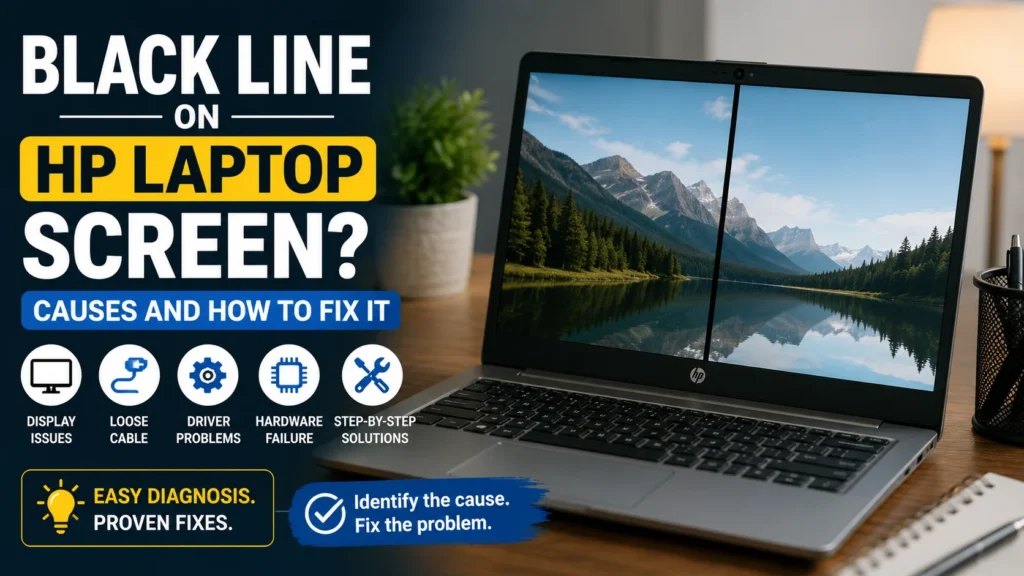
Discovering a black line on HP laptop screen can be incredibly frustrating. Whether it shows up as a thin vertical line, a thick horizontal bar, or a flicker that comes and goes, it interrupts your work every time you look at the display. The good news: it doesn’t automatically mean you need a costly replacement. Many HP laptop screen lines trace back to a corrupted graphics driver, a loose display cable near the hinge, or, less often, a failing LCD panel.
This guide explains the most common reasons behind a black line on an HP laptop screen. You’ll also learn how to identify the real cause before spending money on repairs.
For a broader walkthrough covering every major brand, head over to our full guide on laptop screen black line troubleshooting.
Quick Answer
Experiencing a sudden black line on an HP laptop screen is usually traced back to one of five core issues:
- An outdated or corrupted graphics driver.
- A loose or damaged display cable.
- A failing LCD panel.
- Graphics hardware failure.
- Physical damage to the display.
This issue turns up across nearly every HP lineup — Pavilion, Envy and Envy x360, Spectre x360, the OMEN gaming series, and business-focused EliteBook and ProBook models. The underlying causes are the same across all of them, but the diagnostic steps and tools below (BIOS keystrokes, HP PC Hardware Diagnostics, HP Support Assistant) are specific to HP’s own system, not generic Windows troubleshooting.
Table of Contents
Which HP Laptops Commonly Develop This Issue?
A black line can appear on nearly any HP laptop, but the mechanical cause behind it — usually a worn display cable or a driver conflict — shows up more on some product lines than others, based on how each one is built and used.
- HP Pavilion Pavilion is HP’s highest-volume consumer line, so it’s also the model reported most often simply due to sheer numbers in everyday use. Years of routine lid opening and closing is the most common driver of hinge-cable wear on Pavilion models.
- HP Envy / Envy x360 The Envy x360 is a 2-in-1 convertible with a hinge that rotates a full 360 degrees so it can fold into tablet mode. That extra range of motion puts more repeated flex on the display cable than a standard clamshell hinge, which can make cable-related lines show up sooner than on a non-convertible laptop.
- HP Spectre x360 The Spectre x360 shares the same convertible hinge design as the Envy x360, in a thinner, more premium chassis. The thinner build leaves less room around the display cable and connector, so pressure on the lid is more likely to affect the display than on a bulkier laptop.
- HP OMEN OMEN gaming laptops run dedicated NVIDIA or AMD graphics cards that generate significant heat under sustained load. If a black line appears on both the internal screen and an external monitor on an OMEN model, GPU-related causes are worth checking before assuming a cable or panel issue.
- HP EliteBook / ProBook These business-focused models are generally built with more reinforced hinges and chassis than consumer lines, but they’re also more likely to stay powered on for long stretches and receive IT-managed driver and Windows updates — which makes software-driven black lines, rather than cable wear, the more common cause here.
What Causes a Black Line on HP Laptop Screen Displays?
A black line usually appears when the video signal between the graphics processor and the display is interrupted. Sometimes the cause is simple, such as a faulty graphics driver. Other times, the problem is a hardware issue involving the LCD panel, display cable, or motherboard.
Understanding the cause helps you choose the correct HP laptop black line fix instead of replacing working parts.
Display Driver or Windows Update Issues
Software problems are one of the easiest causes to fix. A corrupted graphics driver, failed driver updates, or an incompatible Windows update can cause display problems on some HP laptops.
If a black line on an HP laptop screen develops immediately after a Windows update or GPU driver update, always start with software troubleshooting first.
Common signs include:
- The line appeared after a Windows update.
- There are no visible cracks on the display.
- An external monitor works normally.
- The laptop was not dropped or damaged.
- The issue started without warning.
In many cases, updating or rolling back the graphics driver through Device Manager resolves the problem. On HP laptops specifically, it’s often faster to check HP Support Assistant first, HP’s own update utility, usually preinstalled or searchable from the Start menu, since it flags HP-tested driver versions rather than the generic ones Windows Update installs.
Loose Display Cable Near the Hinge
A damaged display cable is one of the most common hardware causes of horizontal lines on the screen and vertical display lines on HP laptops.
The display ribbon cable links the screen to the motherboard. When this ribbon wears out near the hinge, it frequently creates a persistent black line on an HP laptop screen. After years of use, the cable can become loose or damaged, causing an unstable display signal.
You may notice:
- The line flickers while moving the lid.
- The line moves when changing the screen angle.
- The display works normally in some positions.
- Several black horizontal or vertical lines appear for a few seconds.
If these symptoms match your laptop, the cable should be inspected before considering screen replacement.
Damaged HP LCD Panel
A physically damaged or failing LCD panel is the most common hardware cause of a permanent black line on an HP laptop screen. Unlike software problems, the line usually stays visible after every restart.
Damage often occurs because of:
- Closing the lid on a small object.
- Pressing hard on the display.
- Carrying the laptop without protection.
- Age-related panel failure.
- Physical damage after the laptop falls.
Typical symptoms include:
- A black line across the display.
- Permanent horizontal black lines.
- A single vertical black line.
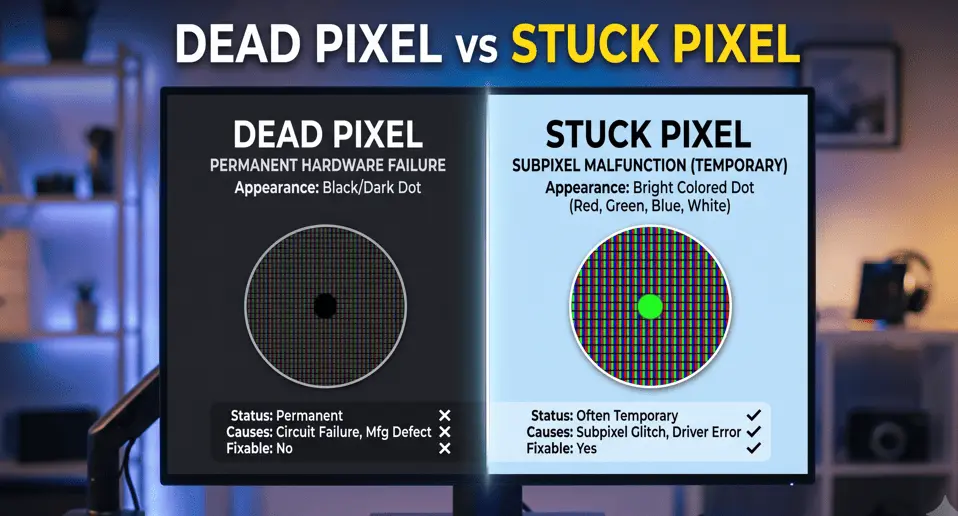
- Dead pixels or black spots.
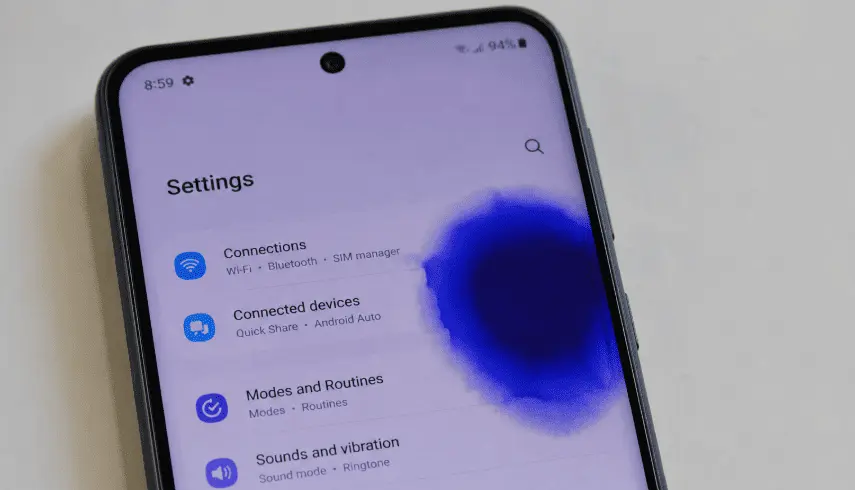
- Pressure marks or ink-like patches.
- Display discoloration.
If you observe these symptoms alongside a vertical black line on an HP laptop screen, panel replacement is typically required. In most cases, replacing the screen is the only permanent repair, on modern HP laptops, components like the timing control (T-con) board and backlight inverter are built into the display assembly itself, so there’s usually no smaller part to repair separately.
However, before committing to a costly screen replacement, run a free online screen test in full-screen browser mode to cycle through solid primary RGB colors. This allows you to verify whether the issue is a permanent hardware trace failure or stuck sub-pixels. If you suspect stuck or frozen sub-pixel columns, follow our step-by-step guide on fixing dead pixel lines on a laptop to test for pixel recovery options.
Graphics Hardware Problems
Although less common, a faulty graphics card or motherboard can also create display lines.
When the GPU fails, it cannot render clean frames, which often manifests as a flickering black line on an HP laptop screen or total display distortion. As a result, you may notice black lines on your laptop, yellowish display artifacts, or random crashes.
Common symptoms include:
- The same line appears on an external monitor.
- The laptop freezes during normal use.
- Graphical glitches appear before Windows loads.
- Blue screen errors occur frequently.
- Display problems become worse during heavy workloads.
Because these symptoms usually indicate a deeper hardware issue, professional diagnostics or tech support may be required.
Physical Impact or Pressure Damage
Many users notice a thick black line on an HP laptop screen shortly after dropping their device or closing the lid on a small object.
Even if there are no visible cracks, the internal LCD layers or digitizer on touchscreen models can become damaged.
Watch for these signs:
- A black line appears after an impact.
- There is a small dent near the edge of the display.
- Pressure marks are visible on the screen.
- The line slowly becomes larger.
- The display develops additional lines over time.
If your laptop suffered physical damage, software fixes are unlikely to help. Continuing to use the damaged screen may cause the issue to worsen. If your laptop is still under warranty, check your coverage or contact HP for repair options. You can also browse the HP Support Community to see whether other users with the same model experienced similar screen issues before scheduling an HP screen replacement.
Diagnose the Problem on Your HP Laptop
Before spending money on replacement hardware, isolate whether the black line on an HP laptop screen is triggered by a software conflict or a physical failure. A few simple tests can save you time and prevent unnecessary screen replacement.
If you want a deeper explanation of how to tell whether the problem comes from Windows, the graphics hardware, or the display itself, our complete laptop screen troubleshooting guide walks through every diagnostic step in detail.
| What You Notice | Most Likely Cause | What You Should Do |
| Line appears in BIOS | LCD panel or display hardware | Inspect the screen or display cable |
| Line only appears in Windows | Graphics driver or software | Update or roll back the graphics driver |
| Line changes when moving the lid | Loose display cable | Inspect or replace the display cable |
| Line appears on an external monitor | Graphics card or motherboard | Seek professional diagnosis |
| Line appeared after a drop | Physical damage | Check the LCD panel for damage |
| Line flickers occasionally | Loose internal connection | Run HP Hardware Diagnostics |
Check if the Line Appears in BIOS
The BIOS screen loads before Windows starts. If the black line on your HP laptop screen is visible here, Windows is not causing the problem.
To check:
- Turn off your HP laptop.
- Turn it back on.
- Immediately press the Esc key repeatedly.
- Press F10 to open the BIOS Setup.
Now inspect the display carefully.
If the black line on an HP laptop screen persists inside the BIOS environment, it confirms:
- The problem is probably a hardware issue.
- The LCD panel, display cable, or motherboard may be faulty.
- Driver updates are unlikely to solve it.
If the line disappears in BIOS:
- Windows or the graphics driver may be responsible.
- Continue with software troubleshooting before replacing any hardware.
This quick test helps separate software problems from hardware faults in only a few minutes.
Test with an External Monitor
Connecting an external monitor is one of the most reliable ways to identify the source of the problem.
Use an HDMI or DisplayPort cable to connect your HP laptop to another monitor or TV.
After connecting the display:
- Press Windows + P.
- Choose Duplicate or Extend.
- Compare both screens.
Results
The external monitor looks normal. Your graphics processor is working correctly. The problem is likely inside the laptop display, including the LCD panel, display cable, or other internal connections.
The black line appears on both screens. The issue may involve the graphics card, graphics driver, or motherboard. In this case, the problem is not limited to your laptop screen.
Run HP Hardware Diagnostics
HP includes built-in diagnostics tools that can detect several hardware problems.
These tools can help identify faults before you contact HP Tech Support or request warranty service.
To run the test:
- Turn off the laptop.
- Press the Power button.
- Immediately press the Esc key repeatedly.
- Press F2 to open HP PC Hardware Diagnostics and run the display tests.
- Run the display test and follow the on-screen instructions.
If the diagnostics report a display error, record the failure ID.
You can use this code when you contact HP or create a repair request. If your HP laptop is still under warranty, the report can also speed up the repair process.
If built-in tests pass but a black line on an HP laptop screen continues to flicker during everyday tasks, you are likely dealing with an intermittent cable connection. In many cases, a loose display cable or failing LCD panel causes this behavior. You can also search the HP Support Community to see whether other users with your HP model have reported the same issue before scheduling a repair.
Before You Spend Money on Repairs
Before replacing the screen or paying for a repair, complete these three checks:
- Perform the BIOS test.
- Connect an external monitor.
- Run HP Hardware Diagnostics.
These tests can identify the cause of most HP laptop screen problems within a few minutes. They also help you avoid replacing a working LCD panel when the real issue is a faulty display cable or graphics driver.
How to Fix a Black Line on HP Laptop Screen (Step-by-Step Solutions)
Once you know the source of the issue, eliminating a black line on an HP laptop screen follows a simple process of elimination from easiest to advanced. Begin with the simplest solutions first. If the black line on your HP laptop screen is caused by software, you may resolve it in a few minutes. If it is caused by damaged hardware, these steps will help you confirm which component needs repair.
Important: Do not press on the black line or twist the laptop display to make it disappear. This can permanently damage the LCD panel, loosen the display cable, and increase repair costs. Always diagnose the cause before attempting any hardware repair.
Restart Your HP Laptop
A simple restart can clear temporary display glitches and reload Windows correctly. This is the quickest HP laptop black line fix to try before making any changes.
How to restart your HP laptop:
- Save your work.
- Click Start > Power > Restart.
- Wait for Windows to load completely.
- See if the black line remains after the restart.
If the line disappears after restarting, the problem was likely temporary. If it returns immediately, continue with the next solution.
Update or Roll Back the Graphics Driver
A corrupted display driver is often responsible when a black line on an HP laptop screen appears immediately following a major Windows update.
If the problem started after recent driver updates, rolling back the driver may solve it. If the driver is outdated, install the latest version instead.
To update the graphics driver:
- Right-click the Start button.
- Open Microsoft Device Manager and update your graphics driver.
- Expand Display adapters.
- Right-click your graphics device.
- Select Update driver.
- Choose Search automatically for drivers.
To roll back the driver:
- Open Device Manager.
- Right-click the graphics adapter.
- Select Properties.
- Open the Driver tab.
- Select “Roll Back Driver” if Windows allows the option.
Restart your HP laptop after making any driver changes.
Change the Display Refresh Rate
Selecting an unsupported refresh rate can trigger display artifacts or a temporary black line on an HP laptop screen. Although this is less common, it is worth checking because the setting only takes a minute to change.
To change the refresh rate:
- Open Settings.
- Select System.
- Click Display.
- Choose Advanced display.
- Select the recommended refresh rate for your HP display.
If the line disappears after changing this setting, Windows was using an incompatible display configuration.
Install the Latest HP Graphics Driver
Windows does not always install the best driver for your HP model. Installing the official driver from HP can improve display stability and compatibility.
To install the correct driver:
- Visit the HP Support website.
- Enter your laptop model number.
- Download the latest graphics driver for your operating system.
- Install the driver.
- Restart the laptop.
Installing HP-certified drivers is often more reliable than relying only on Windows Update. If you’d rather skip manually entering your model number, open HP Support Assistant instead, it detects your exact HP laptop model automatically and lists only the drivers HP has certified for it.
Reseat or Replace the Display Cable
If adjusting the lid angle alters the thickness or position of a black line on an HP laptop screen, reseating or replacing the display ribbon cable is usually necessary.
The display cable links the LCD panel to the motherboard and flexes every time you open or close the laptop lid. Over time, this repeated movement can cause the cable to wear out or become loose.
Signs of a faulty display cable include:
- The line flickers while adjusting the screen.
- The display works at certain angles.
- The problem is intermittent.
- Multiple lines appear and disappear.
If you have experience repairing laptops, you can inspect the cable connection. Otherwise, it is safer to let a repair technician handle it because the display assembly is delicate.
Replacing the cable is usually less expensive than replacing the entire display.
Replace the LCD Screen (If Needed)
If none of the previous fixes work, the LCD panel may have failed. Full panel replacement is the only way to eliminate a black line on an HP laptop screen under the following conditions:
- The black line appears all the time.
- The black line appears during the BIOS startup screen.
- There are dead pixels or black spots.
- You notice visible cracks, pressure marks, or a dent.
- The laptop has suffered physical damage.
In these situations, software troubleshooting will not solve the issue.
If your HP laptop is still under warranty, check your coverage before paying for repairs. You can also contact HP or visit the HP Support Community for model-specific guidance.
After replacing the damaged display panel, most users find that the black line disappears completely and the laptop works normally again.
| Fix | Difficulty | Safe for Beginners? |
| Restart the laptop | Easy | Yes |
| Update or roll back the graphics driver | Easy | Yes |
| Change the display refresh rate | Easy | Yes |
| Install the latest HP graphics driver | Easy | Yes |
| Reseat the display cable | Moderate | Only if experienced |
| Replace the LCD screen | Advanced | Professional repair recommended |
Avoid These Common Mistakes
Many users spend money on repairs that are not needed. Avoid these mistakes before replacing any parts.
- Don’t press on the screen. This can make the damage worse.
- Don’t order a replacement panel immediately. A loose ribbon cable frequently causes a black line on an HP laptop screen and costs much less to fix.
- Don’t ignore the BIOS test. It quickly tells you whether the problem is software or hardware.
- Don’t install random graphics drivers. Always use drivers provided by HP or your graphics chip manufacturer.
- Don’t open the laptop if it is still under warranty. Contact HP first to avoid affecting your warranty coverage.
When Should You Replace the Screen?
Determining when to replace your display panel comes down to severity. If a black line on an HP laptop screen is accompanied by spiderweb cracks or ink-like dark spots, physical LCD replacement is usually the only permanent solution.
Not every black line on your HP laptop screen means you need a new display. In many cases, the problem is a loose cable or a software issue. However, some symptoms clearly indicate that the LCD panel has reached the end of its life.
Before paying for an HP screen replacement, identify which component has actually failed. This helps you avoid paying for repairs you don’t actually need.
Signs the LCD Panel Has Failed
Internal LCD layers cannot self-heal. If physical pressure damaged the display matrix, driver updates will not remove the black line on an HP laptop screen. Your screen likely needs replacing if you notice these signs:
- The black line appears every time you turn on the laptop.
- The line is visible in the BIOS screen.
- A black line across the display never disappears.
- There are dead pixels, black spots, or pressure marks.
- You see horizontal black lines or multiple vertical lines.
- The display has visible cracks or a dent.
- The problem started after you dropped your laptop.
- The line remains even after testing with an external monitor.
These symptoms usually point to permanent damage inside the display panel. In this situation, replacing the screen is the only reliable solution.
When a Cable Replacement Is Enough
A damaged display cable is often mistaken for a failed screen. Fortunately, replacing the cable is usually faster and less expensive than replacing the entire display.
The cable is the link between the screen and the motherboard. It passes through the laptop hinge and bends every time you open or close the lid. Over time, it can become loose or damaged.
A cable replacement may be enough if:
- The line flickers when you move the lid.
- The line moves or disappears at certain angles.
- The problem is intermittent.
- The display works normally after adjusting the screen position.
- No cracks or pressure marks are visible on the display.
If these symptoms match your laptop, ask a technician to inspect the display cable before approving an LCD replacement. This simple check can save you money.
When to Seek Professional Repair
Some screen issues require professional diagnostics because the fault is not easy to identify at home.
You should seek expert help if:
- A persistent black line on an HP laptop screen remains visible after applying all GPU software patches and BIOS checks.
- The line appears on both the laptop display and an external monitor.
- The laptop freezes, crashes, or shows graphical artifacts.
- You suspect a graphics card or motherboard failure.
- The laptop has suffered significant physical damage.
- You are not comfortable opening the laptop.
If your HP laptop is still under warranty, avoid opening the device yourself. Contact HP first, as opening the laptop may affect your warranty coverage. You can also check the HP Support Community to see whether users with the same model have reported similar problems or recommended solutions.
A professional technician can determine whether the problem is the LCD panel, display cable, graphics hardware, or another internal component. This ensures you only replace the part that has actually failed.
Does HP Warranty Cover a Black Line on HP Laptop Screen Issues?
Whether HP will repair a black line on your HP laptop screen depends on what caused the problem and the type of warranty you have. If the issue is due to a manufacturing defect, HP may repair or replace the affected part. However, damage caused by accidents is usually treated differently.
Check your warranty coverage using HP’s Warranty Check tool before paying for repairs. Whether HP covers the fix depends on your warranty type and what caused the problem.
Standard HP Warranty
The standard warranty covers factory defects. If a black line on an HP laptop screen is caused by panel failure without physical impact marks, HP will generally repair it under warranty. If the LCD panel, display electronics, or another internal component fails without any physical damage, HP may repair the laptop at no extra cost.
Your warranty claim is more likely to be approved if:
- The black line appears without dropping or damaging the laptop.
- There are no visible cracks, dents, or pressure marks.
- The laptop passes inspection for accidental damage.
- HP diagnostics confirm a hardware failure.
If the issue is caused by a defective display panel or another factory-installed component, HP will normally repair or replace the faulty part.
HP Care Pack
An HP Care Pack extends your coverage beyond the standard warranty. Depending on the plan you purchased, it may also include accidental damage protection.
Benefits can include:
- Extended hardware coverage.
- Faster repair or replacement service.
- Access to certified HP technicians.
- Support for eligible display repairs.
Coverage varies by Care Pack plan and region. Before requesting a repair, review your plan details or contact HP to confirm what is included.
Accidental Damage
If a black line on your HP laptop screen appeared after you dropped your laptop, closed the lid on an object, or applied pressure to the display, the damage is usually considered accidental.
Examples include:
- Cracked or broken LCD panel.
- Pressure marks on the display.
- A dent near the screen bezel.
- Damage caused by liquid spills.
- Broken hinges affecting the display cable.
Standard warranty typically does not cover accidental damage. However, if your HP Care Pack includes accidental damage protection, you may still qualify for a reduced-cost or free repair.
If you’re unsure whether your laptop is covered, check your warranty status on HP’s support website or visit the HP Support Community to learn from users who have experienced similar screen issues. If your coverage has expired, compare the repair cost with the value of the laptop before deciding on replacing the screen.
Frequently Asked Questions
Why does my HP laptop have a vertical black line?
A vertical black line usually indicates a problem with the display hardware. The most common causes are a loose or damaged display cable, a failing LCD panel, or dead pixels. In rare cases, a faulty graphics driver can also cause display lines. Start by checking whether the line appears in the BIOS screen or on an external monitor. These tests help determine whether the issue is software or hardware.
Can a driver update remove the black line?
Yes, but only if the problem is caused by software. If the black line appears after Windows or driver updates, installing the latest HP graphics driver or rolling back the current one may solve the issue. However, if a black line on an HP laptop screen is caused by a pinched ribbon cable or cracked LCD substrate, software updates cannot resolve the issue.
Why does the line appear only when I move the lid?
If the line changes, disappears, or flickers when you open or close the lid, the display cable is likely loose or damaged. The cable connects the screen to the motherboard and bends every time you move the lid. Over time, it can wear out and create an intermittent connection. Replacing the cable is often enough to restore the display without replacing the entire screen.
How much does an HP laptop screen replacement cost?
The cost of an HP screen replacement depends on your laptop model, screen size, and display type. A standard LCD screen is usually less expensive than a touchscreen or OLED display. Labor charges also vary by repair shop and region. If your HP laptop is still under warranty or covered by an HP Care Pack, the repair may cost little or nothing if the failure is due to a manufacturing defect.
Can I continue using my HP laptop with a black line?
Yes, as long as the black line on an HP laptop screen doesn’t obscure critical work or flicker violently, it’s generally safe to keep using the machine for now. However, if the line becomes larger, additional horizontal black lines appear, or the display starts flickering, the underlying problem may be worsening. If you notice black spots, visible cracks, or other screen issues, arrange a professional inspection as soon as possible to prevent further damage.
Does this happen on specific HP models like Pavilion, Envy, or OMEN?
A black line can appear on any HP laptop, including Pavilion, Envy, Envy x360, Spectre x360, OMEN, EliteBook, and ProBook models. The cause — a driver conflict, a worn display cable, or a failing panel — is the same across the lineup, so the diagnostic steps in this guide apply no matter which HP model you own.
Final Thoughts
Dealing with a black line on an HP laptop screen doesn’t always require an expensive repair bill. By systematically testing your laptop in BIOS, updating your graphics drivers, and checking external display outputs, you can pinpoint the exact cause quickly.
A black line on your HP laptop screen can be frustrating, but it does not always mean you need a new display. In many cases, the problem is caused by a software issue, an outdated graphics driver, or a loose display cable. These problems can often be fixed without replacing any hardware.
If the line remains visible in the BIOS screen, appears on every startup, or is accompanied by dead pixels, black spots, or visible cracks, the issue is more likely related to the LCD panel or another hardware component. In that case, professional diagnostics can help identify the exact cause before you spend money on repairs.
The best approach is to start with simple troubleshooting steps, such as restarting your laptop, updating the graphics driver, testing with an external monitor, and running HP Hardware Diagnostics. These checks can quickly tell you whether you’re dealing with a software problem or a hardware failure.
If your HP laptop is still under warranty, check your coverage before opening the device or paying for repairs. You should also contact HP or visit the HP Support Community for model-specific guidance and repair options.
By following the steps in this guide, you can confidently diagnose the problem, choose the right HP laptop black line fix, and avoid replacing parts that are still working properly. When hardware repair is necessary, identifying the faulty component first will save both time and money while getting your laptop back to normal as quickly as possible.
Using a Dell laptop instead of an HP? Explore our detailed Dell black line troubleshooting guide for brand-specific diagnostics, repair solutions, and display tests designed specifically for Dell laptops.