In 2025, cyber threats like phishing, ransomware, and AI-driven hacks will be more sophisticated than ever. Securing your online accounts, such as email, banking, social media, or cloud storage, is critical to protecting sensitive data. Passwords alone are no longer enough, as hackers can easily steal or crack them. Two-factor authentication (2FA) adds a vital second layer of security, making unauthorized access nearly impossible.
This comprehensive guide explains 2FA, how it works, its types, setup steps, benefits, common mistakes, and the Future of authentication. By the end, you’ll know why enabling 2FA is essential for your digital security and how to implement it effectively.
Table of Contents
What Is Two-Factor Authentication (2FA)?
Two-factor authentication (2FA) is a security process requiring two distinct verification methods to access an account. The first factor is typically a password (“something you know”). The second factor is either “something you have” (e.g., a smartphone or hardware key) or “something you are” (e.g., a fingerprint or facial scan).
2FA ensures that even if a hacker steals your password, they can’t log in without the second factor. Think of it as a double-locked door: one key isn’t enough. According to Microsoft’s security report, this extra layer reduces unauthorized access risks by up to 99.9%.
Why Passwords Alone Are Not Enough
Passwords are inherently vulnerable. Despite efforts to create strong, complex passwords, human behavior often undermines security. Many reuse passwords across multiple accounts, meaning a single breach can compromise dozens of accounts. Phishing attacks trick users into revealing login credentials, and large-scale data breaches regularly expose millions of passwords online.
Even strong, unique passwords can be cracked or stolen, so you must use a secondary form of authentication to stay secure. Two-Factor Authentication acts as a fail-safe, providing an extra barrier that is difficult for attackers to bypass. Here’s why they fall short in 2025:
- Theft via Breaches: Hackers exploit data breaches (e.g., 2024’s 2.6 billion record leak) to steal passwords. Weakly secured platforms expose millions of credentials annually.
- Password Reuse: According to a 2025 Google study, over 65% of users reuse passwords across accounts. A single breach can compromise multiple accounts.
- Weak Passwords: Hackers easily guess “common choices” such as “password123” or pet names using brute-force or dictionary attacks.
- Phishing Attacks: Sophisticated emails trick users into revealing credentials on fake sites.
- Automated Bots: Credential-stuffing attacks rapidly test millions of stolen passwords, exploiting weak accounts.
2FA acts as a fail-safe, requiring a second verification that hackers can’t easily bypass, protecting your digital life. Two-Factor Authentication (2FA) exists to bolster security, it doesn’t replace your Password but actively adds a second layer, like a second lock on your door. Even if someone steals your Password, they can’t access your account without the second factor, whether it’s a code from an app, a fingerprint, or a hardware key.
How Two-Factor Authentication (2FA) Works
Two-Factor Authentication actively enhances account login security beyond relying solely on a password. Two separate verification forms are required before you can access your account. Think of it like a double lock on your door: even if someone finds your key (your Password), they still cannot open it without the second lock (the additional verification).
Here’s the step-by-step process:
- Enter Your Password: Input your username and password” d (“something you “now”).
- Provide a Second Factor: Depending on the platform, this could be:
- SMS Code: A one-time code texted to your phone.
- Authenticator App: A time-based code from apps like Google Authenticator or Authy.
- Push Notification: A login approval request on your device.
- Biometric Verification: A fingerprint or facial scan.
- Hardware Key: A physical device like a YubiKey.
- Identity Confirmation: The system verifies both factors, granting access only if both match.
Real-Life Example
Logging into Gmail from a new laptop:
- You enter your password.
- Gmail sends a code to your phone or prompts a push notification.
- You input the code or “ap “Appr” ve.”
- The system grants access once both factors are verified successfully.
Without the second factor, 2FA blocks hackers with your password, providing a robust defense.
Wy This Process Works
The strength of 2FA comes from combining two completely separate types of verification:
- Something you know (Password)
- Something you have or are (phone, app, hardware key, or biometric)
Because both factors are needed, stealing just the Password is useless to an attacker. Even if hackers acquire your credentials through phishing or data breaches, they cannot log in without the second factor.
Everyday Use of 2FA
Using 2FA in daily life is simple and effective. Most popular platforms—like Gmail, Facebook, Instagram, Twitter, and banking apps—support it. After enabling it:
- When you log in from a new device, you will enter a one-time code or approve the login on your phone.
- Trusted devices (like your personal laptop) might not require 2FA every time, but unknown devices will always trigger it.
- Backup codes or alternative methods ensure you aren’t locked out if your device is unavailable.
Two-factor authentication works by adding a second barrier that hackers cannot easily bypass. It’s fast, reliable, and doesn’t require technical knowledge to use. By requiring two separate proofs of identity, 2FA dramatically increases your online security and makes managing personal, financial, and professional accounts far safer.
Types of Two-Factor Authentication
We categorize Two-Factor Authentication into three main factors: something you know, something you have, and something you are. Each type has different implementations in real life. Let’s explore them.
1. SMS-Based 2FA (Code Sent to Your Phone)
- How It Works: A one-time code is texted to your registered phone number.
- Example: Log in to Instagram, receive a 6-digit code via SMS, and enter it.
| Pros | Cons |
| Easy to use and widely supported | Vulnerable to SIM-swapping attacks, where hackers trick your mobile provider into giving them your number |
| No extra apps or devices needed | Attackers can intercept codes if they compromise your phone |
| Works for less tech-savvy users | Requires mobile network coverage |
Best for: Basic accounts (e.g., social media). Users who want convenience and basic security, but not for highly sensitive accounts.
2. Authentication Apps (Time-Based Codes)
- How It Works: Apps like Google Authenticator or Authy generate time-based codes every 30 seconds.
- Example: Scan a QR code in Dropbox, then enter the app’s code to log in.
- Best For: Email, cloud storage, work accounts.
| Pros | Cons |
| More secure than SMS because it doesn’t send codes over the network | You may get locked out if you lose your phone and don’t have backup codes |
| Works offline, no mobile coverage needed | Requires installing and setting up an app |
| Widely supported by major platforms |
3. Push Notifications
- How It Works: A login request is sent to your device for approval.
- Example: Approve a Twitter login via a phone notification.
Best For: Social media, casual apps.
| Pros | Cons |
| Very user-friendly and fast | Requires internet access |
| No need to type codes | Can be tricked by phishing if users approve requests without checking the source |
| Reduces human errors like typing wrong codes |
4. Hardware Security Keys
- How It Works: Physical devices (e.g., YubiKey) verify identity via USB, NFC, or Bluetooth.
- Example: Insert a YubiKey into your laptop for Google login.
- Best For: Banking, sensitive business accounts.
| Pros | Cons |
| Extremely secure, nearly impossible to hack remotely | Requires carrying a physical device |
| Immune to phishing and SIM-swapping attacks | Slightly more expensive than software-based options |
| No codes to type or remember | Not supported by every service |
5. Biometric Verification
- How It Works: Uses fingerprints, facial recognition, or retina scans.
- Example: Log into a banking app with a fingerprint scan.
- Best For: Personal devices, banking apps.
| Pros | Cons |
| Extremely convenient and fast | Some devices may have spoofing vulnerabilities |
| Difficult to replicate or steal | Not all services support biometrics as a second factor |
| No codes or devices to carry around | Biometric data is permanent and cannot be changed like a password if compromised |
Choosing the Right 2FA Method for Daily Life
Here’s a quick guide to help you choose:
| Method | Convenience | Security | Ideal Use |
| SMS Codes | Easy | Moderate | General accounts |
| Authenticator Apps | Moderate | High | Email, cloud storage |
| Push Notifications | Very Easy | High | Social media, apps |
| Hardware Keys | Moderate | Very High | Banking, sensitive accounts |
| Biometrics | Very Easy | High | Personal devices |
Key Takeaway: Authentication apps or push notifications balance security and convenience for everyday accounts. For highly sensitive accounts like email or banking, hardware keys or a combination of biometrics + app-based 2FA offer maximum protection.
How to Set Up Two-Factor Authentication (2FA) on Popular Platforms
Two-Factor Authentication adds an extra layer of security to your accounts, making it much harder for hackers to gain access. Follow these steps to setup 2FA on your most-used accounts.
Setting up 2FA is quick and straightforward. Here’s how to enable it on key platforms:
Gmail
- Go to Google Account > Security > 2-Step Verification.
- Click “Start, ” enter your phone number (SMS), or select the Authenticator app.
- For SMS, input the texted code. For apps, scan the QR code with Google Authenticator.
- Save backup codes in a secure password manager like Bitwarden.
- Navigate to Settings > Security and Login > Two-Factor Authentication.
- Choose SMS, Authenticator App, or Security Key.
- Follow prompts to link your phone or device.
- Go to Profile > Settings > Security > Two-Factor Authentication.
- Select Authentication App or SMS, then scan the QR code or enter the texted code.
Banking Apps
- Open app settings and enable Biometric Login or 2FA.
- Verify with a fingerprint or SMS code.
Pro Tip: Always save backup codes offline and enable multiple methods (e.g., app + SMS) to avoid lockouts.
Tips for Using 2FA Safely
- Save Backup Codes: Most platforms provide backup codes if you lose your device. Store them in a secure place.
- Use Authenticator Apps Over SMS: For better security against SIM-swapping attacks.
- Combine Methods for High-Security Accounts: Gmail can use a hardware key and an authenticator app.
- Regularly Review Devices: Remove old or lost devices from your 2FA settings.
Summary Table of Types of Two-Factor Authentication
| Method | Platforms | Pros | Cons |
| SMS Codes | Gmail, Facebook, Instagram | Easy to use, widely supported | Vulnerable to SIM-swapping, requires network |
| Authenticator Apps | Gmail, Instagram, Dropbox | More secure, works offline | Requires phone, backup codes needed |
| Push Notifications | Gmail, Facebook | Fast, minimal typing | Needs internet, can be phished |
| Hardware Keys | Gmail, Facebook | Highly secure | Requires carrying device and setup |
| Biometric | Banking apps, smartphones | Fast, difficult to spoof | Limited support, permanent data once exposed |
Benefits of Two-Factor Authentication
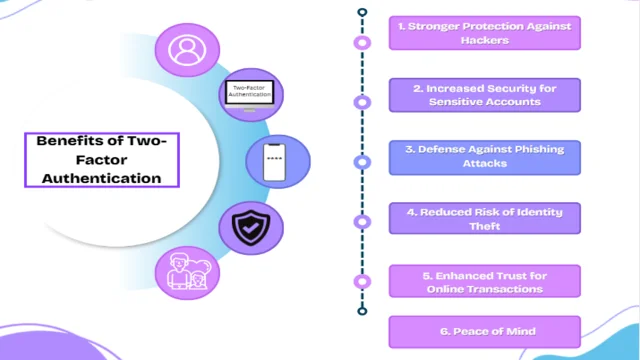
In today’s world, where cybercriminals are becoming more sophisticated, relying on a password alone is like locking your front door but leaving the key under the mat. Two-Factor Authentication (2FA) adds that much-needed second lock to your digital life, making it far more difficult for attackers to gain access.
2FA is a game-changer for online security. Key advantages include:
- Blocks Hackers: 2FA prevents 99% of account takeovers, even if hackers steal your passwords (Verizon DBIR 2024).
- Protects Sensitive Data: Secures email, banking, and cloud accounts, preventing identity theft.
- Combats Phishing: A second factor is required to thwart fake login pages.
- Ensures Compliance: Meets GDPR, HIPAA, and PCI-DSS requirements for businesses.
- Boosts Trust: Enhances user confidence in platforms with 2FA enabled.
- Peace of Mind: Reduces worry about cyber threats2025’s25’s evolving landscape.
Example: A hacker steals your Gmail password via phishing. With 2they’rey’rehey code, you’re blocked without your phone’s code, saving your account.
In short: Two-Factor Authentication is more than an “extra step.” It’s a game-changing security upgrade that’s simple to set up yet powerful enough to block most common cyberattacks. Whether protecting personal social media accounts or sensitive financial data, 2FA is one of the smartest moves you can make in your online safety strategy.
Common Mistakes to Avoid When Using Two-Factor Authentication (2FA)
Two-Factor Authentication effectively secures your online accounts, but incorrect setup can weaken or even allow attackers to bypass its protection. Many beginners make small but costly mistakes when enabling 2FA. Let’s go through the most common ones to avoid them from day one.
Even with 2FA, errors can weaken security. Avoid these:
- Relying Only on SMS: Vulnerable to SIM-swapping. Use authenticator apps or hardware keys.
- Not Saving Backup Codes: Store codes offline (e.g., in Bitwarden) to avoid lockouts.
- Using One Device: Keep password and 2FA on separate devices (e.g., laptop for passwords, phone for codes).
- Falling for Phishing: Verify URLs before entering codes. Hardware keys are phishing-resistant.
- Not Updating Devices: Transfer 2FA to new phones to avoid access issues.
- Weak Passwords: Pair 2FA with strong, unique passwords (12+ characters).
Bottom line: Two-Factor Authentication is only as strong as how you set it up and maintain it. Avoiding these mistakes will ensure you get the maximum protection from your 2FA setup, making it a solid barrier against cyber threats.
Two-Factor Authentication (2FA) Setup Checklist — Explained for Beginners
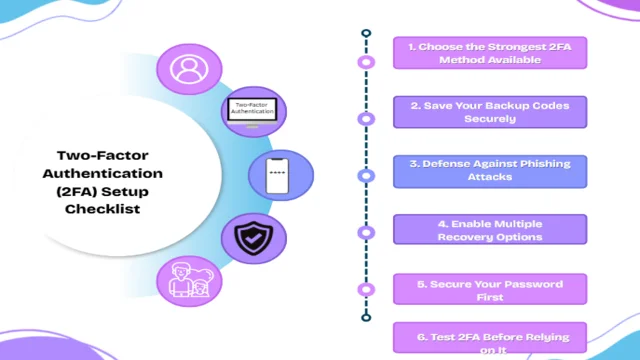
Enabling Two-Factor Authentication is one of the smartest moves to secure online accounts. But setting it up incorrectly — or without understanding the details — can leave you frustrated or even locked out.
Here’s a beginner-friendly checklist with explanations to enable 2FA like a pro.
1. Choose the Strongest 2FA Method Available
Not all 2FA methods are equally secure.
- Best (Most Secure): Hardware security keys like YubiKey or Google Titan. These are physical USB or NFC devices that you plug into your computer or tap on your phone to verify your identity. They’re almost impossible to phish.
- Better (Highly Secure): Authenticator apps like Google Authenticator, Authy, or Microsoft Authenticator. They generate unique time-based codes every 30 seconds on your phone.
- Good (Least Secure): SMS-based 2FA, where you receive codes via text message. Convenient but vulnerable to SIM-swapping attacks. Use this only as a backup.
Tip: Always select the strongest option your service supports.
2. Save Your Backup Codes Securely
When you enable 2FA, most platforms (Google, Facebook, Instagram, banks) will give you recovery codes. You can use single-use passwords if you lose access to your authentication method.
- Store them offline in a safe location — such as a locked drawer, encrypted USB drive, or password manager.
- Avoid storing them in plain text on your phone or computer.
Why it matters: If you lose your phone without backup codes, you could be permanently locked out of your account.
3. Keep Your Factors Separate
Your Password and second authentication method should not be on the same device.
- If your phone is both your password storage and your authenticator, losing it means losing both factors.
- Ideally, use a different device for authentication or a hardware key separate from your primary device.
Example: Keep your Password in a password manager on your laptop and your authenticator app on your phone.
4. Enable Multiple Recovery Options
Even with backup codes, you should have alternative recovery methods:
- Add a backup phone number or email address.
- Register more than one hardware key.
- Install your authenticator app on a backup device (using the app’s secure sync feature if supported).
Why it matters: If one method fails, you’ll have a fallback without waiting days for account recovery.
5. Secure Your Password First
Before enabling 2FA, ensure your primary Password is strong:
- Use at least 12–16 characters with a mix of uppercase, lowercase, numbers, and symbols.
- Avoid dictionary words and personal details (birthdays, names, etc.).
- Store passwords in a trusted password manager like Bitwarden, 1Password, or LastPass.
Why it matters: 2FA is your second line of defense, but if your first line (Password) is weak, you’re still at risk.
6. Test 2FA Before Relying on It
After enabling 2FA:
- Log out and log back in to ensure it’s working correctly.
- Test your backup codes to confirm they’re valid.
Why it matters: You don’t want to find out 2FA is broken when you urgently need access to your account.
7. Update 2FA When Changing Devices
When switching phones or devices:
- Before wiping your old phone, transfer your authenticator accounts to your new one.
- If using hardware keys, re-register them with your accounts.
Why it matters: If you forget this step, you may lose access to your accounts entirely.
8. Stay Alert Against Phishing
Even with 2FA, phishing attacks can trick you into entering your codes on fake websites.
- Always check the website URL before logging in.
- Consider hardware security keys — they won’t work on fake sites.
Why it matters: Hackers often try to bypass 2FA by stealing your code in real-time.
Bottom Line: 2FA actively strengthens your online security, but you must configure it carefully. Following this checklist will ensure maximum protection without the risk of accidental lockouts.
Two-Factor Authentication in Business & Enterprise Settings. Why It’s Essential Today
In modern times, cyber threats have evolved far beyond the lone hacker sitting in a dark room. Now, we’re facing organized cybercrime groups, state-sponsored attacks, and AI-powered hacking tools that can guess passwords, launch phishing campaigns, and exploit human error in seconds.
Passwords no longer suffice, so Two-Factor Authentication (2FA) is a frontline defense for businesses.
Why 2FA Is Crucial for Businesses in Modern Times
Businesses face advanced threats like AI-powered phishing and ransomware. 2FA is critical for:
- Credential Theft Protection: Blocks unauthorized access to employee accounts.
- Phishing Defense: Stops fake login attempts, even with stolen passwords.
- Compliance: Meets regulatory standards (e.g., GDPR, HIPAA).
- Remote Work Security: Protects data accessed on public Wi-Fi.
- High-Value Assets: Secures financial systems and client data.
Business Implementation Tips
- Enforce 2FA company-wide via SSO (e.g., Okta, Azure AD).
- Use hardware keys for admins; apps for general staff.
- Train employees on phishing and backup protocols.
Example: A marketing agency uses 2FA on Google Workspace and Slack to prevent a breach after a password leak.
How Businesses Can Implement 2FA Effectively in 2025
In 2025, businesses face advanced cyber threats like AI-driven phishing, ransomware, and credential theft. Two-factor authentication (2FA) strengthens security by requiring two verification steps, protecting sensitive data, and ensuring compliance with regulations like GDPR and HIPAA. This section outlines six actionable steps to deploy 2FA effectively, safeguarding your business from account takeovers.
1. Enforce 2FA Across the Organization
Mandate 2FA for all employees, especially those accessing admin dashboards, financial systems, or client data. It prevents breaches even if passwords leak.
Example: Require 2FA for Google Workspace, Slack, and CRM tools to secure communications and data.
2. Integrate 2FA with Single Sign-On (SSO)
SSO platforms like Okta, Microsoft Azure AD, or Google Workspace to streamline logins. Employees authenticate once with 2FA, gaining secure access to all business apps.
Benefit: Simplifies workflows while maintaining robust cybersecurity.
3. Choose Secure 2FA Methods
Select the right 2FA type based on account sensitivity:
- Hardware Keys (e.g., YubiKey, Google Titan): These are used by admins to resist phishing.
- Authenticator Apps (e.g., Google Authenticator, Duo): Deploy for general staff.
- SMS Codes: Use only as a backup due to SIM-swapping risks.
Tip: Prioritize apps over SMS for secure account protection.
4. Apply Role-Based Access Control (RBAC)
Combine 2FA with RBAC to limit access. Grant employees only the permissions they need.
Example: Finance teams use 2FA for payment systems; developers secure code repositories with 2FA.
5. Train Employees Regularly
Educate staff on phishing risks, device security, and backup code storage. Conduct quarterly training and send simulated phishing tests to reinforce awareness.
Resource: Learn phishing defenses in our cybersecurity guide.
6. Establish Backup and Recovery Protocols
Create a transparent recovery process before deploying 2FA:
- Provide backup codes stored in an encrypted password manager (e.g., 1Password Teams).
- Offer IT support for urgent lockouts.
- Use secondary hardware keys or alternate emails for recovery.
Example: A marketing agency enforces 2FA on Google Workspace and Slack. Admins use YubiKeys, staff use authenticator apps, and SSO ensures seamless access. Backup codes in 1Password prevent lockouts. Result: Attackers with stolen passwords can’t breach systems without the second factor.
Why 2FA Matters for Businesses
Cyberattacks in 2025 target businesses relentlessly, with 24% of breaches involving stolen credentials (Verizon DBIR 2024). 2FA reduces this risk, protects client data, ensures compliance, and builds trust, proving your business prioritizes cybersecurity.
The Evolution of 2FA: From Passwords to Passwordless Security in 2025
Two-factor authentication (2FA) has transformed online security since its inception. This section explores its past, present, and future, highlighting how 2FA evolves to counter 2025’s cyber threats like AI-driven phishing and ransomware.
Past: The Rise of 2FA
2FA emerged in the early 2000s as a stronger alternative to passwords. It required a second verification, like a code sent via email or SMS, ensuring hackers couldn’t access accounts with a stolen password. However, early methods had flaws, hackers intercepted SMS codes or exploited SIM-swapping attacks, compromising security.
Present: Smarter, Faster 2FA
Today, 2FA balances security and convenience. Authenticator apps (e.g., Google Authenticator) generate time-based codes offline, while hardware keys like YubiKey resist phishing. Biometric scans—fingerprints or facial recognition, speed up smartphone logins. These methods make 2FA more secure and user-friendly than SMS, protecting accounts like Gmail or banking apps.
Future: Passwordless and Invisible Security
By 2025, 2FA will drive a passwordless era. Technologies like Apple’s Passkeys replace passwords with biometrics or hardware keys, eliminating password-related risks. Invisible security takes this further, systems analyze typing patterns, login locations, or device handling to verify identity seamlessly. Suspicious logins (e.g., from a new country) trigger instant checks, like a face scan, ensuring robust protection without disrupting users.
AI’s Role in 2FA’s Future
Artificial intelligence powers adaptive authentication, tailoring verification to user behavior. For example, AI detects a 2 a.m. login from abroad and prompts a biometric check, reducing unnecessary interruptions. By 2030, AI-enhanced 2FA will counter deepfake attacks, making secure logins nearly unbreakable.
The Future of 2FA: Passwordless and AI-Driven
2FA is evolving toward passwordless authentication and invisible security:
- Passwordless Login: Biometrics or hardware keys replace passwords (e.g., Apple’s Passwords, adopted widely by 2025).
- AI and Adaptive Authentication: AI analyzes login patterns (e.g., time, location) to trigger 2FA only for suspicious attempts.
- Behavioral Biometrics: Systems verify you via typing speed or device handling, reducing manual steps.
By 2030, AI-driven 2FA could make logins seamless yet ultra-secure, countering deepfake and bot attacks.
Two-Factor Authentication (2FA) vs Multi-Factor Authentication (MFA) — Comparison Chart
This chart compares Two-Factor Authentication (2FA) and Multi-Factor Authentication (MFA) to help you understand the difference between security approaches.
| Feature | 2FA (Two-Factor Authentication) | MFA (Multi-Factor Authentication) |
|---|---|---|
| Definition | Uses exactly two layers of security | Uses two or more layers of security |
| Security Layers | Two factors only (e.g., Password + code) | Two or more factors (e.g., Password + code + biometrics) |
| Ease of Use | Simple to set up and quick to use | May be slower and require more setup |
| Best For | Everyday personal accounts and small businesses | Highly sensitive data and enterprise-level security |
| Examples | Password + SMS code, Password + Authenticator app | Password + Smart card + Fingerprint scan |
Frequently Asked Questions About 2FA
Is Two-Factor Authentication really safe?
Yes, 2FA is highly effective in preventing unauthorized access. While no security method is perfect, it dramatically reduces the risk of account compromise.
What is the best type of Two-Factor Authentication to use?
Hardware keys are the most secure, followed by authentication apps like Google Authenticator or Authy. SMS codes are less safe but better than having no 2FA at all.
Can Two-Factor Authentication be hacked?
Although rare, attackers can bypass 2FA through phishing or SIM-swapping. Using secure methods like authenticator apps or hardware keys reduces this risk.
What happens if I lose my 2FA device?
Backup codes or alternative authentication methods provided by services ensure you can regain access to your accounts. Store backup codes securely.
Should I enable 2FA on all accounts?
Enable 2FA on accounts containing personal, financial, or sensitive data. Email, banking, social media, and cloud storage accounts are top priorities.
Does Two-Factor Authentication slow down logins?
The login process may add a few extra seconds, but the security benefits outweigh the slight delay. Modern authentication apps make this step almost instantaneous.
Final Thoughts
In 2025, with cyber threats like AI-driven phishing and ransomware rising, two-factor authentication is non-negotiable. It’s a simple, effective way to secure your digital life, from personal accounts to business systems. Pair 2FA with strong passwords and safe browsing habits to stay ahead of hackers.
Enable 2FA today, start with your email and banking apps.