In today’s digital world, encountering computer issues is inevitable. Whether it’s a slow PC, system crashes, or hardware malfunctions, knowing how to troubleshoot computer problems can save you time, money, and frustration. This guide provides step-by-step solutions to common computer errors, helping you diagnose and resolve issues such as the Blue Screen of Death (BSOD), overheating, and malware infections. We’ll cover everything from basic fixes to advanced diagnostics, incorporating essential computer repair tips and software troubleshooting techniques.
By the end of this article, you’ll have the tools to handle most PC repair scenarios on your own. Let’s dive in and get your system running smoothly again.
Table of Contents
Understanding Common Computer Problems
Before jumping into fixes, it’s crucial to identify the root cause of your computer issues. Common problems often stem from hardware failures, software glitches, or external factors, such as viruses. Recognizing symptoms early can prevent minor errors from escalating into major system crashes.
Signs of Computer Issues
- Slow Performance: Your PC takes an excessively long time to load programs or respond to commands.
- Frequent Crashes or Freezes: The system locks up, requiring a forced restart.
- Blue Screen Errors: Also known as BSOD, these indicate serious hardware or driver problems.
- No Power or Boot Issues: The computer won’t turn on or gets stuck at the loading screen.
- Internet Connectivity Problems: Wi-Fi drops or pages won’t load despite a stable connection.
- Overheating: The fans run loudly, and the device feels excessively hot to the touch.
- Strange Noises or Error Messages: Clicking sounds from the hard drive or pop-up warnings.
These symptoms often overlap with related issues, such as malware detection, driver updates, or storage overload. Using a systematic approach to diagnose computer errors ensures efficient resolution.
Step-by-Step Process of Troubleshoot Computer Problems
Effective troubleshooting follows a logical methodology: identify, isolate, and resolve the issue. Start with the simplest steps and escalate as needed. This “divide and conquer” strategy is a top tip for IT technicians in 2025.
1. Restart Your Computer
A simple reboot can resolve up to 80% of temporary glitches by clearing memory and resetting processes.
- Shut down your PC completely.
- Wait 30 seconds, then power it back on.
- Check if the issue persists.
If restarting doesn’t help, note any error codes displayed—these are key for further diagnostics.
2. Check for Software Updates
Outdated software is a common culprit for system instability. Ensure your operating system and drivers are up to date.
- For Windows: Go to Settings > Update & Security > Windows Update > Check for updates.
- Update drivers via Device Manager (right-click Start > Device Manager > Expand categories > Right-click device > Update driver).
- Run app updates from the Microsoft Store or individual program settings.
Pro Tip: Schedule automatic updates to prevent future software problems.
3. Run a Virus Scan and Malware Check
Malware infections can cause slow computer performance and erratic behavior. Use built-in tools or third-party software for thorough scans.
- Windows Defender: Search for “Virus & threat protection” > Scan options > Full scan.
- Recommended Tools: Malwarebytes or Avast for deeper malware detection.
- Quarantine or delete any threats found.
Regular virus removal scans are essential, especially if you notice unusual pop-ups or redirects.
4. Diagnose Hardware Problems
If the software checks out, focus on hardware troubleshooting.
- Check Connections: Ensure power cords, cables, and peripherals are securely plugged in.
- Test for Overheating: Clean dust from vents and fans; use monitoring software like HWMonitor to check temperatures.
- Run Hardware Diagnostics: On Windows, use the built-in Memory Diagnostic tool (search for “mdsched”) or CHKDSK for disk errors (in the Command Prompt, type “chkdsk /f /r”).
- Peripheral Issues: For non-working keyboards or mice, try using a different USB port or testing on another device.
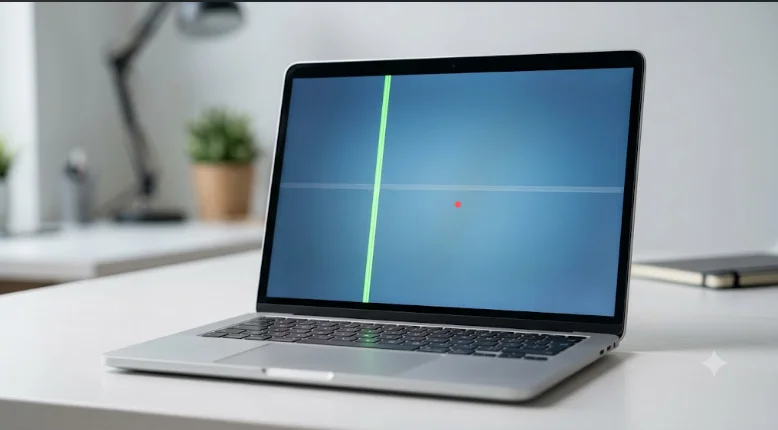
Common hardware failures include faulty RAM or hard drives. If your display is acting up with lines running across the screen, see our step-by-step guide on how to fix dead pixel lines on a laptop to determine if it’s a cable or panel issue. If you suspect a problem, reseat the components carefully or consult a professional for replacements.
5. Optimize System Performance
For slow PC issues, clear clutter and optimize resources.
- Free up disk space: Use Disk Cleanup (search “disk cleanup”) to remove temporary files.
- Manage startup programs: Task Manager (Ctrl + Shift + Esc) > Startup tab > Disable unnecessary apps.
- Upgrade hardware: Consider adding RAM or switching to an SSD for faster load times.
These steps address storage overload and resource-intensive processes, which are common in 2025 with the increasing use of AI-driven applications.
Addressing Specific Computer Issues
When facing computer problems, pinpointing the issue and applying targeted solutions is key. Below, we delve into common issues such as a computer not starting, slow PC performance, the Blue Screen of Death (BSOD), internet connectivity problems, and audio/display issues. Each section includes actionable steps, enriched with LSI keywords such as PC diagnostics, hardware troubleshooting, and software fixes, for SEO and semantic optimization.
Computer Won’t Turn On
A computer that refuses to power on can stem from power supply issues, faulty cables, or internal hardware problems. Here’s how to troubleshoot:
- Inspect power connections: Verify that the power supply unit (PSU), cord, and wall outlet are functioning properly. A loose or damaged cable can prevent startup.
- Test alternative power sources: Swap the power cable or, for laptops, check the battery health and charger functionality with a multimeter or replacement charger.
- Check internal components: Ensure that the RAM modules, motherboard, and other hardware are securely seated. Loose connections or a faulty motherboard may require professional hardware diagnostics.
Slow Computer Performance
A sluggish PC can significantly frustrate productivity, often due to resource overload or outdated hardware. Optimize performance with these steps:
- Close unnecessary programs: Use the Task Manager (Ctrl+Shift+Esc) to end resource-intensive background processes that drain CPU or memory.
- Free up disk space: Delete temporary files, clear browser caches, or uninstall unused apps via Control Panel. Tools like CCleaner can streamline this process.
- Upgrade hardware: Switch to a Solid State Drive (SSD) for faster boot times or add more RAM for smoother multitasking. These upgrades provide a substantial performance enhancement for system optimization.
Blue Screen Errors (BSOD)
A Blue Screen of Death (BSOD) indicates critical system errors, often associated with drivers or hardware. Follow these steps:
- Record the error code: Note the BSOD stop code (e.g., 0x0000007E) displayed on the screen for precise error diagnostics.
- Update software: Install the latest Windows updates and device drivers from the manufacturer’s website to resolve driver conflicts.
- Run hardware tests: Use tools like MemTest86 to check for RAM errors and CrystalDiskInfo to check hard drive health. Overheating or faulty hardware may require PC repair services.
No Internet Connection
Internet connectivity issues can disrupt work or browsing, often due to network misconfigurations or hardware failures. Troubleshoot with:
- Restart networking devices: Power cycle your modem and router to reset the connection. Wait 30 seconds before powering them back on.
- Use built-in tools: Run the Windows Network Troubleshooter (Settings > Network & Internet > Status) to automatically diagnose and fix network problems.
- Contact your ISP: If the issue persists, check with your Internet Service Provider (ISP) to determine if there are any outages or network configuration issues affecting your connection.
Sound or Display Problems
Issues with no sound or display errors often arise from driver issues or faulty connections. Resolve them by:
- Updating drivers: Download and install the latest audio drivers or graphics drivers from the manufacturer’s website to fix compatibility issues.
- Checking for color distortions: If your screen functions but shows unusual discoloration, look into how to fix a yellow tint display to restore normal color balance.
- Check external connections: Ensure monitors, speakers, or HDMI cables are securely plugged in. Loose or damaged cables can cause audio issues or display failures.
- Test alternate hardware: Use a different cable, monitor, or speaker to rule out hardware malfunctions. If issues persist, consider seeking professional assistance with hardware troubleshooting.
By addressing these common PC issues with targeted troubleshooting techniques, you can resolve most problems efficiently and keep your system optimized.
Advanced Troubleshooting Techniques
For persistent problems, dive deeper with these computer repair tips.
Using Built-in Diagnostic Tools
- Event Viewer: Search “Event Viewer” to check logs for error details (Administrative Events).
- System File Checker: Run “sfc /scannow” in Command Prompt (admin mode) to repair corrupted files.
- Performance Monitor: Track CPU, memory, and disk usage for bottlenecks.
Addressing Specific Errors
- Blue Screen of Death (BSOD): Note the stop code (e.g., 0x0000007E) and search Microsoft’s support site for fixes. Common causes: faulty drivers or hardware.
- No Internet: Reset router, flush DNS (Command Prompt: ipconfig /flushdns), or update network adapters.
- Audio or Video Issues: Update graphics/sound drivers or check for conflicts in Device Manager.
When to Seek Professional Help
If DIY fixes fail, it might be time for expert intervention. Signs include persistent hardware noises, liquid damage, or complex issues like motherboard failures. Visit a certified repair shop or use remote support services.
Preventive Maintenance for Long-Term Health
Prevent computer issues before they start with these habits:
- Back up data regularly using cloud services like OneDrive or external drives.
- Install reliable antivirus software and enable firewalls.
- Keep your workspace dust-free and ensure proper ventilation.
- Monitor system health with tools like Speccy for specs and alerts.
By incorporating these practices, you’ll minimize downtime and extend your device’s lifespan.
Comparison of Common Antivirus Tools
To aid in virus removal, here’s a quick comparison:
| Tool | Features | Cost | Best For |
| Windows Defender | Built-in scans, real-time protection | Free | Basic users |
| Malwarebytes | Malware detection, ransomware block | Free/Premium | Deep scans |
| Avast | Virus scan, firewall, password manager | Free/Premium | Comprehensive security |
| Norton | AI-driven threats, VPN included | Premium | Advanced protection |
Choose based on your needs for optimal malware detection.
Frequently Asked Questions (FAQ)
What are the first steps to fix a slow computer?
Start with restarting, running a virus scan, and clearing temporary files. If issues persist, check for driver updates or hardware upgrades.
How do I distinguish between hardware and software problems?
Boot into Safe Mode (press F8 or Shift + Restart). If the issue resolves, it’s likely software-related; otherwise, focus on hardware troubleshooting.
Why does my computer keep crashing?
Crashes can result from overheating, faulty RAM, or malware. Use Event Viewer to identify error codes and apply targeted fixes.
Can I troubleshoot internet connectivity issues on my own?
Yes, restart your modem/router, check cables, and run network diagnostics (Settings > Network & Internet > Status > Network troubleshooter).